Video Trimmer: Cut Video Online in Your Browser with No Uploads
How to use Video Trimmer to cut and trim clips right in your browser with a timeline scrubber, quality options up to 8 Mbps, and local WebM export — your file never leaves your machine.
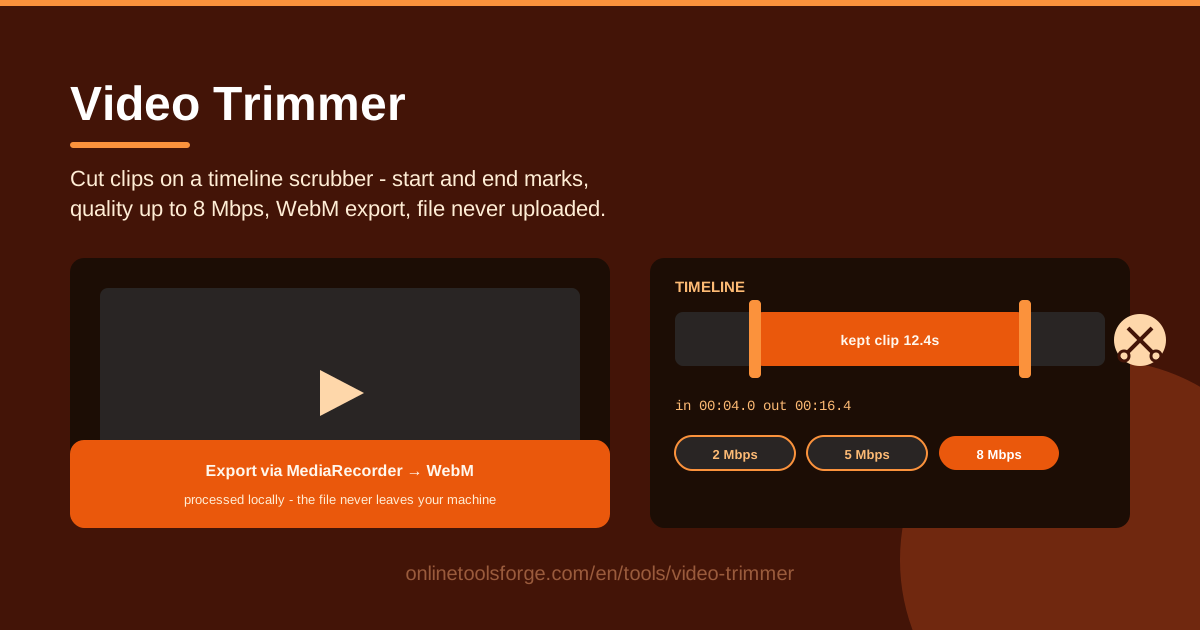
Table of Contents
Every video project eventually hits the same wall: the good footage is buried inside a much longer file. A screen recording with a minute of dead air up front, a phone clip with a shaky opening, a camera file that keeps rolling long after the action ends. The Video Trimmer fixes this without installing software and without uploading anything.
The tool opens your video directly in the browser, gives you a timeline scrubber, and lets you drag start and end marks around the section you want to keep. Quality options go up to 8 Mbps, and the export runs through the browser's MediaRecorder API to produce a clean WebM file. Because everything is processed locally, the file never leaves your machine.
This guide covers how the tool works, when a browser-based trimmer is the right call, and the practical details — bitrates, formats, and limitations — worth knowing before your first cut.
Why Use Video Trimmer?
- No upload for large files. Desktop videos regularly run from hundreds of megabytes to several gigabytes. Traditional online cutters force you to upload the entire file before editing, which often takes longer than the cut itself. Here, nothing is transferred at all.
- Private by design. Confidential footage — client demos, security camera clips, internal training recordings — stays on your hardware. There is no server copy to breach, retain, or mine.
- Fast turnaround. Loading a file from disk is nearly instant, and export processes only the seconds between your marks instead of waiting in a cloud encoding queue.
- Precise timeline control. The scrubber plus start and end mark handles let you cut where the action actually happens, far more accurately than typing rough timestamps into a web form.
- Quality you control. Bitrate options up to 8 Mbps let you trade file size against sharpness deliberately, instead of accepting whatever preset a service picked for you.
- No install, no account. It runs in any modern desktop browser on Windows, macOS, or Linux, with no sign-up and no watermarks.
Key Features
| Feature | What it does |
|---|---|
| Local video loading | Opens a video straight from your disk with a preview player — no upload step |
| Timeline scrubber | Scrub through the clip to find the exact moments worth keeping |
| Start and end marks | Two draggable handles define the kept section, highlighted on the timeline |
| Quality options to 8 Mbps | Bitrate choices match output quality to your platform and target file size |
| MediaRecorder export | Re-encodes only your selection and saves it as a WebM file |
| Fully local processing | Every decode, trim, and encode happens on your machine; the file never leaves it |
- The kept section stays visually highlighted between the two marks, so you always see exactly what the export will contain before you commit.
- Quality is applied at export time, so you can preview the trim first and only then decide how much bitrate the clip deserves.
- Because export uses MediaRecorder, output size scales predictably at roughly bitrate times duration, which makes staying under a size cap easy to plan.
How to Use Video Trimmer
- Load the video. Open the tool and pick a video from your computer. The preview player appears and the file is decoded locally in your browser.
- Scrub the timeline. Drag the playhead along the timeline to move through the clip and find where your good footage begins.
- Set the start and end marks. Place the start mark where the section you want begins and the end mark where it finishes. The highlighted span between the handles is exactly what will be exported.
- Pick the quality. Choose a bitrate option up to 8 Mbps. Higher settings keep more detail but produce bigger files; lower settings are fine for social clips.
- Export the WebM. Hit export and the browser re-encodes your selection through MediaRecorder, then saves the trimmed clip as a WebM file to your downloads.
Browser Video Trimming Explained
Re-encoding, not stream copying. Desktop editors often trim by stream copy: they keep the compressed video bytes and merely rewrite the container so playback starts and ends at your marks. The browser API behind this tool works differently. Your selection is played through a capture pipeline, and MediaRecorder re-encodes those frames into a brand-new file. The trade-off is that quality is bounded by the new encode — though at 8 Mbps it is excellent for most uses — in exchange for a clean, self-contained output that does not depend on the source's keyframe positions.
Why WebM is the native output. MediaRecorder's widely supported output in Chrome, Edge, and Firefox is WebM, typically VP8 or VP9 video with Opus audio. WebM is an open, royalty-free container that every modern browser plays natively and platforms like YouTube accept directly. Recording straight to MP4 exists in some browsers but is inconsistent, so WebM is the dependable choice; convert afterward if you specifically need MP4.
What the bitrate options actually change. Bitrate is how many bits per second the encoder may spend on your video. Higher values preserve fine detail — text in screen recordings, faces, fast motion — and produce larger files. At 8 Mbps a minute of video lands around 60 MB; at 2 Mbps, closer to 15 MB. Choosing quality is really choosing your destination: archival clips earn more bits, disposable social posts need fewer.
Why local processing wins for confidential and huge files. A cloud cutter must see your footage to process it. NDA demos, security camera exports, medical or legal recordings, and family footage all gain risk the moment they are uploaded. Local processing also removes the bandwidth wall: a 3 GB camera file that would take an hour to upload opens in seconds from disk.
Current limitations to know. Input support depends on what your browser can decode — MP4/H.264 and WebM files work broadly, while HEVC on Windows or some ProRes and AV1 variants may not load. Multi-track audio is re-encoded into the export's single Opus track rather than kept separate, and DRM-protected streams from streaming services will not open at all.
Practical Use Cases
Cutting dead air from screen recordings
Screen captures almost always start before the demo begins and end after the presenter stops talking. Rather than shipping colleagues a ten-minute recording with seven minutes of value, load it in the Video Trimmer, mark the section where you are actually demonstrating, and export a tight WebM. Recipients get a smaller file, and the important part sits front and center.
Trimming security camera clips privately
Camera footage is exactly the kind of file you should never hand to a random website: it shows your home, your family, your schedule. Because the trim happens on your machine, you can cut the fifteen relevant seconds out of a ten-minute export and share only that — with no third party ever holding the original.
Quick social clips
Short-form platforms reward fast turnaround. Load a longer video, set marks around the funniest or most useful thirty seconds, pick a moderate bitrate, and export. The WebM drops straight into most editors and upload queues, and the whole cycle takes less time than opening a heavyweight editor would.
Trimming before uploading to a platform with size caps
Email attachments, ticketing systems, and chat apps all enforce maximum file sizes. Instead of re-shooting or compressing blind, trim the clip to only the essential span first — cutting duration reduces size multiplicatively — then fine-tune the bitrate if you still need to shave off megabytes.
Best Practices
- Set your marks while the clip is playing. Scrubbing while watching reveals natural cut points, which is much faster than pausing repeatedly and guessing timestamps.
- Choose bitrate by destination. Around 8 Mbps for archival footage or screen-capture detail, 3-5 Mbps for general sharing, and 2 Mbps or less when a strict size cap rules.
- Expect a re-encode, not a stream copy. Because MediaRecorder re-encodes, run a short test export first on high-motion or text-heavy sources and raise the quality if detail suffers.
- Trim before compressing. If the file must get smaller, cutting duration first is always more efficient than dropping quality on footage you will mostly discard anyway.
- Keep the original file untouched. The export is a new WebM; your source stays available for future trims with different boundaries or bitrates.
- Close heavy browser tabs during export. Re-encoding is CPU work, and a quiet machine finishes faster with fewer dropped frames.
Ready to make your first cut? Open the Video Trimmer, load any video from your computer, and you can have a clean, trimmed WebM in under two minutes — no upload, no account, no software to install. Your footage stays on your machine from the first frame to the final export.
Related Tools You Might Like:
- Video Cropper — reframe your shot by cropping the frame after you trim the length.
- Audio Trimmer — cut and trim audio files with the same local, no-upload approach.
- Screen Recorder — capture your screen in the browser, then trim the recording down.
Happy trimming!
Frequently Asked Questions
Q: Does the Video Trimmer upload my video anywhere? A: No. The file is read from your disk and decoded inside your browser. Trimming and export happen entirely on your machine, so the footage never leaves it.
Q: Why does the export come out as WebM instead of MP4? A: WebM is the format the browser's MediaRecorder API writes natively and reliably. It plays in every modern browser and is accepted by platforms like YouTube. If you specifically need MP4, run the trimmed file through a converter afterward.
Q: What quality setting should I pick? A: Match the bitrate to your purpose. Use the top options around 8 Mbps for screen recordings or detailed footage, mid-range settings for general clips, and lower settings when file size matters more than fidelity.
Q: Can it handle a very large video file, like a multi-gigabyte camera export? A: Yes — that is where local processing shines. There is no upload, so file size is limited mainly by your machine's memory rather than bandwidth, and trimming a selection from a large file works the same as from a small one.