Video Compressor: Shrink Videos In Your Browser Without Uploading
Compress videos locally with target bitrate, resolution scale, and WebM output via MediaRecorder. No upload, no queue — free and private in your browser.
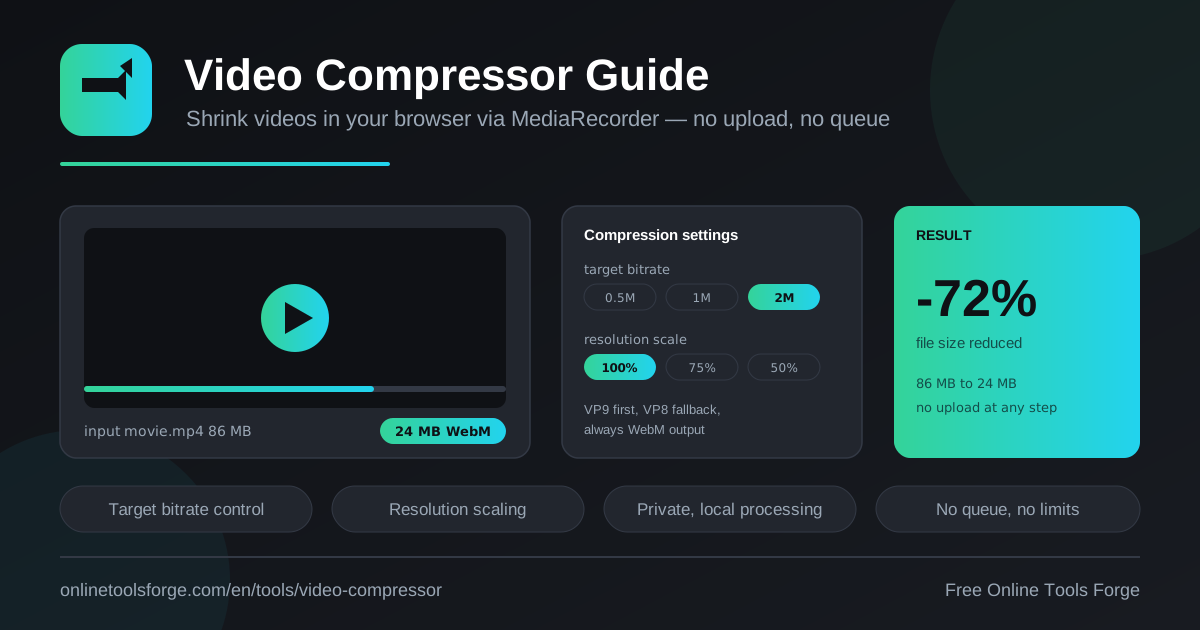
Table of Contents
Video files grow faster than you expect. A two-minute phone clip can top 300 MB, a short screen recording can balloon into gigabytes, and the moment you try to attach that file to an email or upload it to a chat app, you hit a hard size limit. The free Video Compressor solves this without sending your footage anywhere: it re-encodes your video entirely inside your browser.
Open the tool, load a video, and pick a target bitrate plus a resolution scale. The tool plays your clip once through the MediaRecorder pipeline and hands you a smaller WebM file. Nothing is uploaded, there is no queue, and the whole job runs on your own machine.
This guide explains what each setting does to size and quality, and which presets fit common situations.
Why Use the Video Compressor?
- Your videos never leave your device. Everything runs locally, so private footage such as family clips and internal demos stays on your machine.
- No uploads and no queues. Cloud services make you transfer gigabytes and wait in a processing queue. Here the work starts the moment you press the button.
- Predictable file sizes. Target bitrate presets of 0.5, 1, 2, and 4 Mbps let you estimate the output size before you start.
- Resolution scaling when detail matters less. Drop to 75 or 50 percent to shrink pixel dimensions and cut the bitrate you actually need.
- Modern, widely supported output. The tool records VP9 WebM with a VP8 fallback, a combination every major browser handles natively.
- Instant before-and-after proof. The result view shows the original size next to the compressed size, so you see exactly what you saved.
Key Features
| Feature | What it does |
|---|---|
| Local re-encoding | Loads your file and re-encodes it in the browser with the MediaRecorder API; the source video never touches a server. |
| Target bitrate | Four presets (0.5, 1, 2, or 4 Mbps) control how many bits each second consumes. |
| Resolution scale | Keep 100 percent, or downscale to 75 or 50 percent to cut pixel count and file size together. |
| WebM output | Records VP9 first, with an automatic VP8 fallback where VP9 is unavailable. |
| Size comparison | Shows the before and after file sizes side by side, so the savings are visible immediately. |
- The 0.5 Mbps preset suits strict size limits; 4 Mbps approaches streaming quality for 1080p content.
- Halving resolution cuts the required bitrate by far more than half, because far fewer pixels need describing.
- Output is always WebM, so remember the container changes even though the content does not.
How to Compress a Video
- Open the video compressor and load your video file. It is decoded locally; nothing crosses the network.
- Pick a target bitrate. Use 2 Mbps as a balanced default, 0.5 Mbps for the smallest possible file, or 4 Mbps when quality is the priority.
- Choose a resolution scale. Keep 100 percent for text-heavy screen recordings, or select 75 or 50 percent for footage watched on phones.
- Start the compression. The tool plays the video through the re-encoding pipeline once, which takes roughly as long as the clip itself.
- Check the before-and-after sizes and download the finished WebM file.
How Browser-Based Compression Works
Most online compressors are thin wrappers around a server: your file travels to their machine, gets squeezed, and travels back. This tool works differently. It uses the MediaRecorder API, the same browser capability that powers webcam recording, to capture your video as it plays and encode the frames on the fly into a fresh file. Your browser already ships with VP9 and VP8 encoders, so no plugin, download, or server round-trip is needed.
Target bitrate is the main size dial. Bitrate is the number of bits used to encode one second of video, so total size is simply bitrate multiplied by duration:
2 Mbps × 60 seconds = 120 megabits = 15 MB per minute
An 86 MB source clip re-encoded at 2 Mbps for two minutes therefore lands near 24 MB — a saving of about 72 percent. Lower the bitrate and quality softens gradually: first fine detail, then motion smoothness, and finally visible blockiness in fast action.
Resolution scaling compounds the savings. Scaling to 75 percent removes roughly 44 percent of the pixels, and 50 percent removes 75 percent of them. Fewer pixels make each frame cheaper to encode, which is why a 720p file at 1 Mbps often looks better than a 1080p file at the same bitrate.
On codecs, the tool requests VP9 first because it delivers noticeably better quality per bit than VP8, especially on screen recordings and animation. If your browser or hardware cannot record VP9, it falls back to VP8, which is older but universally playable. The WebM container plays in Chrome, Firefox, Edge, Safari, and VLC without extra software.
Privacy follows from this architecture. Every frame is decoded and re-encoded inside your own browser process, so there is no moment when your video exists on a third-party server: no upload to intercept, no storage bucket that could leak, and no queue where anyone could glimpse your footage.
Practical Use Cases
Email Attachments That Fit
Major email providers cap attachments near 20 to 25 MB, and corporate mail servers are often stricter. A five-minute clip compressed at 0.5 Mbps produces roughly a 19 MB file that slips under the limit, so you deliver the footage directly instead of a cloud link nobody clicks.
Chat App Uploads That Go Through
Messaging platforms either crush large videos into unwatchable mush or reject anything above a hard ceiling. Compressing first at 1 or 2 Mbps keeps your file within upload limits while you stay in control of the quality.
Screen Recordings Without the Bulk
Screen captures are wasteful: flat backgrounds encode beautifully at low bitrates, yet capture tools still record at 8 Mbps or more. Re-encode a ten-minute product demo at 1 Mbps and the file can shrink by 90 percent while on-screen text stays sharp.
Archiving Phone Footage
A year of phone video can fill hundreds of gigabytes. Before moving clips to an external drive or cold storage, run them through the compressor at 2 Mbps with 75 percent scale. You trade detail you will rarely notice for storage space you will definitely appreciate.
Best Practices
- Match the preset to the destination. 4 Mbps for large screens, 2 Mbps as the everyday default, 1 Mbps for chat apps, and 0.5 Mbps when a hard size cap rules.
- Scale before dropping bitrate. If quality suffers at a low bitrate, try 75 percent scale at a slightly higher bitrate — fewer pixels often beat mushy full-resolution frames.
- Test on a short clip first. Compress the first thirty seconds, inspect the result, then process the full video once the settings look right.
- Keep the original. Compression is lossy and one-directional, so archive the source file in case you need a different tradeoff later.
- Prefer a VP9-capable browser. Chrome and Edge typically record VP9, which yields better quality per megabyte than the VP8 fallback.
- Listen before you send. Very low bitrates starve audio along with video, so play the result end to end first.
Start Compressing Videos Today
Size limits are not going away, and neither is the risk of handing gigabytes of personal footage to an anonymous server. The free Video Compressor removes both problems at once: a local, queue-free video size reducer that runs in the browser tab you already have open. Load a clip, pick your settings, and watch the megabytes disappear.
Related Tools You Might Like:
- Video Trimmer — cut clips down before you compress them
- Video to GIF Converter — turn short highlights into looping animations
- Video Thumbnail Generator — pull a cover image from any video
Happy compressing!
Frequently Asked Questions
Q: Is my video uploaded to a server during compression?
A: No. The tool decodes your file, plays it through the MediaRecorder pipeline, and encodes the WebM output entirely inside your browser. No byte of your video ever leaves your device, which makes it safe for confidential footage.
Q: How small will my video get?
A: Output size follows a simple rule: target bitrate multiplied by duration. At 2 Mbps a one-minute video lands near 15 MB, and at 0.5 Mbps near 4 MB. Resolution scaling shrinks files further.
Q: Why is the output a WebM file?
A: WebM is the container produced by browser MediaRecorder encoders, using VP9 where supported and VP8 as a fallback. It plays in all modern browsers and common players such as VLC, and it offers excellent quality per megabyte.
Q: Which bitrate should I choose?
A: Use 2 Mbps as an all-purpose default, 4 Mbps for high-quality viewing on large screens, 1 Mbps for chat and messaging, and 0.5 Mbps when a strict limit such as an email attachment applies.
Q: Does compression reduce quality?
A: Re-encoding at a lower bitrate is lossy, so some detail is always traded for size. A sensible preset and scale keep that loss hard to notice in everyday viewing.