video-fps-converter: Complete Online Guide, Features & Practical Examples
Learn how to use the free video-fps-converter in your browser with step-by-step instructions, practical use cases, and expert tips.
Free Interactive Tool
Video FPS Converter
Convert a video to a different frame rate entirely in your browser: the clip plays into a canvas sampled at the target fps and is re-recorded as WebM via MediaRecorder — no upload, no server, works with any browser-playable input.
Table of Contents
The Video FPS Converter re-times a clip entirely in your browser: the source plays into a canvas that is sampled at the target frame rate, and a MediaRecorder turns the sampled stream into a WebM file. Lowering the fps drops frames for smaller, lighter files; raising it duplicates frames for smoother players that assume high frame rates. Because conversion happens in real time from the decoded video, the result stays in sync with the source picture, and the file never leaves your device.
Whether you are double-checking numbers on a deadline, validating edge cases, or standardizing a repeatable workflow, the video-fps-converter gives you an interactive, zero-install workspace directly in your browser. Every calculation and transformation runs locally on your device — no account registration, no paywalls, and no sensitive inputs uploaded to external servers.
In this guide, we walk through why dedicated tooling beats manual back-of-the-envelope work, explore every feature inside the interface, and cover step-by-step instructions alongside real-world scenarios.
Why Use video-fps-converter?
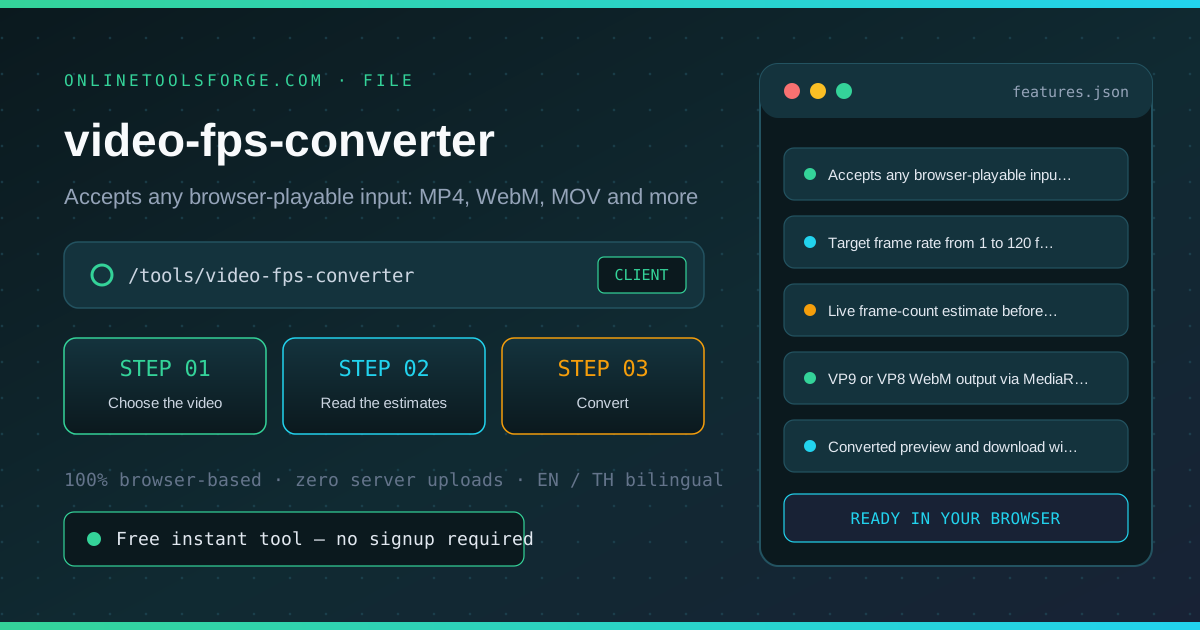
- Immediate Clarity: Any browser-playable input: MP4, WebM, MOV and more.
- Focused Workflow: Target frame rate from 1 to 120 fps.
- Transparent Logic: Live frame-count estimate before you convert.
- Practical Accuracy: VP9 or VP8 WebM output via MediaRecorder.
- Time-Saving Defaults: Converted preview and download without leaving the page.
- 100% Client-Side Privacy: Every operation executes inside your browser session, keeping your data private and responsive even on slow connections.
Key Features
| Feature Area | What It Delivers | Execution Mode |
|---|---|---|
| Capability 1 | Accepts any browser-playable input: MP4, WebM, MOV and more | Instant browser execution |
| Capability 2 | Target frame rate from 1 to 120 fps | Instant browser execution |
| Capability 3 | Live frame-count estimate before you convert | Instant browser execution |
| Capability 4 | VP9 or VP8 WebM output via MediaRecorder | Instant browser execution |
| Capability 5 | Converted preview and download without leaving the page | Instant browser execution |
- Interactive Feedback: Results recalculate on the fly as you adjust inputs, letting you compare multiple scenarios in seconds.
- Bilingual Interface: Switch seamlessly between English and Thai labels whenever you collaborate across multilingual teams.
- Copy & Export Ready: Grab formatted outputs or summaries with one click so you can paste them straight into docs, tickets, or spreadsheets.
How to Use video-fps-converter
From any clip to a re-timed WebM in four steps.
- Open the Tool: Head to the video-fps-converter in any modern desktop or mobile browser.
- Choose the video: Pick any video file your browser can play — MP4, WebM, MOV and more. It never leaves your device.
- Read the estimates: Enter the target frame rate and check the live estimate: expected output frames and how many get dropped or duplicated versus the source.
- Convert: Click Convert. The clip plays once in real time while the canvas is sampled at the target rate — keep the tab visible until it finishes.
- Preview and download: Preview the converted WebM in the player, then download it. Lower fps means smaller files; higher fps means smoother motion.
Core Concepts & How It Works
Understanding the underlying mechanics helps you interpret the output with confidence. The Video FPS Converter re-times a clip entirely in your browser: the source plays into a canvas that is sampled at the target frame rate, and a MediaRecorder turns the sampled stream into a WebM file. Lowering the fps drops frames for smaller, lighter files; raising it duplicates frames for smoother players that assume high frame rates. Because conversion happens in real time from the decoded video, the result stays in sync with the source picture, and the file never leaves your device.
Instead of hiding assumptions behind a single opaque result, the video-fps-converter surfaces intermediate values and clear labels so you can audit how the final answer is assembled:
- Explicit Input Validation: Boundaries and unit expectations are checked immediately, preventing silent NaN or unit-mismatch bugs.
- Deterministic Output: Given the same inputs, the tool produces identical, reproducible results every time — ideal for team reviews and documentation.
- Edge-Case Visibility: Built-in warnings highlight when inputs approach practical limits or require special interpretation.
Practical Use Cases
1. Meeting an upload limit that caps frame rate, not just size
When tackling meeting an upload limit that caps frame rate, not just size, manual spreadsheets and ad-hoc scripts often introduce rounding errors or inconsistent assumptions. With the video-fps-converter, you can load your exact parameters, inspect the breakdown immediately, and verify how each variable affects the outcome before committing to a decision.
2. Converting 60fps phone footage to 30fps for smoother web playback
When tackling converting 60fps phone footage to 30fps for smoother web playback, manual spreadsheets and ad-hoc scripts often introduce rounding errors or inconsistent assumptions. With the video-fps-converter, you can load your exact parameters, inspect the breakdown immediately, and verify how each variable affects the outcome before committing to a decision.
3. Reducing file size by dropping frames no one notices
When tackling reducing file size by dropping frames no one notices, manual spreadsheets and ad-hoc scripts often introduce rounding errors or inconsistent assumptions. With the video-fps-converter, you can load your exact parameters, inspect the breakdown immediately, and verify how each variable affects the outcome before committing to a decision.
4. Checking how a frame rate change looks before committing to it
When tackling checking how a frame rate change looks before committing to it, manual spreadsheets and ad-hoc scripts often introduce rounding errors or inconsistent assumptions. With the video-fps-converter, you can load your exact parameters, inspect the breakdown immediately, and verify how each variable affects the outcome before committing to a decision.
5. Keeping private and client-side videos off any server
When tackling keeping private and client-side videos off any server, manual spreadsheets and ad-hoc scripts often introduce rounding errors or inconsistent assumptions. With the video-fps-converter, you can load your exact parameters, inspect the breakdown immediately, and verify how each variable affects the outcome before committing to a decision.
Best Practices
- Start with realistic baseline values before testing extreme edge cases so you have a clear reference point to compare against.
- Verify units and formatting on every input field — many discrepancies come from mixing percentages, decimals, or measurement units.
- Test sensitivity by changing one variable at a time in the video-fps-converter to see which input has the largest impact on your result.
- Document your assumptions alongside the exported output so teammates can reproduce the exact state later.
- Pair with companion utilities in the same category when your workflow spans multiple conversion or validation steps.
Frequently Asked Questions
Q: How does the frame rate conversion work? A: The clip plays once into a canvas that is sampled at the target frame rate, and a MediaRecorder encodes the sampled stream as WebM (VP9 or VP8). Lower target fps drops frames; higher fps duplicates them — the picture content stays identical to the source.
Q: Which formats can I convert? A: Any video your browser can play: MP4/H.264, WebM, MOV, MKV and more. The output is always WebM with VP9 or VP8 video, which every modern browser and most players support.
Q: Does the conversion keep the audio? A: No — this tool converts the picture only, and the output is a silent video. It is meant for frame-rate changes where the clip will be paired with music or narration afterwards.
Q: How long does a conversion take? A: About as long as the video itself, because the clip plays once in real time while being re-sampled. A one-minute clip converts in roughly one minute; keep the tab in the foreground so the browser does not throttle the canvas.
Try video-fps-converter Today
Ready to streamline your workflow? Open the video-fps-converter now to run instant, accurate calculations right in your browser — completely free and with zero setup required.
Related Tools You Might Like
Happy building and calculating!