Jupyter Notebook Viewer: Read .ipynb Notebooks in Your Browser Without Installing Anything
Jupyter Notebook Viewer opens .ipynb files directly in your browser, rendering code, Markdown, outputs, tables, images, and error tracebacks into a clean report you can export as Markdown.
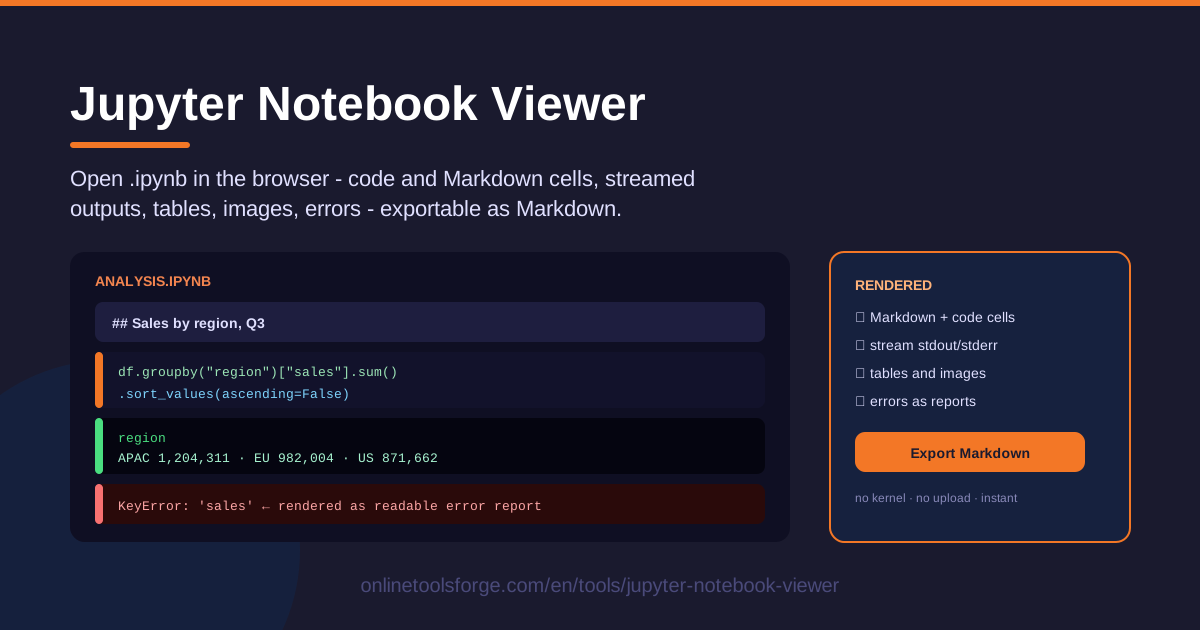
Table of Contents
If you have ever received an .ipynb file from a teammate, downloaded a tutorial from a data science course, or opened a GitHub repository full of analysis notebooks, you already know the frustration: you cannot simply double-click and read the file. The usual advice is to install Jupyter first, which quietly turns into installing Python, managing virtual environments, and picking a kernel — all of that just to look at a document. The Jupyter Notebook Viewer removes that barrier completely. It opens .ipynb notebooks right in your browser and renders them into a clean, readable report.
The viewer works entirely client-side. There is no server round-trip, no kernel, no code execution, and no upload — the notebook never leaves your machine. You get faithful rendering of both code cells and Markdown cells, along with every output the notebook already contains: streamed stdout and stderr, rendered tables, inline images, and error tracebacks formatted the way they look inside a real notebook instead of a wall of escaped JSON strings.
When you finish reading, you can export the whole notebook as Markdown — a one-click way to turn an analysis into documentation, a README section, or content for your knowledge base.
Why Use Jupyter Notebook Viewer?
- Read notebooks without installing Jupyter. No Python distribution, no JupyterLab, no VS Code extensions, no kernel management. If you have a browser, you can read any notebook — which matters when you are on a locked-down work laptop or helping a non-technical stakeholder open a file.
- Keep sensitive notebooks local. Because the file is parsed in your browser and never uploaded, you can safely open notebooks containing client data, internal metrics, or unreleased product analysis without sending them to a third-party server.
- See outputs the way the author intended. Tables render as actual tables, plots and images display inline, and tracebacks appear as readable error reports rather than cryptic escaped strings buried in JSON.
- Turn notebooks into documentation. The Markdown export gives you a portable version of the notebook that drops neatly into wikis, pull request descriptions, or blog drafts.
- Skip the environment headache entirely. The notebook may reference libraries you do not have installed, or a Python version you do not run. A viewer does not care — it renders what is stored, so a machine with zero data science tooling works fine.
- It is fast enough for a quick look. Opening a notebook to check one number should take seconds. With the viewer it does: open the tool, drop the file, read.
Key Features
| Feature | What it does |
|---|---|
| Local .ipynb opening | Opens notebook files directly in the browser — no installation, no upload, no account |
| Markdown cell rendering | Headings, lists, links, emphasis, and code spans render as formatted text |
| Code cell display | Source code from every code cell is shown clearly for review |
| Stream output rendering | stdout and stderr output appears as readable console-style text |
| Tables and images | execute_result and display_data outputs render as tables and inline images |
| Error tracebacks | Error outputs are formatted into a readable report instead of raw JSON |
| Markdown export | Exports the entire notebook — cells and outputs — as a Markdown file |
A few of these deserve a closer look:
- Rendering is strictly read-only. The viewer reconstructs the notebook exactly as it was saved, including execution counts and output order, so what you read is precisely what the author saw when they ran it.
- The Markdown export preserves the flow of the document. Cells keep their original order, outputs are included, and the result is immediately usable in any Markdown-based tool.
- Nothing re-runs, ever. Because there is no kernel, a notebook full of heavy computation or questionable code is still perfectly safe to open — the viewer only reads stored results.
How to Use Jupyter Notebook Viewer
- Open the tool. Visit Jupyter Notebook Viewer in any modern browser. There is nothing to install and nothing to sign up for.
- Drop in your .ipynb file. Drag the notebook from your file manager onto the page, or use the file picker. Parsing happens locally, so even large notebooks open quickly and stay private.
- Read the rendered cells. Markdown cells flow like a document with headings, lists, and links; code cells sit between them with their source displayed in full.
- Inspect outputs and errors. Scroll through the notebook to see everything each cell produced: streamed console text, result tables, inline images, and — when a cell failed — the full error traceback rendered readably, with the exception type and message up front.
- Export as Markdown. When you want a portable copy, use the export button to save the whole notebook as a .md file, ready for your docs, README, or notes.
Inside the .ipynb Format
Understanding what the viewer does is easier once you know what an .ipynb file actually is: a JSON document. At the top level it holds metadata (kernel info, language version, notebook settings), a nbformat version number, and a cells array — and the cells array is the heart of the file. Each cell carries a cell_type of either code or markdown, a source field holding the cell's text as an array of lines, and its own metadata. Code cells add two more fields: execution_count (which run of the kernel produced the output) and outputs (everything that cell printed, returned, or displayed).
Those outputs come in four main types. A stream output holds text written to stdout or stderr — your print() calls, logging, and progress messages — delivered as chunks in order. An execute_result output captures the value of the cell's final expression, which can be plain text, an HTML table, or a base64-encoded image. A display_data output carries rich media that is not the return value of the last expression: Matplotlib plots, rendered DataFrames, and similar. An error output stores the exception name, the message, and the full traceback as an array of strings.
This structure explains why rendering beats reading the raw JSON. Source lines are stored as separate strings in arrays, every quote is escaped, images are base64 blobs no human can eyeball, and the meaningful content is wrapped in layers of keys and brackets. A raw file read is technically possible and practically miserable. A renderer reverses the encoding: it walks the cells in order, turns Markdown back into formatted text, reconstructs code blocks, decodes images, rebuilds tables from HTML or text output, and assembles tracebacks into the error panels you recognize from a real notebook session.
Finally, the no-execution design is a safety feature in itself. Every output you see was generated on the author's machine at save time and stored in the file. The viewer is a reader, not a kernel: it re-renders stored data but never sends any cell to an interpreter, so there is no risk of re-running old code, no dependency errors, and no way for a notebook to do anything beyond display itself.
Practical Use Cases
Reviewing a teammate's analysis
A data scientist shares a notebook showing that churn dropped 8% last quarter. Instead of setting up an environment to read it, drop the file into the viewer, read their narrative in the Markdown cells, check the code behind each claim, and verify the summary tables in the outputs. You can leave sharper review comments because you saw the actual numbers, not a screenshot of them.
Reading course notebooks without setup
Most data science and machine learning courses ship as .ipynb files. Before you commit disk space to a full Python installation — or while you are away from your main machine — you can read the entire lesson, including the plots and printed results, in the browser. It is also the fastest way to preview a course's notebooks before you buy it.
Debugging a KeyError from stored output
A notebook someone else ran fails with KeyError: 'customer_id' and you only have the file. Open it in the viewer and read the traceback: you will see the cell's exception type, message, and the call stack as stored at the time of the crash. Combined with the code above it and the printed DataFrame columns in earlier outputs, you can usually diagnose the mismatch between expected and actual column names without ever executing anything.
Publishing notebook reports
You finished an analysis and want to share it with people who do not live in notebooks — a manager, a client, a blog audience. Export the notebook as Markdown, then paste it into your documentation system or static site. Readers get the full narrative, code, and results in a format that renders anywhere, and you get one artifact to maintain instead of a copy-pasted version that drifts from the original.
Best Practices
- Clear outputs before sharing when the notebook is sensitive. Stored outputs can contain tokens printed by mistake, customer rows, or internal figures. If you must share the raw file, clear outputs in Jupyter first; if you only need someone to read the analysis, export to Markdown after cleaning.
- Export Markdown for documentation. The .md export is the bridge between notebook culture and normal documentation. Keep exported reports next to the notebook so they stay findable.
- Keep notebooks runnable top-to-bottom. A viewer shows saved state, but a notebook whose cells only work when run out of order is a trap for the next reader. Re-run from a fresh kernel before you share, so the stored outputs tell a coherent story.
- Treat stored outputs as data, not truth. Outputs show what happened at some point in the past. For anything load-bearing, read the code too — the viewer makes that easy by placing code and output side by side.
- Use the viewer for reading, Jupyter for running. The right tool for inspection is a viewer; the right tool for re-running an analysis is a real kernel. Knowing which you need saves time.
- Preview before you send. Open your own notebook in the viewer before sharing it. You will immediately spot broken outputs, leftover debugging cells, and anything you would rather not publish.
Ready to Read That Notebook?
The next time an .ipynb file lands in your inbox, skip the setup ritual. Open Jupyter Notebook Viewer, drop in the file, and read the analysis exactly as it was saved — then export it as Markdown if you need to share it onward. No installation, no upload, no waiting.
Related Tools You Might Like:
- Markdown to HTML Converter — turn the Markdown you exported from your notebook into clean HTML for websites and emails.
- JSON Formatter — inspect the raw .ipynb JSON structure when you need to dig into metadata or debug a malformed notebook.
- Word Counter — check the length of your exported notebook report before publishing it.
Happy reading!
Frequently Asked Questions
Q: Does Jupyter Notebook Viewer run my notebook's code? A: No. The viewer contains no kernel and never executes anything. It renders the outputs that were already stored in the file when it was last saved.
Q: Is my notebook uploaded to a server? A: No. The file is parsed and rendered locally in your browser, so notebooks with private or confidential data never leave your machine.
Q: Can it open notebooks that contain images and plots? A: Yes. Image outputs such as Matplotlib plots are stored inside the notebook file, and the viewer renders them inline alongside the cells that produced them.
Q: What happens if my .ipynb file will not open? A: The most common cause is an invalid or truncated file. If the JSON cannot be parsed, re-save or re-download the notebook from Jupyter, or run it through a JSON formatter to find where the structure breaks.