Excel Formula Translator: Convert Formulas Between Excel and Google Sheets
Translate Excel formulas to Google Sheets equivalents and back. The Excel Formula Translator maps renamed functions, flags incompatible ones, and runs entirely in-browser.
Free Interactive Tool
Excel Formula Translator
Translate Excel formulas to Google Sheets equivalents and back, mapping renamed functions and flagging incompatible ones, entirely in-browser.
Table of Contents
Excel and Google Sheets look almost interchangeable, and that resemblance is exactly what makes moving between them risky. Export a workbook, open it on the other platform, and everything looks fine — until the statistics column starts showing errors, or worse, plausible but wrong numbers. The culprit is usually not the data; it is the formula language underneath it.
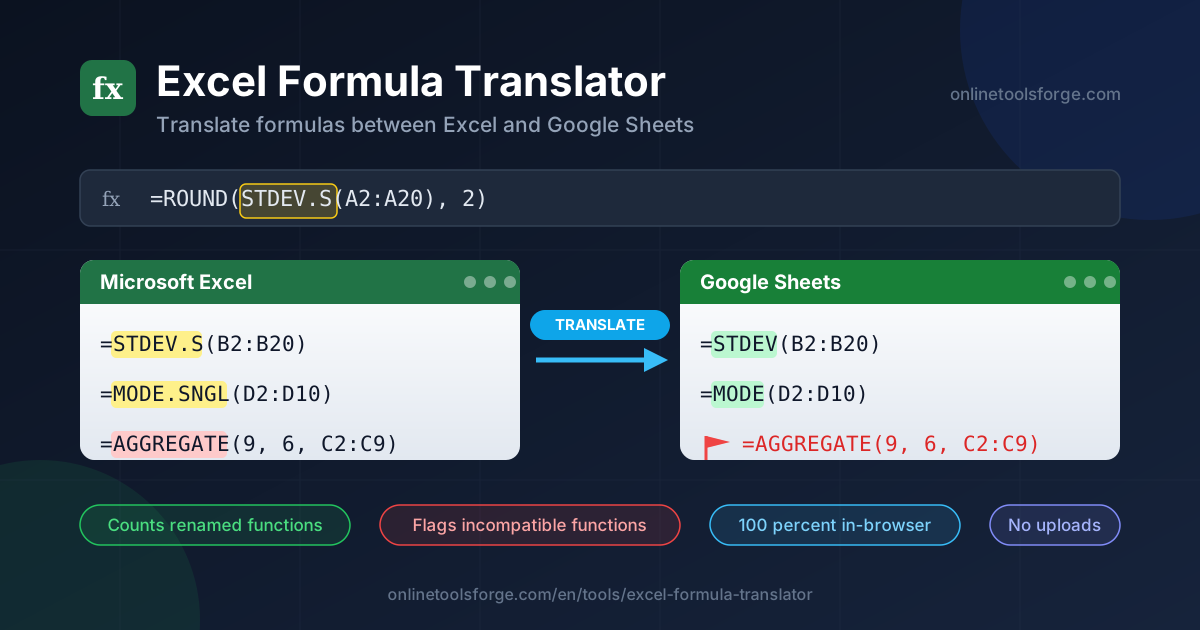
The two platforms agree on the idea of a spreadsheet, but not on function names. Excel writes STDEV.S where Google Sheets writes STDEV, and MODE.SNGL where Sheets uses MODE. Some functions exist on only one side of the fence entirely, so a formula that worked yesterday quietly breaks today. The Excel Formula Translator makes those breaks visible before they cost you anything.
The tool parses your formula, maps every function name to its counterpart on the other platform, counts the renames, and raises a clear flag when a function has no equivalent. Translation works in reverse too, for Sheets-to-Excel handoffs. Everything happens in your browser — no uploads, no accounts, no waiting.
Why Use the Excel Formula Translator?
- Catch renamed functions before they break. Dot-suffix names like STDEV.S, VAR.P, and RANK.EQ do not exist in Google Sheets. The translator rewrites them to the correct equivalents automatically, so you never memorize the differences.
- Work in both directions. The mapping is not one-way. When you export a Sheets file back to Excel, the reverse map renames Sheets functions just as reliably.
- See honest warnings, not silent guesses. When a function like JOIN has no direct Excel equivalent, the tool flags it as incompatible instead of pretending a translation exists. A flagged formula is a problem you can fix; a mistranslated one is a problem you discover next quarter.
- Get a full translation report. Alongside the converted formula, you see how many functions were found, renamed, and flagged — a quick triage summary for large templates.
- Stay private and skip installation. Parsing runs entirely in your browser, so sensitive models never leave your machine. There is nothing to download and nothing to sign up for.
Key Features
| Feature | What It Does |
|---|---|
| Excel to Google Sheets mode | Rewrites Excel function names to their Sheets equivalents, such as STDEV.S to STDEV. |
| Google Sheets to Excel mode | Applies the reverse map so Sheets formulas become valid Excel formulas. |
| Renamed function counter | Reports how many functions had to be renamed. |
| Incompatibility flags | Highlights functions that exist on only one platform, like JOIN in Sheets or AGGREGATE in Excel. |
| In-browser processing | All parsing and mapping happens locally; nothing is uploaded. |
Two details stand out. The reverse map resolves ambiguity with a simple rule: when two Excel names map to the same Sheets name, the first Excel alias wins, keeping the output deterministic. The output panel also offers one-click copy and download, so turning a batch of formulas into documentation takes seconds.
How to Use
- Open the tool. Navigate to the Excel Formula Translator in your browser.
- Choose the direction. Pick Excel-to-Sheets if your formula comes from Excel, or Sheets-to-Excel if it comes from Google Sheets.
- Paste your formula. Drop the full formula, starting with =, into the input box.
- Review the result. Read the translated output, the renamed-function count, and any incompatibility flags.
- Copy and test. Paste the result into your target spreadsheet and confirm it evaluates correctly with real data.
Where the Two Worlds Diverge
The two platforms disagree in three distinct ways, and only the first can be fixed by a simple name swap.
Genuinely renamed functions. When Microsoft modernized its statistical functions, it added dot suffixes — STDEV.S, STDEV.P, VAR.S, VAR.P, MODE.SNGL, RANK.EQ — while Google Sheets kept the shorter legacy names. The translator is driven by a curated mapping table of these genuine renames: TEXTSPLIT becomes SPLIT, NUMBERVALUE becomes VALUE, LOGNORM.DIST becomes LOGNORMDIST. Only functions whose names actually differ are touched; everything else passes through.
Functions that exist on only one side. Google Sheets ships functions with no Excel equivalent: JOIN, QUERY, IMPORTRANGE, IMPORTXML, GOOGLEFINANCE, SPARKLINE, the REGEX trio, FLATTEN, SORTN, and ARRAYFORMULA. Excel has its own exclusive club, including AGGREGATE, TEXTBEFORE, TEXTAFTER, TAKE, DROP, CHOOSEROWS, the CUBE family, and WEBSERVICE. Renaming these would produce formulas that fail confusingly, so the translator flags them instead — your cue to find a real replacement, such as Excel's TEXTJOIN in place of Sheets' JOIN.
Behavior differences a name map cannot catch. Even a correctly renamed formula can behave differently. Sheets' SPLIT and Excel's TEXTSPLIT handle delimiters and output orientation differently, and dynamic array spilling works differently on each platform. Locale matters too: many regional Excel installations use semicolons as argument separators instead of commas, so a formula that parses in one locale fails in another. The translator fixes the names; semantic differences deserve a human spot-check.
One concrete walkthrough: paste =ROUND(STDEV.S(B2:B20), 2) in Excel-to-Sheets mode. The tool finds ROUND, which is identical on both platforms, and STDEV.S, which matches a mapping-table entry and is renamed to STDEV. The output reads =ROUND(STDEV(B2:B20), 2) with one renamed function and zero incompatibilities — and it works in Google Sheets on the first try.
Practical Use Cases
Migrating Team Sheets to Google Workspace
When a department moves to Google Workspace, every workbook is a potential formula graveyard. Paste formulas from key sheets into the translator as part of the migration checklist, fix the flagged ones before go-live, and week one in Sheets will not be spent debugging broken statistics.
Exporting Sheets Back to Excel Clients
Agencies often build deliverables in Google Sheets, then discover the client requires Excel. Reverse mode converts your Sheets functions to their Excel names, and the flags tell you which Sheets-only conveniences — QUERY and IMPORTRANGE are the usual offenders — need restructuring before handoff.
Auditing Mixed-Platform Templates
Organizations accumulate templates built on both platforms over the years. Running the formulas through the translator produces a per-template inventory of renamed and incompatible functions, turning a vague "is this portable?" question into a concrete work list.
Keeping Training Material Consistent
If your documentation or courses serve users on both platforms, the translator verifies that every example formula has a valid form for each audience — or at least warns readers where the syntax differs.
Best Practices
- Spot-check flagged functions first. The incompatibility list is where migrations fail; resolve every flag before trusting the rest of the translation.
- Watch locale separators. If your spreadsheet uses semicolons between arguments, normalize them to commas first — the tool maps names, not regional formatting.
- Test on copies. Paste into a duplicate, verify computed values against the original, and only then promote the change.
- Keep a function-conversion cheat sheet. Save the tool's output for your most-used formulas in a shared doc so teammates never relearn the differences.
- Translate templates before rollout. A five-minute audit of a shared template prevents weeks of silent errors downstream.
Try It Now
If a spreadsheet is about to change platforms — or a formula just stopped working after one did — run it through the Excel Formula Translator first. Thirty seconds of translation beats an afternoon of debugging renamed statistics functions. It is free, in-browser, and works in both directions.
Related Tools You Might Like:
- Excel to CSV Converter — pull your Excel data out into clean CSV files.
- CSV to Excel Converter — turn CSV exports back into proper Excel workbooks.
- JSON to PHP Array Converter — translate JSON payloads into PHP array syntax in one click.
Happy translating!
Frequently Asked Questions
Q: Does the Excel Formula Translator upload my formulas to a server?
A: No. Parsing and function mapping run entirely in your browser, so sensitive formulas and their data never leave your machine.
Q: Why is JOIN flagged as incompatible instead of being translated?
A: JOIN exists only in Google Sheets; Excel has no function with that name. The tool flags it so you can choose a real replacement such as TEXTJOIN.
Q: Can I translate formulas from Google Sheets back to Excel?
A: Yes. Switch to the Sheets-to-Excel direction and the reverse map renames Sheets functions to their Excel counterparts, flagging any Sheets-only functions along the way.
Q: Does the tool handle locale list separators like semicolons?
A: It maps function names, not regional formatting. If your formula uses semicolons as argument separators, convert them to commas first for the most reliable translation.