How to Build HTML Forms Visually with a Free Online Form Builder
Build contact, survey, and signup forms in minutes with the HTML Form Builder, a visual tool that generates clean HTML with native validation attributes and no JavaScript required.
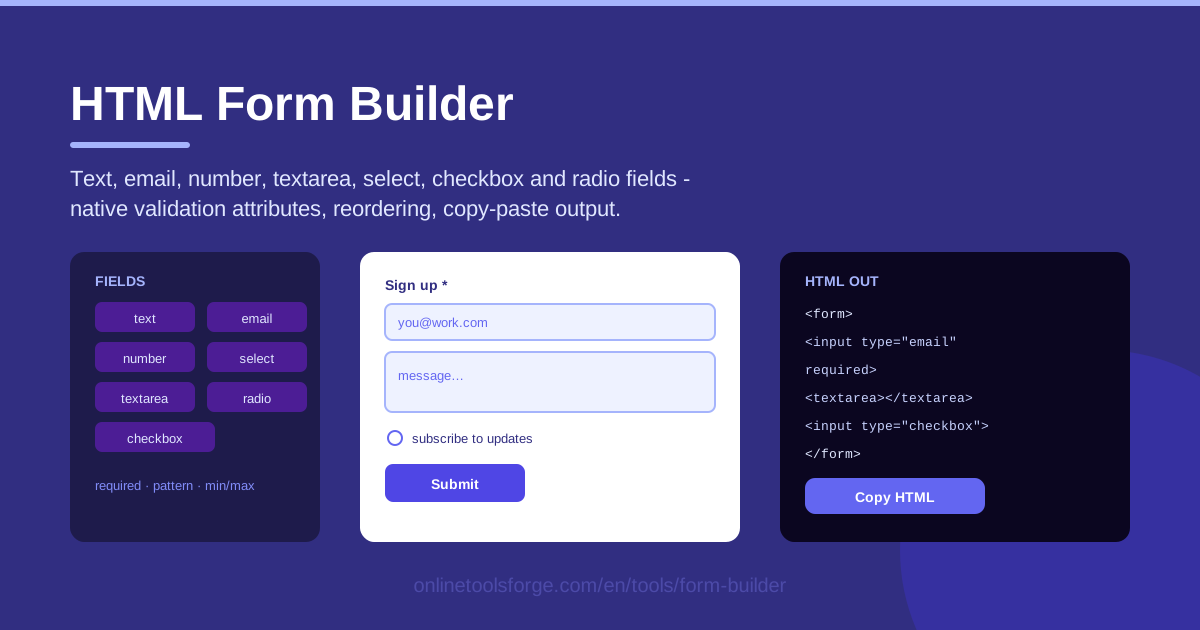
Table of Contents
Every website eventually needs a form: a way for visitors to get in touch, sign up for updates, answer a few questions, or request a quote. Building one by hand is tedious, though — you have to wire labels to inputs, pick the right input types, and add validation without breaking anything. The HTML Form Builder on Online Tools Forge removes that friction, letting you assemble a complete, validated form visually and copy the finished HTML straight into your project.
The idea is simple. Pick fields from a palette — text, email, number, textarea, select, checkbox, and radio — give each one a label plus any validation attributes you need, drag them into a sensible order, and paste the generated markup wherever it belongs. Everything runs in your browser, so nothing is uploaded and there is nothing to install.
This guide covers how the tool works, which native validation attributes deserve a place in almost every form, and the situations where the output saves you the most time — from static-site contact pages to internal tools and classroom exercises.
Why Use HTML Form Builder?
- Native validation without JavaScript. Fields you generate carry standard attributes such as required, pattern, and min/max, so the browser checks input before the form ever submits — no library to load, nothing to break when scripts fail.
- Visual building beats hand-coding. Watching the form take shape is faster than writing markup and reloading to check your work, and it eliminates typos in tags and attributes.
- The right field types out of the box. Seven field types cover nearly every form a typical site needs, and each brings the correct keyboard, widget, and built-in validation behavior.
- Clean, copy-paste output you own. Plain, readable HTML you can paste into any page or CMS, style with your own CSS, and edit freely — no vendor lock-in.
- Drag reordering for a natural flow. Field order affects completion rates, and dragging a field into place beats cutting and pasting blocks of markup.
- Zero setup, runs in the browser. No account, no installation, no build step — open the tool, build, copy, done.
Key Features
| Feature | What it does |
|---|---|
| Visual form builder | Assemble a complete form on screen instead of writing markup by hand |
| Seven field types | Text, email, number, textarea, select, checkbox, and radio inputs |
| Validation attributes | Attach required, pattern, and min/max rules to any field |
| Field reordering | Drag fields up or down until the flow feels right |
| Copy-paste HTML output | Generate ready-to-paste, plain HTML for the whole form |
| Runs in the browser | No installation or account; your form never leaves your machine |
A few details worth calling out:
- Fields come out wired to their labels the accessible way, connected through matching for and id attributes instead of loose text sitting beside a box.
- The output is framework-agnostic: the same markup works in a static page, a template file, a CMS block, or inside a component.
- Because validation lives in attributes rather than scripts, the form still behaves when JavaScript fails, is blocked, or has not finished loading yet.
How to Use HTML Form Builder
- Add your fields. Add one field per piece of information you need. For a basic contact form that usually means a text field for the name, an email field, and a textarea for the message.
- Set labels and validation attributes. Give each field a clear label, mark required inputs, and add rules such as a number range or a pattern where they help.
- Reorder the fields. Drag fields up or down so the form reads naturally — easy questions first, anything optional near the end.
- Preview the form. Check that every field has a label, the required marks sit on the right inputs, and nothing important is missing.
- Copy the HTML. Paste the generated markup into your page, hook it up to a backend or form service, and apply your site's styling.
Native Validation Attributes Worth Using
The quiet strength of this tool is that its output leans on validation the browser already understands. These are the attributes that earn their place:
- required marks a field that must be completed. If a visitor submits with it empty, the browser blocks the submission and highlights the field — no script involved.
- type="email" does more than name a field: the browser verifies the value looks like an email address, and mobile keyboards adapt automatically.
- type="number" with min and max constrains numeric input, keeping quantities, ages, and ratings within sensible bounds before data reaches your server.
- pattern accepts a regular expression the value must match — ideal for formats such as a specific ID style or a phone number layout.
Why prefer native validation over JavaScript-only checks? It works before any of your scripts run, so feedback appears even on a slow connection. The rules are declarative — they live beside the fields they protect, which makes them easy to read and audit. And they degrade gracefully: an old browser that ignores an attribute still submits the form, while a broken script can block it entirely. Treat native validation as a first line of defense, not a replacement for server-side checks; the two work best together.
Labels and accessibility matter just as much. Tie every visible label to its input with matching for and id attributes so screen readers announce each field correctly, and clicking the label focuses the input. A form built this way serves far more people than one relying on placeholder text alone.
Finally, the form element itself. Give it a descriptive name and point the action attribute at the URL that should receive submissions — your own endpoint or a form-handling service. Use method="post" for anything that changes data, and keep the field markup clean so the one line you tailor is the action.
Practical Use Cases
Contact Forms for Static Sites
Static sites are fast and cheap to host but ship no server-side logic. A generated form slots straight in: paste the markup into the contact page, point action at a form service, and visitors get proper validation feedback without a line of custom JavaScript.
Survey and Signup Forms
Checkbox groups for "how did you hear about us", radio buttons for a single choice, a select for country, a textarea for comments — the exact pieces a short survey or newsletter signup needs. Mark only the essentials as required and the form stays quick to complete.
Internal Tooling Quick Forms
Teams constantly need a small form: a request intake, a bug report, a content submission. Instead of filing a developer ticket, anyone comfortable with copy-paste can assemble a validated form and drop it into an internal page the same afternoon.
Teaching HTML Forms in Class
Because the tool shows the link between what you build visually and the markup produced, it doubles as a teaching aid: add a required field, inspect the pattern attribute, and see which attribute caused which behavior — a stickier lesson than reading a table of attributes.
Best Practices
- Label every field. Placeholder text disappears while typing and is easy for assistive technology to miss, so never use it as the only label.
- Keep validation native first. Reach for required, pattern, and min/max before custom scripts, and always pair client-side checks with server-side verification.
- Limit required fields. Every required field costs completions; ask only for what you truly need and mark the rest optional.
- Test the form end to end. Submit it empty, fill it wrong, fill it right, and confirm submissions reach the endpoint you set in action.
- Order fields deliberately. Easy questions first, related fields grouped, submit button in sight at the end.
- Restyle without rewriting. Treat the markup as a starting point — add classes and layout wrappers without disturbing labels or validation attributes.
Ready to skip the boilerplate? Open the HTML Form Builder, add your first three fields, and copy a working, validated form into your project in the next five minutes.
Related Tools You Might Like:
- HTML Email Template Generator — build polished email layouts the same visual way, then copy the template HTML.
- HTML Encoder — safely escape special characters before embedding user content or code snippets in a page.
- Markdown to HTML Converter — turn written content into clean HTML to pair with the forms on your pages.
Happy building!
Frequently Asked Questions
Q: Do I need to know HTML to use the form builder? A: No. You assemble the form visually by picking fields, setting labels, and marking required inputs, and the tool writes the markup for you. Basic HTML knowledge helps when fine-tuning the copied output, but it is not required.
Q: Does the generated form send messages to my inbox? A: No. The tool produces front-end HTML only, which keeps the output portable. To receive submissions, point the action attribute at your own endpoint or connect a form-handling service.
Q: Can I edit the HTML after copying it? A: Yes. The output is plain, dependency-free HTML, so you can rename fields, add CSS classes, or insert extra markup without breaking anything.
Q: Will the validation work on mobile browsers? A: Yes. Modern mobile browsers support native validation attributes, and correct input types also bring up the right on-screen keyboards, such as an email keyboard for email fields.