Frontmatter Editor: Fix and Validate YAML Metadata for Markdown
Parse, validate, and edit YAML frontmatter from Markdown files with type-aware fields, error line numbers, and output for Hugo, Jekyll, and Obsidian. Free in-browser.
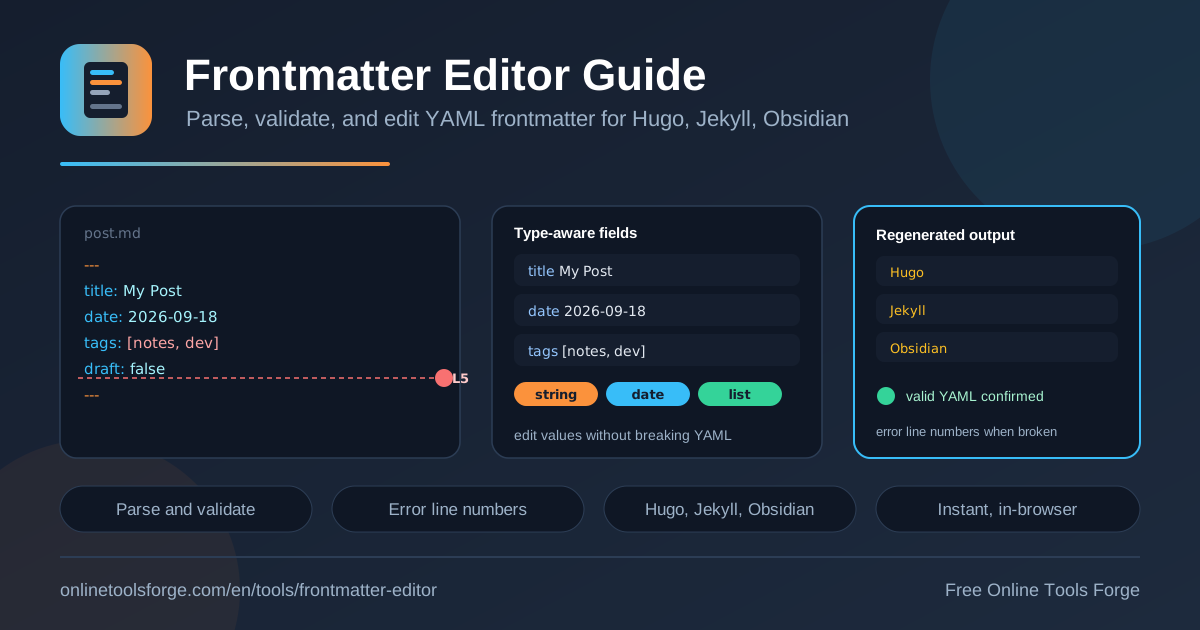
Table of Contents
Every Markdown file in a Hugo, Jekyll, or Obsidian workflow starts the same way: a block of YAML frontmatter sitting between two --- fences. That small metadata block controls titles, dates, slugs, tags, and draft flags — and when it breaks, your static site build breaks with it. The free Frontmatter Editor takes the guesswork out of that block by parsing it into editable fields, validating it against real YAML rules, and regenerating clean output you can paste straight back into your file.
Because the tool runs entirely in your browser, there is nothing to install and nothing to sign up for. Paste a Markdown file, inspect the parsed fields, fix the errors, and copy the regenerated frontmatter. Whether you maintain a personal blog, a documentation site, or a growing Obsidian vault, a reliable frontmatter editor saves you from the classic failure mode of YAML: one wrong space and the whole pipeline stops.
Why Use the Frontmatter Editor?
Editing raw YAML by hand works — until it does not. Here is what this frontmatter editor changes about the workflow:
- Type-aware editing. Fields are parsed as strings, dates, lists, or booleans, so you edit each value with the right control instead of retyping brackets and hoping the syntax survives.
- Validation with error line numbers. When the YAML will not parse, the tool points at the exact line that broke it, turning an opaque build failure into a one-character fix.
- Regenerated clean output. After editing, the tool rewrites the frontmatter block with consistent formatting, so you never ship mismatched indentation or leftover brackets.
- Platform-friendly conventions. The output fits Hugo, Jekyll, and Obsidian expectations, from date fields to tag lists.
- Instant, private results. Everything happens in the browser with no uploads, no accounts, and no waiting on a server round trip.
- Free forever. There is no paywall, quota, or signup gate — open the page and start editing.
Key Features
| Feature | What it does |
|---|---|
| Frontmatter parsing | Splits a pasted Markdown file into a YAML metadata block and body, then maps every field into an editable form |
| Type-aware field editors | Renders string, date, list, and boolean fields with inputs that match each value type |
| Validation with line numbers | Reports broken YAML with the exact line number where the parser failed |
| Regenerated output | Rebuilds the frontmatter block as clean, consistently formatted YAML ready to paste back |
| Hugo, Jekyll, and Obsidian support | Respects the field conventions each platform expects, including date formats and list syntax |
| In-browser processing | Parses and validates locally with zero uploads, so private drafts never leave your machine |
A few of these deserve a closer look:
- The type-aware editors eliminate a whole class of mistakes. Adding a tag to a list field inserts it with correct YAML list syntax instead of a hand-typed bracket that quietly corrupts the block.
- Error line numbers are the difference between minutes and seconds of debugging. YAML parsers often report failures far from the true cause; the frontmatter validator shows you where to look.
- The regenerated output acts as a formatter for your markdown metadata, normalizing quoting and indentation in one pass.
How to Edit Frontmatter
The workflow takes under a minute from paste to copy:
- Paste your Markdown file into the input area. Any file with a frontmatter block between --- fences will work, from a Hugo post to an Obsidian note.
- Review the parsed fields. Each key appears as an editable field with a type badge — string, date, list, or boolean — so you can see exactly how the tool interpreted the value.
- Fix validation errors. If the YAML did not parse, check the reported line number, correct the problem in the source, and re-paste until the fields render cleanly.
- Edit values with the right controls. Update titles, flip draft flags, add or remove tags from list fields, and adjust dates without touching raw YAML syntax.
- Copy the regenerated frontmatter. The tool outputs a clean block between --- fences; paste it back into your file and commit with confidence.
YAML Frontmatter Syntax Basics
Frontmatter is a YAML document embedded at the very top of a Markdown file, fenced by two lines containing exactly three hyphens. Everything between the fences must be valid YAML, because the static site generator parses it as structured data before it ever renders the body. A minimal block looks like this:
---
title: My Post
date: 2026-01-15
tags: [hugo, jekyll]
draft: false
---
Understanding the value types makes most problems obvious. Scalar fields hold single values — a title, a slug, an author name. List fields hold multiple values such as tags or categories, written either in bracket style as above or as indented dash items. Date fields follow the YYYY-MM-DD form, which YAML understands natively. Boolean fields accept true or false and are commonly used for draft or publishdate-style flags.
Three errors account for most broken frontmatter. First, bad indentation: YAML is indentation-sensitive, and a list item indented with a tab instead of spaces, or nested one level too deep, fails to parse. Second, missing colons: every key needs a colon and a space before its value, and omitting the colon turns the line into invalid syntax. Third, unquoted colons in strings: a title like Lessons Learned: A Retrospective must be quoted, because the bare colon makes the parser read the line as a nested mapping. Quoting the value solves it instantly.
This is where error line numbers earn their keep. YAML parsers frequently report a failure at a location downstream of the real mistake, and scanning thirty lines of metadata for one stray tab is slow and error-prone. A validator that names the exact line reduces the fix to a single edit — and the Frontmatter Editor does precisely that before you ever run a build.
Practical Use Cases
Fixing Hugo build failures fast
A Hugo site that refuses to build usually points at frontmatter: a date in the wrong format, an unquoted colon, or a truncated --- fence. Paste the offending file into the tool, read the line number, correct the field, and copy the regenerated block back. What used to require a build, read the log, edit, rebuild loop becomes one pass in the browser.
Bulk-preparing Jekyll posts
Jekyll blogs live or die by consistent metadata — title, date, categories, and the published flag. Before migrating or scheduling a batch of posts, run each file through the editor to normalize field types and formatting. The regenerated output guarantees every post carries the same structure, which keeps Liquid templates and collection filters from misbehaving.
Cleaning Obsidian note metadata
Obsidian notes accumulate metadata over time: renamed tags, leftover properties, inconsistent dates. The type-aware list editors make it painless to tidy tag arrays and rename keys, while the validator catches the malformed properties that break Obsidian plugins and Dataview queries.
Onboarding new blog writers
New contributors rarely know frontmatter rules, and their first pull requests often fail the build. Point the team at the tool as part of onboarding: writers paste their draft, see exactly which fields exist and what types they expect, and submit valid markdown metadata from day one. Fewer review rounds, fewer broken deploys.
Best Practices
- Quote every string that contains a colon, hash, or leading dash. Unquoted special characters are the top cause of YAML parse failures.
- Keep dates in ISO format (YYYY-MM-DD) so Hugo, Jekyll, and Obsidian all sort and schedule them identically.
- Validate before every commit, not just when a build fails — catching a bad draft flag before it ships an unfinished post is cheaper than unpublishing it.
- Never mix tabs and spaces in frontmatter; pick spaces and let the regenerated output enforce them.
- Keep the fence lines clean: exactly three hyphens on their own line, no leading whitespace, nothing after them on the same line.
- Paste the regenerated block back wholesale instead of hand-patching the original, so formatting stays consistent across the whole content library.
Ready to Fix Your Frontmatter?
Open the Frontmatter Editor, paste a Markdown file, and see your YAML metadata parsed into editable fields in seconds. No signup, no uploads, no cost — just valid frontmatter and a build that passes.
Related Tools You Might Like:
- YAML Formatter — format and validate full YAML documents beyond frontmatter blocks
- Markdown to HTML Converter — render Markdown bodies into clean HTML
- JSON Formatter — inspect and pretty-print JSON config and API data
Happy publishing!
Frequently Asked Questions
Q: What is YAML frontmatter in a Markdown file?
A: It is the metadata block at the very top of a Markdown file, fenced by two lines of three hyphens. It holds structured fields such as title, date, tags, and draft status, which static site generators like Hugo and Jekyll parse before rendering the page.
Q: Why does one broken frontmatter line stop my entire build?
A: Static site generators parse the YAML block for every content file during the build. If any file has invalid YAML, the parser aborts, so a single missing colon or bad indentation character can fail the whole site.
Q: Does the Frontmatter Editor upload my files to a server?
A: No. The tool runs entirely in your browser, so your Markdown files and their metadata never leave your machine. That makes it safe for private drafts and unpublished content.
Q: Can I use it for Obsidian notes as well as Hugo and Jekyll posts?
A: Yes. Obsidian uses the same fenced frontmatter convention, and the tool handles the properties Obsidian expects, including tag lists, aliases, and date fields.
Q: What does the error line number tell me?
A: It identifies the exact line in your frontmatter block where the YAML parser failed, so you can go straight to the cause — usually bad indentation, a missing colon, or an unquoted special character — instead of scanning the whole file.