Gzip Size Calculator Guide: Measure What Your Website Actually Ships
Learn how to use the Gzip Size Calculator to compress text and files in your browser, compare original and compressed sizes, and measure real savings without uploading data.
Free Interactive Tool
Gzip Size Calculator
Compress text or files in your browser and compare original and gzipped sizes, savings, and output.
Table of Contents
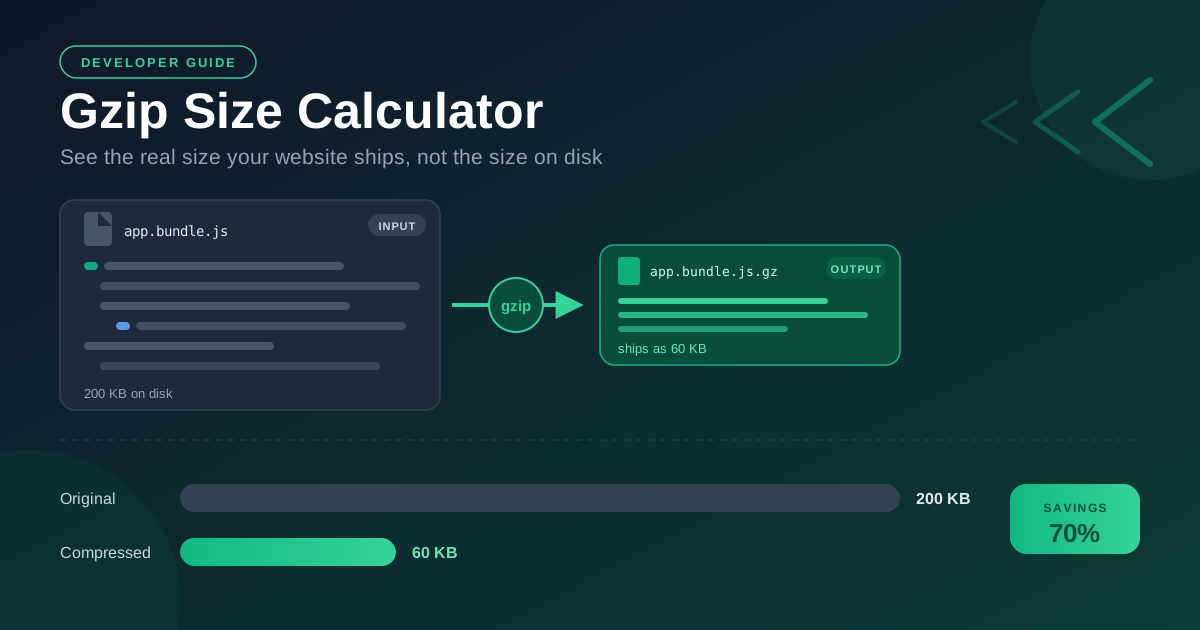
When your build tool reports that a JavaScript file weighs 200 KB, that number describes the file on your disk, not the file your visitors receive. Nearly every web server and CDN compresses text-based resources before sending them, so the size that matters on the web is the gzipped size. A minified bundle that reports 200 KB on disk typically ships to the browser as roughly 60 KB once gzip is applied. Teams that budget against the raw number routinely overestimate their payload by more than half and occasionally optimize the wrong things.
The Gzip Size Calculator closes that gap. Paste text or drop in a file, and the tool compresses it with gzip right in your browser, then shows original size, compressed size, savings percentage, and a download button for the output. Everything runs client-side, so no data leaves your machine, which makes the tool equally suitable for public marketing copy and private configuration files.
This guide explains why the gzipped size is the number to budget against, how to get useful results in minutes, and how to read the savings percentage.
Why Use Gzip Size Calculator?
- The transfer size is the real number. Build logs show uncompressed bytes, but visitors download the gzipped version. For performance budgets, load time, and mobile data, the compressed size is the figure that counts.
- Instant before-and-after checks. Trim fields from a JSON payload or refactor a module, then compress both versions to see exactly how many bytes the change saved.
- Nothing leaves your machine. All compression happens in your browser, so proprietary source code and internal configs stay local.
- Quantified savings, not gut feeling. The savings percentage turns "it feels smaller" into a number you can record in a pull request and defend in code review.
- Downloadable output. Save the gzipped result to inspect it or test how a server handles real gzip payloads.
- No setup required. No command line, no account, no installation. Open the page, paste, compress.
Key Features
| Feature | What It Does | Why It Matters |
|---|---|---|
| In-browser gzip compression | Compresses pasted text or files locally with gzip | No uploads, no waiting, private by default |
| Original vs compressed comparison | Shows both sizes side by side | Reveals the real transfer footprint at a glance |
| Savings percentage | Calculates how much was squeezed out | Makes benchmarking between files effortless |
| Compressed output download | Saves the gzip result as a file | Inspect, archive, or test the artifact elsewhere |
| Text and file input | Accepts a pasted snippet or an entire file | Works for configs, source code, JSON, and CSV |
- Compression runs entirely in your browser, so results appear instantly and nothing is transmitted to any server.
- The savings percentage is measured against the original size, so 200 KB compressing to 60 KB reports a 70% saving.
How to Use
- Open the tool. Go to the Gzip Size Calculator in any modern browser. Nothing to install.
- Provide your content. Paste text into the input area, or select a file such as a JavaScript bundle, JSON export, CSV, or config file.
- Compress. Trigger compression and gzip runs locally, usually finishing in well under a second for typical text.
- Read the results. Compare original size, compressed size, and savings percentage to see both absolute bytes saved and how compression-friendly the content is.
- Download or iterate. Download the output if you need the artifact, or edit the input and compress again to measure each change.
Why Text Compresses and Images Do Not
Gzip combines two classic techniques in a single pass. LZ77 scans the input for repeated byte sequences and replaces later occurrences with short back-references to earlier ones, while Huffman coding assigns the shortest bit patterns to the symbols that appear most often. Text is full of repetition, so the combination is devastatingly effective on it.
Content that compresses well is anything with heavy redundancy: prose, JSON with repeated key names, source code with its recurring keywords, CSV exports, HTML, SVG, and XML. Such files commonly shrink by 70 to 90 percent. Content that compresses poorly is anything already compressed: JPEG, PNG, WebP, and AVIF images, MP4 and WebM video, WOFF2 fonts, and existing ZIP archives. Those formats removed redundancy internally, so gzip finds little left to squeeze and sometimes adds a few bytes.
The savings percentage is your quick diagnostic. Divide bytes saved by original size and multiply by one hundred. High savings mean redundancy-rich, compression-friendly content. Low savings on a text file hint that something is unusual, while low savings on an image just confirm the format was already doing its job.
One valuable workflow is measuring a bundle before and after minification. Run the readable bundle through the calculator and note the gzipped size. Then minify the same code with the Code Minifier and compress the result. The two optimizations stack: minification removes whitespace, comments, and long identifiers, and gzip then compresses the denser code even more efficiently. The combined saving is what users actually experience.
A note on Brotli: many modern servers offer it alongside gzip and usually produce slightly smaller results for text. The gzip figure remains a solid, conservative estimate that works across virtually every server configuration.
Practical Use Cases
Bundle Budget Checks
Performance budgets mean the most when set in gzipped kilobytes, because that is what the network delivers. Before adding a dependency, compress its dist file to see what it really costs on the wire. A library that looks like 150 KB raw might cost only 45 KB gzipped. Re-run the check each release to catch silent bloat early.
API Response Sizing
Mobile users on cellular connections feel every kilobyte of a response. Paste a representative JSON payload to learn what an endpoint truly transfers after compression. If the gzipped size is uncomfortable, that is concrete evidence for pagination, field trimming, or smaller split responses. Re-measure after each change so discussions stay anchored in bytes.
Config File Slimming
Configs embedded in serverless deployments, Docker images, or single-file HTML tools add startup time and artifact size. Compress your YAML, JSON, or TOML to see how much a verbose config contributes. The same applies to inline templates: strip unnecessary markup with the HTML Tag Remover, then re-measure to see the weight your templates carry. Configs rarely get audited; this is the fastest audit available.
Teaching Compression
The calculator doubles as a compact classroom. Paste a paragraph of normal English and note the savings, then paste the same length of random characters and watch savings collapse toward zero. That one demonstration teaches why compression works better than a page of theory, and it explains why dashboards report the gzipped size rather than raw size.
Best Practices
- Measure gzip, not raw. Make the compressed figure your default reference for budgets and comparisons, because it approximates what users download.
- Enable compression on the server too. The calculator estimates transfer size, but your server or CDN must actually compress responses, so verify the Content-Encoding: gzip header in your network panel.
- Do not gzip images or videos again. JPEG, PNG, WebP, MP4, and WebM are already compressed. Re-compressing wastes CPU and can even grow the file, so serve them as-is.
- Compare apples to apples. When judging two bundles or payload formats, gzip both first. Raw-size comparisons regularly crown the wrong winner.
- Re-check after meaningful changes. Savings shift as content evolves, so re-measure after major refactors or dependency upgrades.
- Treat gzip as a floor, not an excuse. A 70% saving on an unnecessary megabyte still ships 300 KB nobody needed.
Ready to see what your files really weigh? Open the free Gzip Size Calculator, paste a bundle, payload, or config, and get your true transfer size in seconds, entirely in your browser.
Related Tools You Might Like:
- JSON Formatter — validate, pretty-print, and minify the JSON payloads you just measured.
- HTML Tag Remover — strip markup from templates and snippets before compressing them.
- Code Minifier — remove whitespace and comments, then re-run gzip to see the combined saving.
Measure the size that matters, ship lighter pages, and let every kilobyte saved be time your users never spend waiting.
Frequently Asked Questions
Q: Does the Gzip Size Calculator upload my data anywhere?
A: No. Compression runs entirely in your browser. Your text and files are never transmitted to or stored on any server.
Q: Will the result match exactly what my server sends?
A: Usually very close. Servers may use different compression levels or Brotli, so treat the result as an accurate estimate rather than a byte-exact guarantee.
Q: Why did my PNG or JPEG barely compress?
A: Image formats like PNG, JPEG, and WebP are already compressed internally. Gzip finds little remaining redundancy and may even add a few bytes, which is why savings land near zero.
Q: Does gzip change my content?
A: No. Gzip is lossless. The decompressed output is byte-for-byte identical to the original, which is why it is safe for code, configs, and data files.