HEIC to JPG Converter: Unlock iPhone Photos in Your Browser
Convert iPhone HEIC and HEIF photos to JPG or PNG with quality control and batch support. Files never leave your device — free converter in your browser.
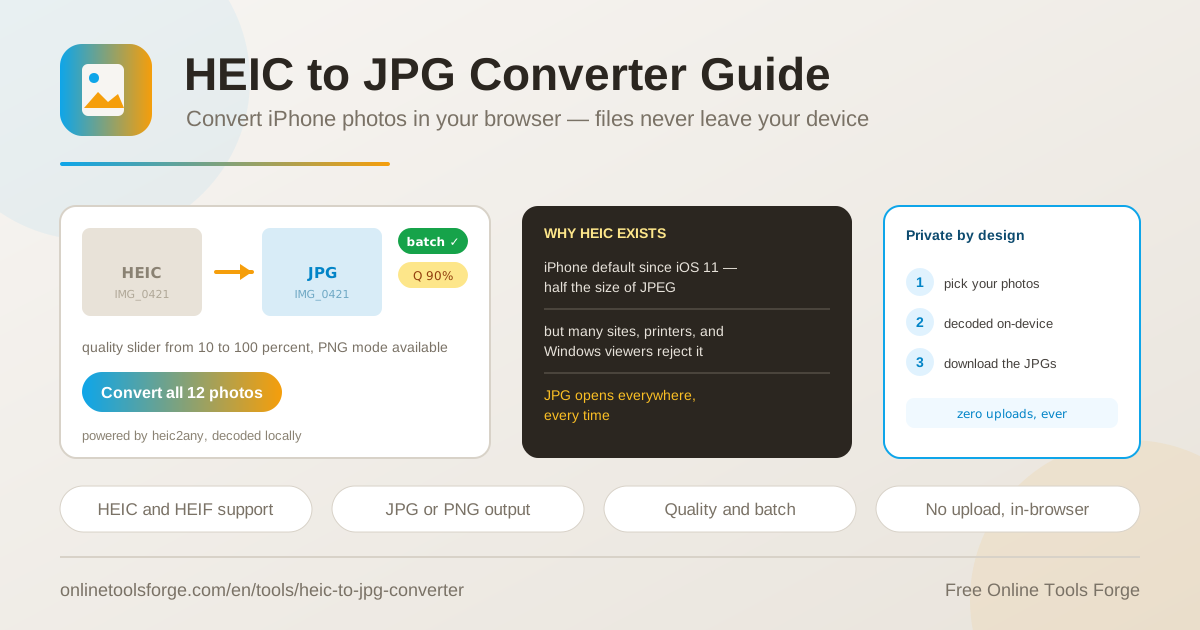
Table of Contents
Every photo you take with an iPhone since iOS 11 is saved in HEIC format by default. The format saves storage space beautifully, but the moment you try to upload those photos to a website, hand them to a printing shop, or open them on an older Windows PC, you run into error messages and blank previews. A dedicated heic to jpg converter clears that obstacle in seconds.
The heic to jpg converter is free, needs no installation, and runs 100 percent inside your browser. Your photos are decoded locally on your own device and turned into JPG or PNG files with a quality control slider and full batch support. Nothing is uploaded, so private family pictures and business documents stay private.
This guide explains how the tool works, how to use it step by step, and how to get the best results from batch conversion and the quality slider.
Why Use the HEIC to JPG Converter?
- True privacy by design. Conversion happens entirely on your device, so no photo is ever uploaded to a server. That makes it safe for sensitive images such as passports, contracts, and ID documents.
- Universal compatibility. JPG opens everywhere: every website upload form, every printing service, every Windows and Android viewer. HEIC does not.
- Batch conversion. Drop an entire album of iPhone photos and convert them all in one pass.
- Quality control. A slider balances file size against image fidelity, with a sensible default of 90 percent.
- JPG or PNG output. Choose JPG for photos you will share, or PNG when you need lossless output.
- Free with zero friction. No account, no watermark, no software download. Open the page and start converting.
Key Features
| Feature | What it does |
|---|---|
| HEIC and HEIF support | Accepts the native photo format saved by every iPhone since iOS 11 |
| JPG conversion | Produces the most widely supported image format in the world |
| PNG conversion | Offers a lossless alternative for maximum fidelity |
| Quality slider | Adjusts JPG output quality, defaulting to 90 percent |
| Batch conversion | Processes many photos at once in a single run |
| On-device decoding | Uses the heic2any library to convert locally; nothing is uploaded |
| Drag and drop | Lets you drop files straight from a folder or an iPhone export |
- Batch mode matters for iPhone users: a single weekend can produce dozens of HEIC files, and the tool processes all of them in one session.
- The 90 percent default is a deliberate sweet spot: visually indistinguishable from the original while keeping files small enough for uploads and email.
How to Convert HEIC to JPG
- Open the tool. Visit the heic to jpg converter in any modern browser on your computer, tablet, or phone.
- Add your photos. Drag and drop your HEIC or HEIF files onto the page, or browse and select them. Add one photo or an entire batch at once.
- Choose the output format. Pick JPG for universal compatibility or PNG for lossless quality.
- Set the quality. For JPG output, adjust the quality slider. The 90 percent default suits most needs; raise it for prints, lower it for small web uploads.
- Convert and download. Run the conversion and download your finished JPG or PNG files. Everything happened locally, so your originals remain untouched.
What HEIC Is and Why It Annoys Everyone
The engineering behind HEIC. HEIC stands for High Efficiency Image Container. It is a container format based on the HEIF standard, and the pixel data inside is compressed with HEVC, the same video codec that powers 4K streaming. Apple made HEIC the default camera format starting with iOS 11 because it stores photos at roughly half the size of an equivalent JPG. On a 256 GB phone, that difference means thousands of extra photos.
Why the rest of the world did not follow. Apple moved quickly; most of the software ecosystem did not. The result is a format your phone loves and almost nothing else accepts. Common failure points include website upload forms that reject the .heic extension, printing kiosks whose software predates the format, older Windows viewers that show a blank thumbnail, and Android apps that cannot decode the file. A heic to jpg converter exists because JPG is the one format every one of those systems understands.
JPG or PNG? For typical iPhone photos, JPG is the right answer: small, universally supported, and perfect for sharing and uploading. PNG is the better pick when you need pixel-perfect fidelity or plan further editing, at the cost of much larger files. The converter supports both, so you can match the format to the job.
The quality slider tradeoff. JPG is a lossy format, meaning some information is discarded during compression. The slider controls how aggressively that happens. At 90 percent — the default — the difference from the original is invisible in normal viewing. Push higher and files grow with little visible gain; drop toward 70 percent and files shrink fast, handy where size limits apply.
Batch workflow and privacy. Because decoding happens on your device through the heic2any library, a large batch conversion never sends a single byte of your photography anywhere. The whole workflow fits in four lines:
1. Drop HEIC or HEIF photos
2. Choose JPG or PNG and set quality
3. Convert locally in the browser
4. Download the finished files
Practical Use Cases
Uploading iPhone Photos to Websites and Forms
Job applications, insurance claims, marketplace listings, and government portals often demand JPG. When an iPhone photo is rejected mid-form, convert the images first and the upload field accepts them on the first try. Batch mode shines here: convert every photo for a listing in one pass, then upload them in order.
Passing Photos to Printing Shops
Printing kiosks and professional print services frequently run software that has never heard of HEIC. Converting to JPG at a high quality setting before you go ensures the printer reads every file, and the 90-plus percent range keeps prints sharp.
Sharing with Windows and Android Users
Family members on Windows 10 or older builds of Windows 11 may see nothing but a blank icon when they open a HEIC file, and many Android apps cannot decode it either. JPG ends the confusion: the recipient double-clicks, the photo opens, and nobody needs a codec pack to see your vacation pictures.
Preparing Email Attachments
Mail providers cap attachment sizes, and a burst of photos can exceed the limit quickly. Convert at a slightly lower quality setting to shrink each file below the cap while keeping it presentable, then attach a clean batch of JPGs that any mail client can display.
Best Practices
- Keep your originals. Conversion never modifies source files, but keep your HEIC library as the master copy for future re-conversions.
- Use 90 percent quality as the baseline. Raise toward 95 or 100 for large prints; drop to 75 or 80 for web forms and email.
- Convert in batches, not one by one. Grouping photos into a single run saves time and keeps quality settings consistent across the set.
- Pick PNG only when you need it. Lossless output is wonderful, but PNG files are far larger; most sharing scenarios want JPG.
- Count on offline capability. Because nothing is uploaded, the tool keeps working on flights, in remote areas, and on restricted networks.
Start Converting Your iPhone Photos Today
HEIC files should not stand between your photos and the rest of the world. The heic to jpg converter is free, private, and ready in your browser right now. Drop in your iPhone photos, choose your format and quality, and download JPG files that work everywhere — no signups, no uploads, no waiting.
Related Tools You Might Like:
- Image Format Converter — switch between PNG, JPG, WebP, and more in a click
- Image Format Batch Converter — convert entire folders of images in one run
- Image Compressor — shrink JPG and PNG files further for faster websites
Happy converting!
Frequently Asked Questions
Q: Are my photos uploaded to a server during conversion?
A: No. The heic to jpg converter decodes and converts files entirely on your device using in-browser technology. Nothing is uploaded, stored, or transmitted, which makes it safe for private and sensitive images.
Q: What is the difference between HEIC and JPG?
A: HEIC is the modern iPhone photo format that uses HEVC compression to save storage space. JPG is the older universal standard that every device, browser, printer, and website supports. Converting trades a little storage efficiency for total compatibility.
Q: Should I choose JPG or PNG output?
A: Choose JPG for photos you plan to share, upload, or print, since it is smaller and universally supported. Choose PNG when you need lossless quality or plan additional editing and can accept larger files.
Q: Does the quality slider change my original photo?
A: No. The slider controls only how the new JPG file is compressed. Your original HEIC file stays untouched on your device.
Q: Can I convert many iPhone photos at once?
A: Yes. Batch conversion lets you drop many HEIC or HEIF files and process them all in a single run, then download every converted result together.