The Complete Jira to Markdown Converter Guide
Convert Jira wiki markup to clean GitHub-flavored Markdown and back with our free browser-based Jira to Markdown Converter. Headings, tables, code blocks, panels, and macros handled.
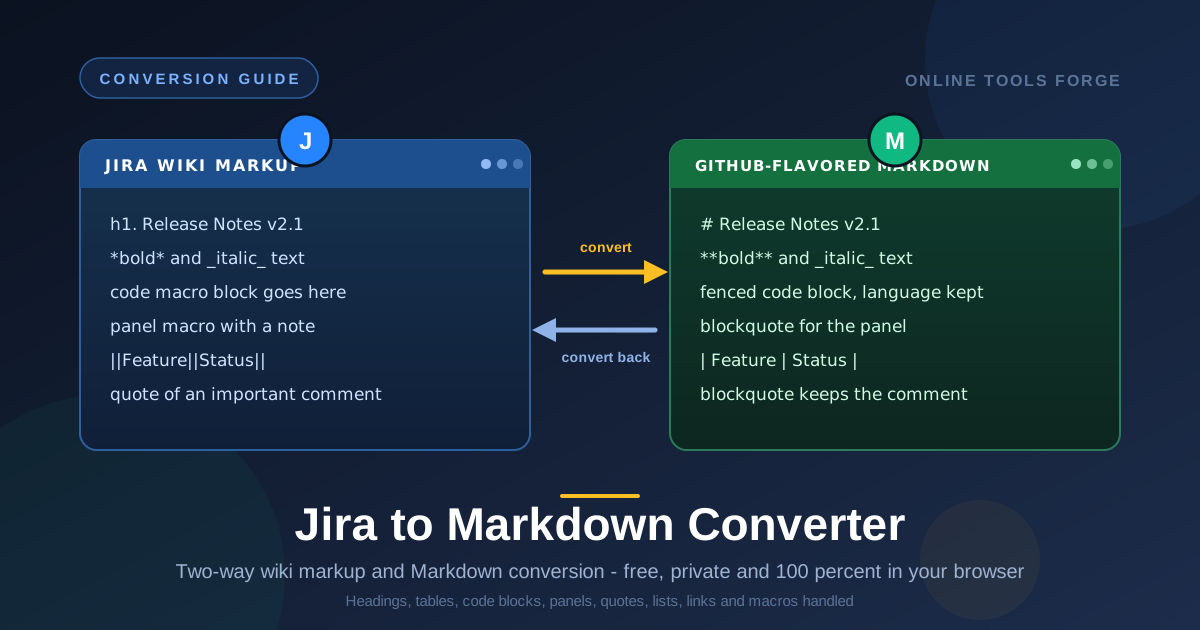
Free Interactive Tool
Jira Markup to Markdown Converter
Convert Jira wiki markup to GitHub-flavored Markdown and back, entirely in your browser.
Table of Contents
Jira wiki markup has been the default way to write ticket descriptions, comments, and project pages for over a decade. Syntax like h1. for headings, asterisks for bold, and macro tags for panels feels natural inside Jira — and that is the catch: Jira markup only renders inside Jira.
Sooner or later, ticket descriptions move to GitHub issues, READMEs, and project docs — and Jira markup does not render there. What remains is a wall of raw asterisks, pipes, and macro tags. Retyping it all by hand is slow and error-prone, especially for tickets full of tables and code.
Our free Jira to Markdown Converter solves this in seconds. It turns Jira wiki markup into clean GitHub-flavored Markdown, and converts Markdown back again, entirely in your browser. Nothing is uploaded, no account is required, and the output is ready to paste wherever Markdown lives.
Why Use Jira to Markdown Converter?
- Two-way conversion: Jira to Markdown when leaving the platform, and Markdown back to Jira when pasting documentation into tickets.
- Runs 100 percent client-side: Conversions happen in your browser; ticket text, code, and links never leave your machine.
- GitHub-flavored output: Results render correctly on GitHub, GitLab, and most documentation tools.
- Broad syntax coverage: Headings, emphasis, code blocks, panels, quotes, tables, links, images, and lists are all handled.
- No setup or account: Open the page, paste your text, and copy the result.
- Clean, consistent output: Spacing and structure are normalized into readable source, not a mechanical character swap.
Key Features
| Feature | What It Handles |
|---|---|
| Headings | h1. through h6. become hash-prefixed headings |
| Text formatting | Bold, italic, strikethrough, and monospace spans |
| Code blocks | Code macros become fenced blocks, language hint kept |
| Panels and quotes | Panel and quote macros become blockquotes, titles preserved |
| Tables | Header rows and cell structure become proper pipe tables |
| Links and images | URLs, named links, and images become standard Markdown |
| Lists | Bulleted, numbered, and nested lists keep their hierarchy |
| Macros | Constructs with no Markdown equivalent become readable text |
The reverse direction is just as thorough: fenced code blocks become code macros, pipe tables become Jira tables, and hash headings become h1. lines. Everything runs locally, so large documents convert instantly.
How to Use
- Open the tool: Go to the Jira to Markdown Converter.
- Paste your markup: Copy a ticket description, comment, or wiki page out of Jira into the input area.
- Pick the direction: Jira to Markdown is the default; flip it when moving Markdown back into a ticket.
- Review the output: Check tables, panels, and any flattened macros, adjusting wording where styling became plain text.
- Copy and paste: Move the result into your GitHub issue, README, pull request, or documentation page.
Jira Markup vs Markdown, Side by Side
Both formats are lightweight ways to write structured text, but they grew up in different ecosystems: Jira markup is compact and macro-driven, Markdown plain and renderer-driven. The table below maps the most common Jira constructs to their GitHub-flavored equivalents.
| Jira Wiki Markup | Markdown (GitHub-Flavored) | Notes |
|---|---|---|
| h1. Heading text | # Heading text | h1. through h6. map to one through six hash marks |
| bold text | bold text | Jira uses one asterisk, Markdown uses two |
| italic text | italic text | the underscore swaps to a single asterisk |
| {code:java} ... {code} | triple-backtick fenced block | the language hint moves onto the opening fence |
| ||Header||Header|| | | Header | Header | | pipe header plus dashed divider; structure preserved |
| {panel} ... {panel} | blockquote | no exact equivalent, a blockquote is the closest match |
| {quote} ... {quote} | blockquote | treated the same way as panels |
| asterisk or hash list items | dash or numbered items | nesting levels are kept |
Most structural conversions — headings, emphasis, tables, lists, links, and code fences — are effectively lossless: convert, paste, and the meaning survives intact. Panels and macros are the exception. A Jira panel has a colored border, a title, sometimes an icon; Markdown blockquotes have none of that, so the converter keeps the text and title while the styling is lost. Macros like status badges or table-of-contents gadgets have no Markdown counterpart at all and become readable plain text. Plan a quick human pass on documents that lean heavily on panels and macros.
Here is a realistic ticket in Jira markup:
h2. Bug report: login fails on Safari

h3. Steps to reproduce
# Open the login page in Safari
# Enter valid credentials
# Press the sign in button

h3. Environment
||Browser||Version||OS||
|Safari|17.4|macOS 14.4|

The console shows the error below.

{code:javascript}
TypeError: Cannot read properties of undefined
{code}

{panel:title=Workaround}
Use Chrome until the patch ships.
{panel}
After conversion:
## Bug report: login fails on Safari

### Steps to reproduce

1. Open the login page in Safari
2. Enter valid credentials
3. Press the sign in button

### Environment

| Browser | Version | OS         |
| ------- | ------- | ---------- |
| Safari  | 17.4    | macOS 14.4 |

The console shows the error below.

```javascript
TypeError: Cannot read properties of undefined
```

> **Workaround**
> Use Chrome until the patch ships.
Every heading, table, list, and code block translated cleanly; only the panel's colored border became a blockquote.
Practical Use Cases
Moving Issues to GitHub
Jira-to-GitHub migrations rarely export descriptions in a format GitHub understands. Convert each one first and migrated issues arrive with readable headings, tables, and code blocks.
Pasting Specs into READMEs and Pull Requests
Requirement snippets constantly get copied from tickets into READMEs, pull requests, and design docs. Convert them first to keep the repository free of stray asterisks and macro tags.
Archiving Ticket Documentation
Old tickets hold hard-won knowledge: reproduction steps, config snippets, and decisions. Convert the most valuable ones to Markdown so the knowledge outlives the ticket system.
Writing Release Notes from Tickets
Fixed-ticket lists convert neatly into Markdown bullets and tables. Convert the release ticket once, trim it, and you have changelog-ready text.
Best Practices
- Review tables after conversion: Column widths and empty cells occasionally need a nudge; the Markdown Table Generator helps with cleanup.
- Watch nested lists: Deeply nested Jira lists sometimes lose a level; verify indentation before publishing.
- Keep image links absolute: Jira image references are often internal; swap them for absolute public URLs.
- Round-trip check when converting back: Convert Markdown to Jira, then compare with the original to catch flattened details.
- Scan for flattened macros: Look for leftover panel titles or status labels and keep or delete them.
- Keep the original: Archive the raw Jira markup next to the converted file until the migration is complete.
Ready to move your ticket content into the Markdown world? Open the free Jira to Markdown Converter, paste a ticket, and see the clean output for yourself — no account, no upload, no limits.
Related Tools You Might Like:
- Markdown Preview — see how your converted Markdown renders before publishing.
- Markdown Table Generator — build and format pipe tables for docs and reports.
- HTML to Markdown Converter — turn web page HTML into clean Markdown.
Happy converting — and see you in the next guide from the Online Tools Forge Team.
Frequently Asked Questions
Q: Does my content get uploaded to a server?
A: No. The converter runs entirely in your browser. Ticket text, code, and links never leave your machine, which makes it safe even for confidential content.
Q: Can it convert Markdown back to Jira wiki markup?
A: Yes. Paste Markdown, flip the direction, and you get Jira wiki markup with headings, emphasis, tables, code blocks, and lists restored to Jira syntax.
Q: What happens to Jira macros that have no Markdown equivalent?
A: Panels and quotes map to the closest construct, usually a blockquote, while macros with no counterpart become readable plain text. The table above shows which conversions are lossless.
Q: Do I need a Jira account or an API token?
A: No. Copy the markup out of Jira and paste it into the tool. No credentials, plugins, or API access are involved.