JSON to Excel Converter: Turn API Data Into Spreadsheet-Ready .xlsx Files
Convert JSON arrays into downloadable .xlsx Excel spreadsheets with typed number and boolean cells, nested-object flattening, and styled headers — entirely in your browser, no upload.
Free Interactive Tool
JSON to Excel Converter
Convert JSON arrays into downloadable .xlsx Excel spreadsheets with typed cells and nested-object flattening, entirely in your browser.
Table of Contents
Every API returns JSON, and every manager wants Excel. Someone asks for "the data in a spreadsheet," and the real work begins — retyping numbers Excel treats as text and hand-building headers. The JSON to Excel Converter collapses that chore into one paste and a click, producing a genuine .xlsx workbook without your data ever leaving the browser.
The copy-paste route silently corrupts data. Values that land as raw text break immediately: 3 becomes a string that refuses to join a SUM, true becomes the word "true" instead of a logical value, and a nested address object turns into [object Object]. This guide covers what the converter does, why typed cells and flattening matter, and how to get a polished workbook from a JSON array.
Why Use the JSON to Excel Converter?
- It produces a real .xlsx, not a renamed CSV. The tool builds a valid SpreadsheetML workbook that Excel, LibreOffice Calc, and Apple Numbers open natively.
- Numbers and booleans stay typed. Numeric values land as numeric cells and true/false as logical values, so sorting, filtering, and formulas behave correctly from the first open.
- Nested objects become readable columns. An address object with city and zip fields turns into address.city and address.zip columns instead of an unusable blob.
- The header row arrives styled. Bold white text on classic spreadsheet blue means the file looks finished the moment it opens.
- Everything runs client-side. No upload, no account, no server round-trip — safe for customer records and anything you would not paste into a random website.
Key Features
| Feature | What It Does |
|---|---|
| Array-to-workbook layout | Each object becomes one row; keys become columns in first-seen order |
| Typed cells | Numbers stay numeric, booleans become TRUE or FALSE, strings stay strings |
| Nested-object flattening | Nested objects expand into dotted column names such as address.city |
| Styled header row | A bold, white-on-blue header band is written into the workbook itself |
| Live preview | The first rows of the grid are shown before you download |
| One-click download | A .xlsx file compatible with Excel, LibreOffice Calc, and Numbers |
- The workbook is built correctly, not faked. Instead of a comma-separated file with an .xlsx extension, the tool assembles the spreadsheet XML Excel expects.
- The column set is the union of keys. When records have different fields, the converter collects every key in first-seen order and fills blanks where one is missing.
How to Use
- Open the tool at JSON to Excel Converter. It loads instantly — no sign-up or installation.
- Paste your JSON. The expected shape is an array of objects, such as [{"sku": "A-1042", "qty": 3}].
- Review the preview grid. The tool parses your input and shows the first rows with the generated header.
- Adjust flattening if needed. Nested objects expand into dotted columns by default; toggle flatten off to preserve the raw structure.
- Download the .xlsx and open it in Excel, LibreOffice, or Numbers — header styling and typed cells carry over automatically.
Typed Cells and Flattened Objects
These two features separate a spreadsheet that looks converted from one that works.
Why typed cells matter. When values are written as text, everything downstream degrades: SUM over text-formatted numbers returns zero, sorting puts 10 before 9, and filters treat TRUE as an arbitrary string. Writing cells with proper types — numeric for JSON numbers, logical for booleans — means the math works the moment the file opens. The reverse matters too: values that must stay text, like a postal code "01234", are kept as strings so Excel does not strip the leading zero.
How flattening works. Spreadsheets are flat grids, but real payloads nest. The converter recursively walks nested objects and promotes each leaf value to its own column using a dotted path: {"address": {"city": "Bangkok", "zip": "10400"}} becomes two clean columns, address.city and address.zip, applied uniformly so every row lines up. Arrays inside objects are serialized into their cell as JSON text.
Header styling. The header row is written with bold white text on a solid blue fill, mirroring Excel's own table headers — exports arrive pre-formatted, with no cleanup pass.
What shapes of JSON work. The happy path is an array of objects, one row per object. A single top-level object becomes a one-row sheet, an array of primitives becomes a single value column, and inconsistent records merge into the union of all keys with blanks where fields are missing.
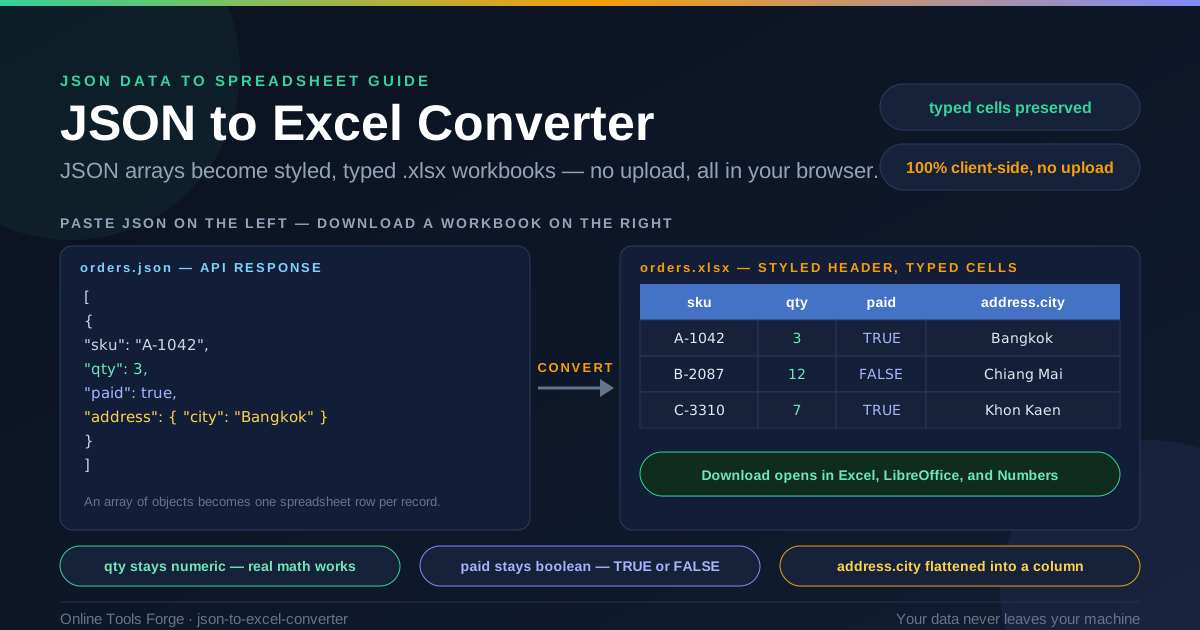
A sample input and the grid it produces:
[
  { "sku": "A-1042", "qty": 3, "paid": true, "address": { "city": "Bangkok" } },
  { "sku": "B-2087", "qty": 12, "paid": false, "address": { "city": "Chiang Mai" } }
]
| sku | qty | paid | address.city |
|---|---|---|---|
| A-1042 | 3 | TRUE | Bangkok |
| B-2087 | 12 | FALSE | Chiang Mai |
Four columns, two rows, numeric qty cells, logical paid cells, flattened addresses, and a styled header band on top.
Practical Use Cases
Reporting Exports for Non-Technical Teams
Managers and analysts read spreadsheets, not JSON. When a stakeholder asks for "last month's signups," paste the admin API response into the converter and hand back a .xlsx with real numbers and a formatted header.
E-commerce Order Exports
Order feeds from payment providers arrive as deeply nested JSON. Flattening turns customer.address.city and order metadata into clean columns that accounting can filter by region and reconcile against the ledger.
Audit Snapshots
Compliance reviews often need a frozen point-in-time view of records. Convert the current API state to a workbook, save it with a date in the filename, and you have portable evidence that opens anywhere.
Offline Analysis
Not every environment has API access, and not every collaborator should. An .xlsx export lets you run quick calculations, share subsets with partners, and work offline — from a file created locally.
Best Practices
- Flatten deliberately. Dotted columns suit nested records, but confirm the leaf values are what your audience needs.
- Keep IDs as strings. Quote postal codes, phone numbers, and long identifiers so they stay text — converting 007 or a 16-digit account number to a number destroys information.
- Verify row counts. Compare the preview's row count against your array length; a parsing quirk is easier to catch before the file is shared.
- Protect privacy before sharing. The conversion is local, but the file travels — remove personal fields the recipient does not need.
- Watch the Excel limits. A worksheet holds at most 1,048,576 rows, so split larger arrays into batches before converting.
Ready to Turn JSON Into Excel?
Open the JSON to Excel Converter, paste an API response, and download a styled, typed .xlsx in seconds — free, private, and entirely in your browser. Bookmark it for the next time management asks for "just the data in a spreadsheet."
Related Tools You Might Like:
- Excel to CSV Converter — turn existing .xlsx files into clean CSV for pipelines
- CSV to Excel Converter — turn plain CSV files into formatted .xlsx workbooks
- JSON to CSV Converter — the same JSON input rendered as RFC 4180-compliant CSV
Written by the Online Tools Forge Team — building fast, free, privacy-first tools that run entirely in your browser.
Frequently Asked Questions
Q: Is my JSON data uploaded to a server?
A: No. Parsing, flattening, and workbook generation all run in your browser with JavaScript. Nothing is uploaded, logged, or stored.
Q: Will numbers open as text in Excel?
A: No. JSON numbers are written as true numeric cells and booleans as logical TRUE or FALSE values, so formulas and sorting work immediately. Strings — including ones with leading zeros — stay text so Excel does not reformat them.
Q: What JSON shapes does the converter accept?
A: An array of objects is the standard input, producing one row per object. A single top-level object becomes a one-row sheet, an array of primitives becomes a single value column, and mixed records merge into the union of all keys.
Q: How are nested objects handled?
A: With flattening enabled (the default), each nested object expands into dotted column names — address.city, address.zip — applied consistently across all rows. Arrays inside objects are serialized into their cell as JSON text.
Q: Which applications can open the downloaded file?
A: The tool produces a valid .xlsx workbook that opens natively in Microsoft Excel, LibreOffice Calc, and Apple Numbers, and imports cleanly into Google Sheets.