kubectl Command Builder: Compose Kubernetes Commands Without Memorizing Flags
Build kubectl get, describe, rollout, logs, and apply commands in seconds with the kubectl Command Builder, a free browser tool with visual pickers and per-flag explanations.
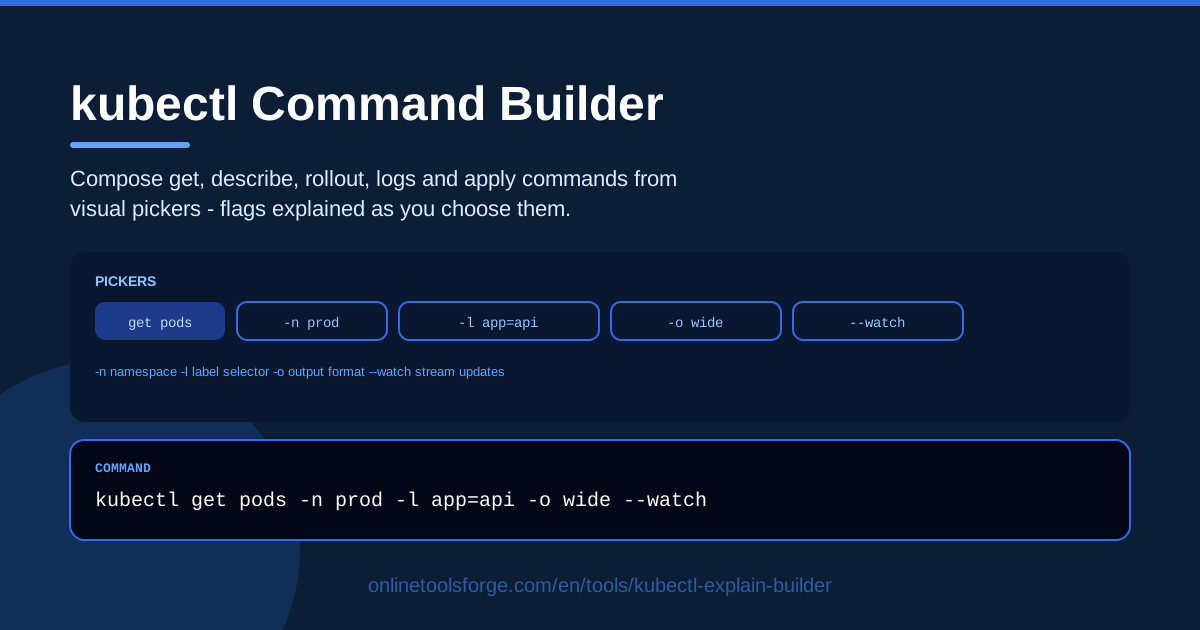
Table of Contents
If you work with Kubernetes, you know the drill: you need one specific command, you half-remember the flag, and off you go to a search engine. The kubectl Command Builder on Online Tools Forge ends that loop for good.
The idea is simple. Pick a resource — pods, deployments, services, and more — choose what you want to do (get, describe, rollout, logs, or apply), then add a namespace, a label selector, and flags from visual pickers. The tool composes the command live, explains each flag as you select it, and hands you clean copy-paste output.
Everything runs in your browser: nothing to install, no account, and no cluster connection. The builder never touches your cluster — it helps you plan and understand commands, which makes it as useful for teaching kubectl as for shipping software.
Why Use kubectl Command Builder?
- Stop guessing at syntax. Questions like "was it -n or --namespace?" become a click. The composed command is valid before it ever reaches your terminal.
- Learn while you build. Every flag you pick comes with a plain-English explanation, so each command you compose quietly teaches you the next one.
- All the daily verbs in one place. get for listing, describe for detail, rollout for restarts and undo, logs for output, and apply for declarative changes — no hopping between tutorial tabs.
- Fewer namespace accidents. Guided namespace input makes -n a deliberate choice instead of a forgotten default that sends you hunting in the wrong place.
- Precise targeting with selectors. Compose -l app=api,env=prod style selectors and address a whole fleet in one command instead of copy-pasting random pod names.
- Zero setup. It runs in the browser, needs no cluster credentials, and costs nothing.
Key Features
| Feature | What it does |
|---|---|
| Visual resource pickers | Choose pods, deployments, services, and other resources without typing resource kinds by hand |
| Verb selection | Compose kubectl get, describe, rollout, logs, and apply commands from a single screen |
| Namespace input | Add an explicit -n namespace with a guided field instead of an afterthought flag |
| Label selector builder | Target exactly the objects you mean with -l key=value selectors assembled from inputs |
| Per-flag explanations | See what each flag does the moment you pick it, so composing doubles as learning |
| Copy-paste output | Finish with a clean, runnable command you can paste straight into your terminal |
- The command rebuilds live as you flip verbs and flags, so comparing get pods with and without -o wide takes seconds.
- Because the output is plain text, pasted commands survive Slack, runbooks, and shell history intact.
How to Use kubectl Command Builder
- Pick the resource. Choose what you care about — pods, deployments, services, or another resource — from the visual picker. This sets the object your command operates on.
- Choose the verb. Decide the action: get to list, describe for full detail, rollout for restart and undo actions, logs to read output, or apply to push a manifest.
- Add namespace and selectors. Fill in the namespace to scope the command, and add a label selector if you want to target a group of objects instead of a single one.
- Read the flag explanations. Check the note beside each flag you toggle. This is where the builder doubles as an interactive kubectl cheat sheet — you see the trade-offs before running anything.
- Copy the command. Paste the finished command into your terminal. If something looks off, adjust a picker and the command rebuilds instantly.
The Flags That Matter Daily
A handful of flags carry most of the weight in day-to-day kubectl work, and each one is worth turning into a deliberate habit.
-n (namespace). Without it, kubectl silently uses the default namespace of your current context — usually default. That quiet fallback is why so many "my deployment is gone" panics end with someone realizing they were looking in the wrong namespace. Passing -n staging or -n production every time makes each command self-documenting and safe to paste into a shared terminal.
-l (label selector). Labels are how Kubernetes groups objects. kubectl get pods -l app=api returns every pod wearing that label, which is usually more useful than a pod's random generated name. Selectors also compose: -l app=api,env=prod narrows to the intersection of both.
-o wide, -o yaml, -o json. The default table hides exactly the columns you need at the worst moment. -o wide adds node, IP, and image columns for pods, while -o yaml and -o json dump the full object for diffs, edits, and scripts.
--watch. Appending -w streams updates live — perfect for watching pods settle after a change, and an easy way to leave a terminal pinned open without noticing. Treat it as a short-lived activity, not a dashboard.
rollout restart vs rollout undo. rollout restart deployment/api performs a controlled rolling restart, the polite way to bounce pods after a config change. rollout undo deployment/api reverts to the previous revision when a deploy goes wrong. One is maintenance; the other is a rollback. Know which situation you are in before pasting either.
logs --tail and -f. A bare kubectl logs pod/api can bury you in startup noise. --tail=100 keeps the last hundred lines, and -f follows the stream like tail -f. Together they turn log reading from archaeology into observation.
apply -f. kubectl apply -f manifest.yaml is the declarative path: describe the desired state and let the API server reconcile it. It is auditable, repeatable, and safe to re-run — everything one-off imperative edits are not. When the builder composes an apply command, it is nudging you toward infrastructure-as-code.
Practical Use Cases
Debugging a CrashLoopBackOff
A pod stuck in CrashLoopBackOff starts and dies in a loop, and two commands usually tell the whole story. kubectl describe pod api-7d9f8-xyz -n staging shows the exit code, restart count, and recent events — a failing probe, an unpullable image, or a missing config. Then kubectl logs api-7d9f8-xyz -n staging --tail=100 shows what the application said right before dying. Compose both in the builder, paste, and you have the diagnosis path in seconds instead of assembling flags from memory.
Watching a rollout
After changing a deployment, the question is whether the new pods come up clean. kubectl rollout status deployment/api -n production blocks until the rollout finishes and reports the outcome, while kubectl get pods -l app=api -n production -w shows each pod transition live. Together they answer "did my deploy actually land?" without refreshing anything.
Pulling logs for one container
Multi-container pods need the -c flag: kubectl logs api-7d9f8-xyz -c sidecar -n staging --tail=50 -f follows just the sidecar's stream instead of the app's. When someone says "the logs are empty," a missing container flag is the usual culprit — and a picker that prompts for it removes that entire class of mistake.
Teaching new team members kubectl
New joiners do not need to memorize flags; they need to see intent become command. Ask them to compose "list all pods in staging with extra columns" in the builder, read the per-flag explanations aloud, then run it. It works as an interactive cheat sheet that cannot break anything, because it never touches the cluster.
Best Practices
- Always name the namespace explicitly. Even when the default would work, -n keeps commands unambiguous and safe to share.
- Prefer declarative apply. Reach for apply -f with versioned manifests instead of imperative edits that vanish from history.
- Use --watch sparingly. Start it deliberately and stop it when you have your answer.
- Verify with get before and after changes. A quick kubectl get pods -n staging before and after confirms scope and result — cheap insurance every time.
- Read the flag explanation before running. If a description surprises you, that is the moment to pause, not paste.
- Archive good commands in your runbook. The copy-paste output is stable text your on-call self will thank you for.
Next time you reach for a browser tab to double-check a kubectl flag, open the kubectl Command Builder instead. Pick your resource, choose your verb, skim the explanations, and paste a command you fully understand — free, in your browser, with a small lesson built into every command.
Related Tools You Might Like:
- Docker Run to Compose Converter — turn raw docker run commands into clean Compose service definitions.
- Docker Compose Generator — assemble multi-service compose files without fighting YAML indentation.
- YAML Formatter — format and validate the manifests you feed to kubectl apply -f.
Happy shipping!
Frequently Asked Questions
Q: Does the kubectl Command Builder connect to my Kubernetes cluster? A: No. It runs entirely in your browser and never contacts your cluster. It composes command text only — you run the result yourself wherever your kubeconfig is set up.
Q: Is it useful for beginners who are new to kubectl? A: Very much so. Per-flag explanations turn every command into a mini lesson, so beginners compose correct commands while learning why each flag exists.
Q: Which commands can it build? A: kubectl get, describe, rollout, logs, and apply commands, with pickers for common resources such as pods, deployments, and services, plus namespace and label selector inputs.
Q: Is the tool free, and does it need an account? A: Completely free — no account, no installation, no limits. Open the page and start composing commands.