Lottie Player: Preview and Validate Animation JSON Offline
Preview Lottie animations and validate the JSON — version, dimensions, framerate, layer tree, and asset count. A free Lottie inspector that works offline.
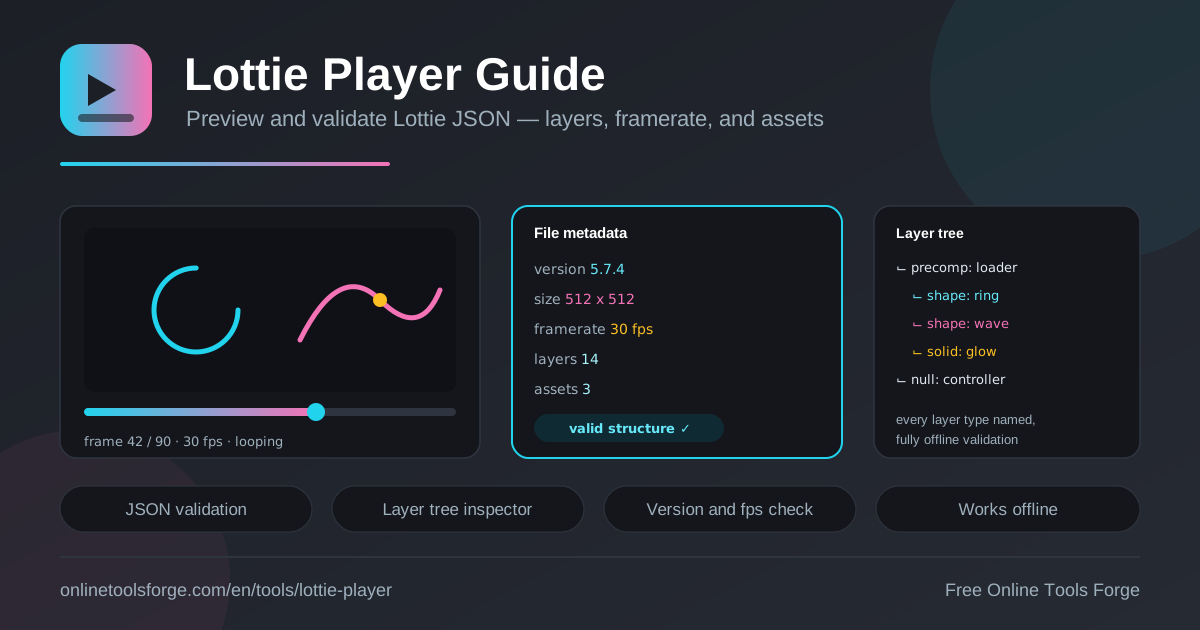
Table of Contents
Lottie has become the default format for shipping vector animation in apps. Designers export compositions from After Effects with the Bodymovin plugin, and developers render the resulting JSON with lottie-web or a native player. The catch: the output is dense, machine-generated JSON that is painful to audit by hand — and a file that looks right in After Effects can still misbehave in a renderer.
The Lottie Player solves this. It is a free lottie player and lottie validator that runs entirely in your browser: it previews the animation live on canvas while a metadata panel reports the Lottie version, dimensions, framerate, layer count, and asset count, and a layer tree names every layer type in the composition. Because nothing is uploaded, it works fully offline — ideal for unreleased designs.
Why Use the Lottie Player?
- Instant visual confirmation. Paste or upload a Lottie JSON file and the animation plays on canvas immediately — no install, no test harness.
- Complete metadata at a glance. The panel reports schema version, dimensions, framerate, layer count, and asset count together, so compatibility checks take seconds.
- A readable layer tree. Browse the composition as a tree that names every layer type — shape, solid, precomp, null, and more — instead of scrolling minified JSON.
- Structure validation before shipping. Catch malformed files early — missing fields, broken asset references, or unsupported structures that render as a blank canvas in production.
- Private by design. Files never leave your machine, which matters when you are inspecting unreleased product work under NDA.
- Works fully offline. Once the page loads, no network is needed — useful on planes and in restricted environments.
Key Features
| Feature | What it does |
|---|---|
| Live canvas preview | Plays the animation so you can verify motion, timing, and loop behavior |
| Metadata panel | Reports Lottie version, dimensions, framerate, layer count, and asset count |
| Layer tree inspector | Expands the composition and names every layer type |
| Paste or upload | Accepts JSON pasted as text or a .json file from disk |
| Structure validation | Flags malformed or inconsistent structure before production |
| Offline operation | All parsing and rendering happen locally, with no server round-trips |
A few of these deserve extra detail:
- The metadata panel is the fastest sanity check in the workflow. The version readout confirms compatibility with the player your app embeds; framerate and dimensions confirm the export matches your layout spec.
- The layer tree turns an opaque file into a legible one. Seeing eight precomps and a wall of shape layers explains both how the animation is organized and where the bytes come from.
- Structure validation catches costly failure modes: files that parse as JSON but lack a layers array, or reference assets that do not exist.
How to Inspect a Lottie File
- Open the tool. Go to the Lottie Player — nothing to install, no account needed.
- Load your JSON. Paste the file contents into the input area or upload the .json file directly.
- Watch the live preview. Confirm the motion, loop point, and overall look match what the designer intended.
- Read the metadata panel. Check version, dimensions, framerate, layer count, and asset count against your integration requirements.
- Walk the layer tree. Confirm layer types look sensible — shapes where you expect artwork, precomps where nested compositions live, no stray unnamed layers.
If all five steps check out, the file is structurally sound and safe to bundle.
Inside a Lottie JSON File
A Bodymovin export looks intimidating, but its top level is small and predictable, and the tool surfaces each field directly:
- v — the Bodymovin schema version the file targets; players use it to decide which features they can render.
- w and h — animation dimensions in pixels; get these wrong and the animation lands stretched or clipped.
- fr — the framerate in frames per second, inherited from the After Effects composition.
- ip and op — in point and out point, which define the playable frame range and loop length.
- layers — the ordered array of layers, ordered back to front; this order is the render order.
- assets — nested compositions and images referenced by the main composition; asset count is a quick proxy for complexity.
The layers array is where the structure lives, and the layer tree inspector maps it:
- Shape layers (type 4) — vector paths, fills, and strokes; the workhorse of icon and UI animation.
- Solid layers (type 2) — flat color rectangles, often used for backgrounds and mattes.
- Precomp layers (type 0) — references into the assets array that pull in nested compositions, letting animators reuse complex groups.
- Null layers (type 3) — invisible objects that exist purely to parent and drive other layers.
- Image layers — bitmap references via the assets array, usually the biggest contributors to file size.
What does the validator catch? Files that parse as JSON but violate the Lottie structure: missing required fields, broken asset references, or version strings a renderer cannot honor — the defects that surface as blank canvases before a release.
Bodymovin exports have known quirks, too. After Effects expressions are not always translated into something every player can evaluate, and simple easing is sometimes baked into hundreds of keyframes, inflating size. Hidden guide layers or a cropped composition can leave stray layers in the output.
Offline inspection matters here: an unreleased file carries exact brand colors and motion language, so uploading it to a web service is a confidentiality risk. A browser-based lottie inspector keeps the JSON on your machine.
A minimal Lottie document is only a few fields deep:
{
  "v": "5.7.4",
  "w": 512,
  "h": 512,
  "fr": 30,
  "ip": 0,
  "op": 90,
  "layers": []
}
Practical Use Cases
QA-ing Designer Handoffs
A designer sends three icons and a loader for the next release. Before writing integration code, run each file through the lottie player: confirm dimensions match the component spec, the framerate matches the platform target, and the layer tree holds no leftover guide layers. Five minutes here prevents the classic looks-broken-on-Android round trip.
Debugging Animations That Fail in lottie-web
When an animation renders blank or throws in lottie-web, the console message rarely points at the real defect. The layer tree narrows it down: a precomp may reference a missing asset ID, or a layer type may exceed what your renderer supports. Inspecting the structure turns a vague failure into a concrete fix.
Auditing Asset-Heavy Files for Size
A page bundle grows by 400 KB and the culprit is a Lottie file. The asset count and layer tree show why: dozens of image layers, or a precomp duplicated with tiny variations. Once the structure is visible, the fix is obvious — replace bitmaps with vectors or consolidate precomps before shipping.
Teaching the Lottie Format
For developers new to motion work, the format is easiest to learn by example. Load a small file, read the metadata, then trace how the layers array maps to the canvas: shapes drawing the artwork, a null parenting the moving group, a precomp wrapping a reused element.
Best Practices
- Validate before it enters the repo. Treat a lottie validator pass as part of review for design assets, not an optional extra.
- Check version compatibility first. Compare the file version against the player version your app ships; mismatches are the top cause of silent failures.
- Match framerate to the platform. Know the target frame rate before integration so a 30 fps file does not play at half speed.
- Watch the asset count. Image-heavy files bloat bundles and slow first render; prefer vector-only exports when the design allows.
- Keep layer names meaningful. A tree full of "Shape Layer 47" is a debugging liability; ask designers to name layers before export.
- Inspect unreleased work offline. Never paste confidential animation JSON into tools that ship data to a server.
Preview and Validate Your Next Animation
Ready to audit your next animation handoff? Open the free Lottie Player, drop in a JSON file, and get a live preview plus a complete structural readout in seconds. No signup, no uploads, no server — just your browser, fully offline.
Related Tools You Might Like:
- SVG Optimizer — minify and clean SVG assets before production.
- CSS Animation Generator — build keyframe motion with pure CSS.
- SVG Path Editor — hand-tune path data for icons and vector art.
Happy animating!
Frequently Asked Questions
Q: What exactly is a Lottie file?
A: A Lottie file is a JSON document exported from After Effects through the Bodymovin plugin. It describes layers, keyframes, and easing that lottie-web or native mobile SDKs render in real time.
Q: Does the Lottie Player upload my animation anywhere?
A: No. Parsing and rendering happen entirely in your browser, and the tool works fully offline, so confidential or unreleased designs never leave your machine.
Q: What does the metadata panel tell me?
A: It reports the Lottie schema version, animation dimensions, framerate, layer count, and asset count — the fields you need to confirm a file is compatible with your player and layout.
Q: Can the tool repair a broken file?
A: It validates structure and shows where a file deviates from the expected format — missing fields, bad asset references, unsupported layers. The fix is usually a clean re-export from After Effects or a small JSON edit.