How to Generate MCP Server Config for Claude Desktop, Cursor, and VS Code
The MCP Config Generator turns server definitions into ready-to-paste mcpServers JSON blocks for Claude Desktop, Cursor, and VS Code — entirely client-side, with your tokens never leaving the browser.
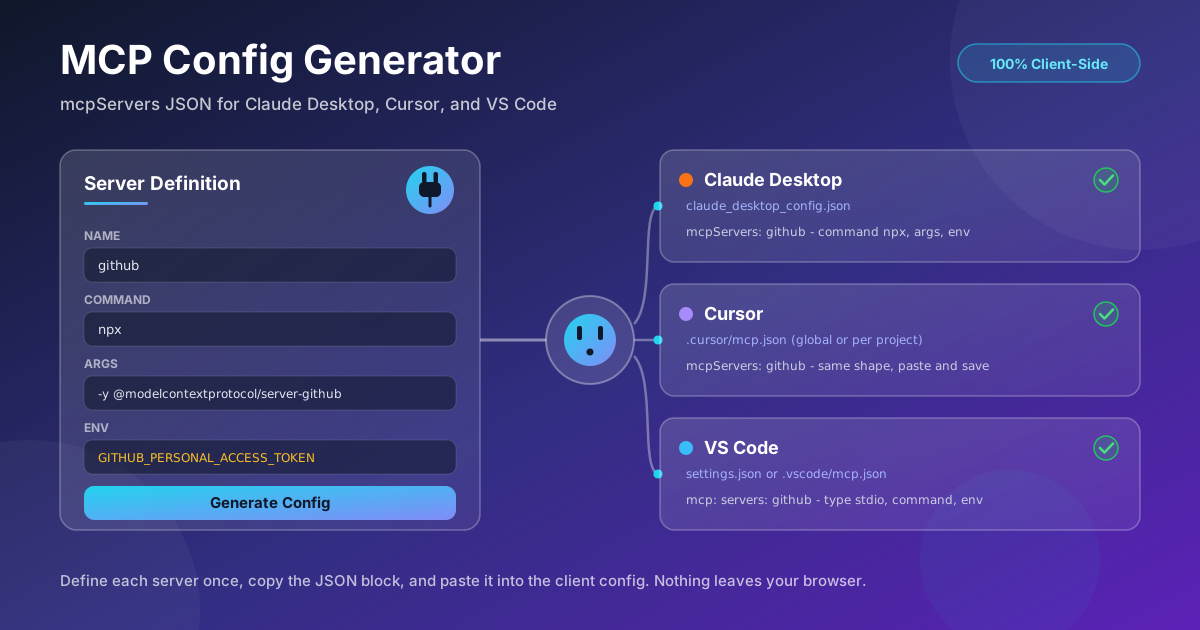
Free Interactive Tool
MCP Config Generator
Generate mcpServers JSON config blocks for Claude Desktop, Cursor, and VS Code from server names, commands, arguments, and environment variables — entirely in your browser.
Table of Contents
MCP servers are how AI assistants get tools. The Model Context Protocol has become the standard way to hand an AI client real capabilities — reading local files, querying GitHub, searching a database, driving a browser. The awkward part comes right after you pick a server: you must register it in a config file before the client will launch it, and every client stores that config in a different file, in a slightly different shape.
The MCP Config Generator removes that friction. Define each server once — a name, a command, its arguments, and any environment variables — and the tool produces the mcpServers JSON block matched to each client's config shape: Claude Desktop's claude_desktop_config.json, Cursor's mcp.json, and VS Code's settings. Copy the block, paste it into the right file, restart the app, and the server's tools show up.
Like every tool on this site, the generator runs 100% client-side. Tokens you type into an env field never touch a server — which matters, because MCP configs are full of exactly the credentials you do not want leaking. This guide covers the tool step by step, the mcpServers schema behind it, and where it saves the most time.
Why Use MCP Config Generator?
- Every client speaks a slightly different dialect. Claude Desktop expects claude_desktop_config.json, Cursor reads mcp.json from its own directory, and VS Code wraps servers in an mcp section inside its settings. The generator emits the right shape for each.
- Hand-written JSON fails silently. One trailing comma, one missing brace, and the client will not load your servers — often without a clear error.
- Safe for real credentials. Tokens and API keys are routine in MCP configs. Everything is generated locally, so those values never leave your machine.
- One definition, three outputs. Enter the details once and get paste-ready blocks for all three clients instead of maintaining parallel snippets.
- Copy-paste output, nothing to install. Plain JSON with a copy button — no CLI, no package, no account.
- It doubles as documentation. The form makes command, args, and env vars explicit, so the config you paste records what you installed and why.
Key Features
| Feature | Description |
|---|---|
| Server definitions | Capture name, command, args, and env vars per MCP server. |
| Multi-client output | mcpServers JSON matched to Claude Desktop, Cursor, and VS Code shapes. |
| Copy-paste blocks | Formatted JSON with one-click copy for the client's config file. |
| Env var support | First-class handling of tokens and connection URLs. |
| 100% client-side | Generated in your browser; nothing is uploaded anywhere. |
- The output matches each client's config shape, including the extra wrapper VS Code expects.
- Define multiple servers in one session, and rerun the tool whenever a command or flag changes.
How to Use MCP Config Generator
- Open the tool. Head to the MCP Config Generator in your browser.
- Define the server. Fill in a name (it becomes the key in the JSON, such as github), the launch command (npx, node, uvx, docker), its arguments, and any env vars it requires.
- Pick the client. Choose Claude Desktop, Cursor, or VS Code — or review the generated block for each one.
- Copy and paste into the right config file. Merge the block with servers you already have rather than replacing them.
- Save and restart the app. Clients read their config at startup, so restarting is what loads the new server.
One Server, Three Config Shapes
The mcpServers schema
Most MCP configs come down to one small object: the command is the executable the client launches, args are the parameters passed to it, and env is a map of variables injected into the server process:
{
  "mcpServers": {
    "github": {
      "command": "npx",
      "args": ["-y", "@modelcontextprotocol/server-github"],
      "env": {
        "GITHUB_PERSONAL_ACCESS_TOKEN": "ghp_your_token_here"
      }
    }
  }
}
Here the client runs npx -y @modelcontextprotocol/server-github, injects the token, and talks to the process over stdin and stdout. The same skeleton covers a filesystem server (npx with directory paths as arguments) or a uvx-launched Python server.
Where each client keeps its config
- Claude Desktop reads claude_desktop_config.json — on macOS at ~/Library/Application Support/Claude/claude_desktop_config.json, on Windows at %APPDATA%\Claude\claude_desktop_config.json — with servers under the mcpServers key.
- Cursor uses mcp.json, globally at ~/.cursor/mcp.json or per project at .cursor/mcp.json, with the same mcpServers convention.
- VS Code keeps servers in its settings — the user settings.json or a workspace .vscode/mcp.json — wrapped in an mcp section with a servers object, where entries can declare a type such as stdio.
Env vars and the secrets caution
The env object is where credentials live. The generator never transmits what you type, but once pasted, the config file is plaintext on disk. Treat it like a .env file: keep it out of version control, prefer scoped and revocable tokens, and grant only the permissions the server needs.
stdio vs HTTP servers
Most servers are stdio: the client launches a local process via command and args, which is the shape above. Remote HTTP servers register with a URL instead — command, args, and env do not apply.
Practical Use Cases
Setting up a new machine
A fresh laptop means reinstalling every MCP server from memory: which package, which flags, which env vars. Generate all three client blocks from one definition list and setup becomes copy-paste, not archaeology.
Sharing team server setups
When a team standardizes on a set of servers, the generated blocks slot into onboarding docs and runbooks; each developer substitutes their own token.
Documenting tool installs
Because the form forces you to spell out name, command, args, and env, the output is self-documenting — the JSON in a README tells the next maintainer exactly how a server launches.
Debugging a server that will not connect
When a client refuses to launch a server, the cause is usually a typo in the command, a missing argument, or a missing env var. Regenerate the block from the server's README and diff it against yours.
Best Practices
- Never commit env secrets. MCP configs carry live credentials. Add them to .gitignore and share structure, not values.
- Restart the client after every config edit. A running app will not pick up a new server until it restarts.
- Change one thing at a time. Add or modify a single server, restart, verify, then move on.
- Check the client logs. Claude Desktop and VS Code expose MCP logs showing launch failures and stderr — faster than guessing.
- Keep a canonical list of your servers. One source-of-truth definition per server lets you regenerate every client block.
- Validate tricky JSON before pasting. If you merge blocks by hand, run the file through the JSON Formatter to catch syntax slips.
Generate Your MCP Config in Seconds
Stop memorizing which client keeps its config where. The MCP Config Generator turns a server definition into correct, paste-ready JSON for Claude Desktop, Cursor, and VS Code — entirely in your browser, with your tokens staying on your machine. Define a server, copy the block, and put your assistant to work.
Related Tools You Might Like:
- JSON Formatter — validate and pretty-print any config file.
- JSON Schema Visualizer — see complex JSON structure at a glance.
- Env to JSON Converter — turn .env files into structured JSON.
Happy configuring!
Frequently Asked Questions
Q: Is my GitHub token or API key uploaded anywhere? A: No. The generator runs entirely in your browser; values you enter are used to build the JSON locally and are never sent to any server.
Q: Do I need to restart the app after editing the config? A: Yes. All three clients read their MCP config at startup, so quit and reopen the app to load the new server.
Q: Can I share one config file between all three clients? A: Not directly. Each client reads its own file, and VS Code adds an extra mcp wrapper. Generate a block per client — the server definition stays the same.
Q: What about remote servers that use a URL instead of a command? A: HTTP-based servers register with a URL rather than command, args, and env; follow that server's docs. The command-based shape here applies to stdio servers.