Network Speed Test: Check Internet Speed, Latency, and Jitter in Your Browser
Run a free browser-based Network Speed Test that measures download, upload, latency, and jitter with a clear connection-quality verdict — no third-party API required.
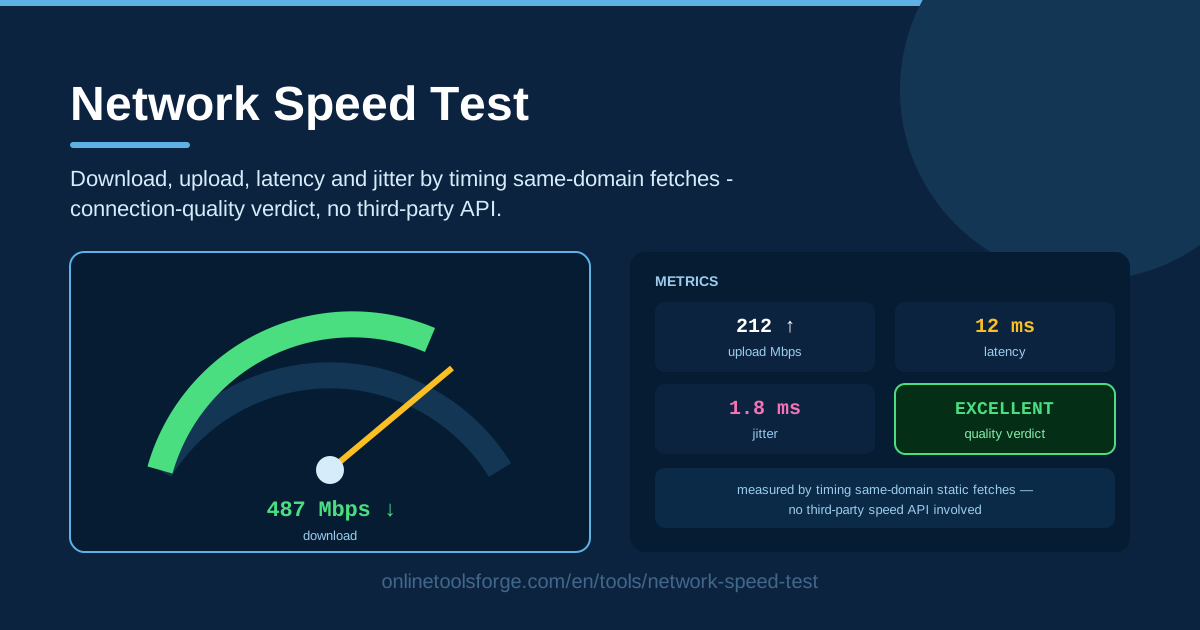
Table of Contents
How often do you actually verify that your internet connection delivers what you pay for? Most people only think about bandwidth when a video call freezes or an upload crawls. The Network Speed Test on Online Tools Forge puts a fast, reliable internet speed check one click away — entirely in your browser, with no downloads and no accounts.
The tool measures the four numbers that define a real-world connection: download throughput, upload throughput, latency, and jitter. It works by timing fetches of same-domain static assets, so measurements travel the same path as your normal traffic. It ends with more than raw figures — a connection-quality verdict such as "Excellent" translates the numbers into plain language.
Best of all, no third-party speed-test API is involved, so nothing about your connection is handed to an external measurement company. It is a privacy-friendly first stop whenever your network feels slow.
Why Use Network Speed Test?
- No third-party API. Classic speed test sites push your traffic to external measurement servers, adding variables you cannot control. This tool keeps every request on its own serving domain — a clean, direct path.
- Privacy by design. No sign-up, no tracking script, no measurement vendor collecting your IP address or history. The test runs in your browser and stays there.
- A complete picture. Download and upload speed alone cannot explain why calls stutter. Latency and jitter reveal how your connection behaves under real use.
- A verdict you can act on. Instead of decoding raw numbers, you get a rating such as "Excellent" saying whether the link is ready for streaming, calls, and heavy work.
- Runs anywhere a browser does. Laptop, phone, or office desktop — comparing devices and networks is effortless.
- Free and instant. Open the page, run the test, get results in seconds. No cost, no configuration, no waiting.
Key Features
| Feature | What it does |
|---|---|
| Download speed | Times repeated same-domain fetches to estimate inbound throughput in Mbps |
| Upload speed | Measures how fast your device pushes data out to the network |
| Latency | Reports round-trip time, showing how responsive the link feels |
| Jitter | Shows variance between latency samples, predicting call and stream stability |
| Quality verdict | Combines every metric into one plain-language rating, such as Excellent |
| In-browser engine | Measures everything with standard browser fetches — no apps or extensions |
A few details worth knowing:
- The engine never talks to a third-party speed-test service; every request goes to the same domain as the tool, removing a common source of inconsistency.
- The verdict derives from your measured metrics, so it describes your actual experience, not a marketing number.
- The test finishes in seconds and re-runs immediately, making before-and-after comparisons painless.
How to Use Network Speed Test
- Close heavy apps first. Pause cloud sync, stop large transfers, and shut down video streams — background traffic competes with the test and drags your numbers down.
- Run the test. Open the Network Speed Test page and start it. The browser fetches same-domain static assets several times to time download throughput, then repeats the process for upload while measuring latency and jitter.
- Read download and upload. These Mbps values show raw capacity: download drives streaming and browsing; upload drives video calls, cloud backups, and file sharing.
- Check latency and jitter. Latency is how quickly small packets make a round trip; jitter is how consistent that timing is. Together they explain why a fast-on-paper connection may still feel rough.
- Interpret the verdict. The tool summarizes everything into a rating such as "Excellent" — the headline answer, with the individual metrics as the explanation behind it.
What the Numbers Mean
Download versus upload. Download speed is how fast data arrives; upload speed is how fast it leaves. Streaming and browsing are download-heavy; calls, live streaming, and backups lean on upload. Home plans are asymmetric — 500 Mbps down with 50 Mbps up is common — so much lower upload is normal, not a fault.
Latency is round-trip time. Measured in milliseconds, it is how long a small packet takes to travel out and back. Under roughly 30 ms feels instant, 30–70 ms suits almost everything, and beyond 100 ms delays show up in games, calls, and remote desktop. No amount of bandwidth removes that waiting.
Jitter is latency variance. If successive packets take 20, 90, 35, and 80 ms, that swing is jitter — the main reason calls break up even when speed looks fine. Real-time audio and video expect a steady stream; high jitter forces buffering or dropped packets — robotic voices, frozen faces.
How same-domain fetch timing measures throughput. The browser downloads files of known size from the tool's own domain and divides bytes by elapsed time to estimate download speed, repeating fetches to average out hiccups. Upload works in reverse: payloads are sent and timed. These ordinary HTTPS fetches carry the same overhead as your real traffic.
The verdict bands. "Excellent" means high throughput with low latency and jitter — ready for 4K streaming and many simultaneous calls. "Good" handles HD streaming comfortably. "Fair" covers browsing and email but strains once several devices join in. "Poor" signals that even basic tasks feel sluggish — usually congestion, weak Wi-Fi, or a provider-side issue.
Practical Use Cases
Verifying a New ISP Plan
Signed up for gigabit fiber — did you get it? Run the test a few times on a wired connection during a quiet hour and compare download against the advertised plan. If results land far below what you pay for, you have concrete evidence for your provider.
Diagnosing Video Call Quality
When meetings freeze or audio turns robotic, bandwidth is rarely the villain. Look at jitter and latency first; high jitter on a fast line usually points to congested Wi-Fi. Check upload too — calls need steady outgoing capacity.
Comparing Office and Home Networks
Run the same test in both places. If home scores "Excellent" while the office lands on "Fair", the difference often comes from shared bandwidth, VPN overhead, or corporate routing — an instant, easy-to-explain comparison for your IT team.
Testing After Router Changes
Replaced a router, updated firmware, or switched Wi-Fi channels? Test before and after. A few minutes of comparison shows whether the change genuinely improved latency and stability, or whether the old setup was quietly doing a better job.
Best Practices
- Test multiple times. Averaging three to five runs filters out momentary spikes and gives numbers you can trust.
- Compare wired versus Wi-Fi. Test on Ethernet, then Wi-Fi in the same room. The gap shows exactly what your wireless setup costs you.
- Mind other devices. Streaming phones and updating consoles silently eat your results, so quiet the network before measuring.
- Compare against your plan. See how close you get to the advertised speed — expect roughly 80–90 percent of it on healthy wired lines.
- Test at different times of day. Evening congestion is real: a morning "Excellent" can become an evening "Fair", so schedule big uploads and important calls accordingly.
Ready to see what your connection is really doing? Open the Network Speed Test, click start, and within seconds you will have download speed, upload speed, latency, jitter, and a clear quality verdict — measured entirely in your browser with no third-party API. It is the fastest way to get answers.
Related Tools You Might Like:
- DNS Lookup — check how your domains resolve, a frequent hidden cause of "slow" browsing.
- IP Lookup — see the public address and location your connection presents to the world.
- IP Range Calculator — plan and verify subnets when diagnosing or designing networks.
Happy testing!
Frequently Asked Questions
Q: Is a browser-based speed test as accurate as a dedicated app? A: For everyday checks, yes. The tool times real transfers of same-domain static assets over HTTPS — the same protocol your normal traffic uses. Dedicated apps add extra hops and third-party servers; this approach measures a clean, direct path. Run it several times for the most reliable picture.
Q: Why is my upload speed so much lower than my download speed? A: Most consumer connections are deliberately asymmetric. Providers allocate far more downstream than upstream capacity because typical usage is download-heavy. Upload around one tenth of download is normal.
Q: What latency and jitter should I aim for? A: Latency under about 50 ms is comfortable for calls and gaming, and jitter in the low tens of milliseconds or below keeps conversations smooth. If either is high while download is strong, suspect Wi-Fi congestion rather than your plan.
Q: Does the test collect or share my data? A: No. No third-party speed-test API is involved and nothing about your connection profile is logged or shared. The measurement happens between your browser and the same domain that serves the tool — and it stays that way.