How to Make Photo Collages Online With Photo Collage Maker
Turn several photos into a polished grid collage with the free Photo Collage Maker — drag-and-drop placement, adjustable gaps, corner rounding, background colors, and PNG export, all in your browser.
Free Interactive Tool
Photo Collage Maker
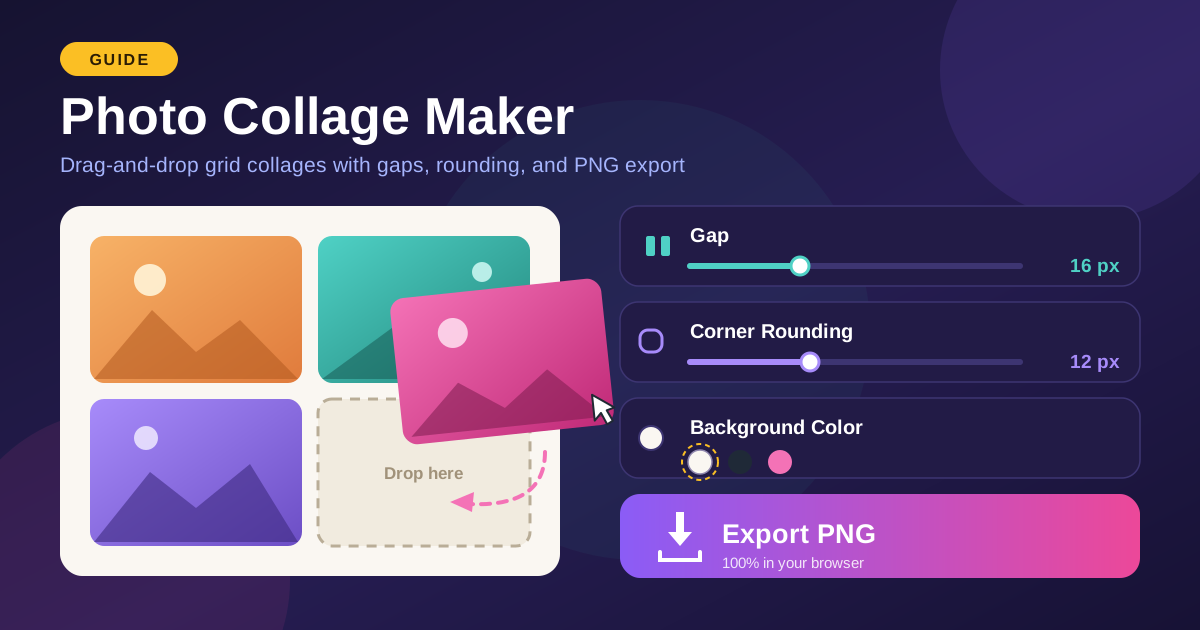
Combine multiple photos into one grid collage — drag and drop images into any cell, tweak gaps, corner rounding, and background color, then export a high-quality PNG entirely in your browser.
Table of Contents
A single photo tells one story — a collage tells the day. The sunrise, the pancake breakfast, the group selfie at dusk: arranged in a grid, they become more than their parts. The free Photo Collage Maker makes it effortless: drop in photos, drag them into place, export a polished PNG.
Everything happens in your browser. Photos are never uploaded — they are read locally, composed on a canvas, and rendered straight into the file you download. That makes it safe for private family pictures and unreleased product shots alike. No account, no watermark, nothing to install.
Why Use Photo Collage Maker?
- No uploads, total privacy — Photos are composed on your device and never touch a server — safe for personal and sensitive images.
- True drag-and-drop placement — Rearranging is as simple as dragging a tile into another cell; positions swap instantly.
- Crisp PNG export — The collage downloads as one lossless PNG with sharp edges and exact colors.
- Works offline once loaded — After the page loads, no connection is needed — build collages on a flight or in a cafe.
- Nothing to install or sign up for — Free and browser-based on Windows, macOS, Linux, and mobile.
- Fast enough for a coffee break — From photos to finished file in about a minute, even on a modest laptop.
Key Features
| Feature | What it does |
|---|---|
| Multi-photo input | Add several photos at once from your device |
| Grid collage layout | Photos snap into an even grid of rows and columns |
| Drag-and-drop placement | Drag any tile into another cell to swap positions |
| Adjustable gaps | Control spacing between tiles and around the edges |
| Corner rounding | Soften tile corners from sharp squares to gentle curves |
| Background color | Fill the gaps and outer border with any color |
| PNG export | Download the finished collage as one flat, lossless file |
| 100% in-browser | Photos are read and composed locally, never uploaded |
- PNG keeps hard edges and exact colors — useful when the background must stay an exact white, black, or brand color.
- Processing is local, so experiment freely: change the background ten times and nothing is ever sent anywhere.
How to Use
- Add your photos — Open the Photo Collage Maker and select or drop in your photos. Each photo becomes a tile in the grid.
- Drag to rearrange — Drag any tile into another cell to swap positions; put your strongest photo where the eye lands first, top-left.
- Tune the gaps and rounding — Increase the gap for an airy look or shrink it for a tight mosaic, then add corner rounding to soften the grid.
- Pick a background color — Choose white or near-black for a clean frame, or a muted tone from your photos to tie the piece together.
- Export as PNG — Click export to render and download the file, ready to post, print, or share.
Grids, Gaps, and the Rhythm of a Collage
The controls are simple, but each one shapes the mood. Knowing why helps you choose deliberately instead of sliding values at random.
Even grids feel calm; mixed layouts feel dynamic. A uniform 2x2 or 3x3 grid gives every photo equal weight, and the eye travels across it in a steady rhythm. Mixed layouts, where one photo spans more space than the rest, create a hierarchy with one hero. Use an even grid when photos matter equally; break it when one deserves top billing.
Gap size is breathing room. A tight gap of 2-4 px makes photos read as one mosaic wall — dense and energetic. Around 8-12 px, each photo gets its own frame while the group stays connected. Gaps of 20 px or more feel editorial, letting images stand alone. Match the gap to how closely the photos belong together.
Corner rounding sets the mood. Sharp corners look architectural and formal; an 8-12 px radius feels friendly and modern; large radii make soft cards that suit family albums. Keep it consistent — mixed corners mix moods.
Background color frames the photos. The background shows through the gaps and border like the mat in a picture frame. White reads clean, near-black makes colors pop, and a muted color pulled from the photos ties the piece together. Favor low-saturation colors — a loud background competes with every tile edge.
The resolution math. Export size = per-tile size x grid size, plus gaps and border. A 2x2 grid of 1,000 px cells with 20 px gaps and a 40 px border yields a 2,100 px PNG. Plan backwards from the destination — about 1,080 px for social, 300 dpi for print — and confirm each photo can fill its cell. Resizing or compressing photos before they enter the grid pays off.
Practical Use Cases
Social Media Recap Posts
One photo is a highlight; a collage is the highlight reel. Turn a hike or a birthday into a single square post instead of a five-image carousel. A 3x3 grid with a generous gap and soft background reads like a photo diary page.
Before and After Comparisons
A two-cell grid shows change cleanly: the room before and after renovation, the garden in spring and summer. Equal tiles keep the comparison honest, and a visible gap draws a clear line between the two states.
Marketplace Listings
Buyers skim. One collage of the front, back, detail, and label says more in a second than four separate photos. Keep lighting consistent, use a neutral background, and export at a size the platform will not crush.
Family Event Keepsakes
Grid collages make heartfelt keepsakes for birthdays, graduations, and holiday tables. Pick six photos, round the corners, warm the background, export at print resolution — one file works as a printed card and a group-chat favorite.
Best Practices
- Use photos with similar lighting — Harsh noon sun mixed with warm indoor lamps looks patched together; favor a shared time-of-day mood.
- Keep it to 3 to 6 photos — Beyond six, cells shrink until no image reads at a glance and the collage becomes visual noise.
- Export at 2x for sharpness — If it will display about 1,080 px wide, aim for an export near 2,160 px so platform downsizing keeps edges crisp.
- Give the top-left tile your best photo — The eye enters there first; lead with the strongest image and let the rest support it.
- Keep orientations consistent — Mixing portrait and landscape crops wastes cell space; crop photos to one shape first.
- Preview at final size — Check gaps and rounding at the size people will actually see — what works full-screen can vanish in a feed.
Start Building Collages Today
One drag-and-drop session turns a folder of photos into a story people stop to look at. Open the Photo Collage Maker, drop in a few shots, slide the gaps until the rhythm feels right, and export a PNG — free, private, entirely in your browser.
Related Tools You Might Like:
- Image Resizer — match photo dimensions so every tile fills its cell.
- Image Compressor — shrink finished collages to platform-friendly sizes.
- Screenshot Beautifier — frame screenshots before adding them to a grid.
Happy collaging!
Frequently Asked Questions
Q: Are my photos uploaded to a server?
A: No. The tool reads your files, composes the grid, and renders the PNG entirely in your browser. No image data ever leaves your device.
Q: How many photos can I put in one collage?
A: As many as your grid allows — 2x2, 3x3, and beyond. Three to six photos is the sweet spot: each image stays large enough to read at a glance.
Q: What format is the exported file?
A: PNG. The collage is flattened into one lossless file with your gaps, rounding, and background color baked in — ideal for posts, listings, and printing.
Q: Does the tool work offline?
A: Once the page has loaded, yes. All processing is local, so no connection is needed while you arrange and export — handy on flights or with weak signal.