PSU Wattage Calculator: Right-Size Your PC Power Supply
Estimate PC wattage from CPU and GPU TDP, RAM, storage, and fans. Get a PSU recommendation with headroom plus electricity cost per hour — free in your browser.
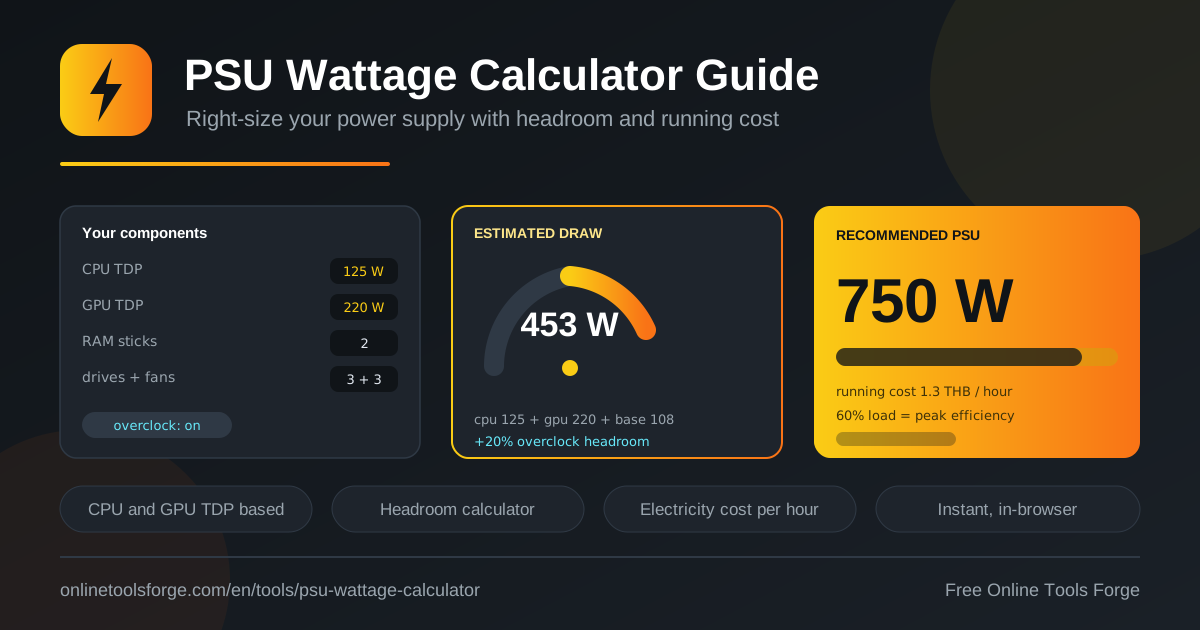
Table of Contents
Every PC build lives or dies by its power supply. Undersize it and the machine shuts down mid-game the moment the GPU spikes; oversize it and you pay for capacity you never use while the unit sits outside its most efficient range. The free PSU Wattage Calculator removes the guesswork: enter your CPU and GPU TDP, RAM sticks, storage drives, and case fans, and it returns an estimated system draw, a recommended PSU capacity with headroom, and the electricity cost per hour.
The tool runs 100 percent in your browser with no signup, so it fits perfectly into the planning stage of a build. Swap CPU and GPU combinations, toggle the overclocking option, and watch the recommended power supply change instantly.
Why Use the PSU Wattage Calculator?
- Avoid unexpected shutdowns. A PSU pushed to its limit trips over-current protection, and the classic symptom is a hard restart under heavy GPU load.
- Stop overspending on capacity. No more buying a 1,200 W unit for a 450 W system; the freed budget goes toward a better GPU instead.
- Stay in the efficiency sweet spot. Power supplies are most efficient around 50 percent load, and right-sizing keeps you there in daily use.
- Absorb transient spikes. Modern GPUs briefly draw far above their rating, and headroom soaks up those bursts safely.
- Plan upgrades with confidence. Check instantly whether your current PSU class can handle a next-generation graphics card.
- See the running cost. A per-hour electricity estimate ties hardware choices to your monthly bill.
Key Features
| Feature | What it does |
|---|---|
| CPU TDP input | Captures processor thermal design power, the backbone of the estimate. |
| GPU TDP input | Adds graphics card draw, which dominates most gaming builds. |
| RAM stick count | Includes a few watts per memory module. |
| Storage drive count | Adds SSDs and hard drives to the total. |
| Fan count | Covers case and cooler fans. |
| Base system load | Adds roughly 50 W for the motherboard and always-on circuitry. |
| Overclock multiplier | Optional headroom boost for tuned systems. |
| PSU recommendation | Converts estimated draw into a practical capacity suggestion. |
| Running cost per hour | Estimates electricity cost from the draw figure. |
Worth knowing:
- All math happens locally in the browser; nothing is uploaded and no account is required.
- Every input change recalculates draw, PSU class, and running cost instantly.
- The recommendation uses real PSU sizes such as 650 W, 750 W, or 850 W, so you can shop directly from the result.
How to Size Your Power Supply
- Gather your core specs. Pull CPU and GPU TDP figures from manufacturer spec sheets; these two numbers drive most of the total.
- Count the supporting parts. Enter RAM sticks, storage drives, and fans so the estimate matches your actual configuration.
- Let the base load apply. The tool adds about 50 W automatically for the motherboard, chipset, and always-on components.
- Enable overclocking headroom if relevant. If you plan to raise CPU or GPU clocks, switch on the multiplier so the recommendation covers the extra draw.
- Read and round. Take the suggested capacity and buy the nearest standard PSU size — 550, 650, 750, 850 W and upward.
How PSU Sizing Math Works
TDP is a thermal design figure, not a hard ceiling. Components usually stay at or below it in typical workloads, but boost behavior can push instantaneous draw higher, and modern GPUs are famous for millisecond spikes well above the sticker rating. That is why the calculator starts from TDP and adds deliberate margin rather than treating the numbers as limits.
The core estimate is a simple component sum: CPU TDP plus GPU TDP, plus small allowances for each RAM stick, drive, and fan, plus a base system load of roughly 50 W for the motherboard, VRM losses, and chipset. That base load is real — even a mostly idle system draws power before the CPU and GPU do any work.
Headroom matters for three reasons. First, transient spikes: a 300 W-class GPU can briefly exceed its rating, and the PSU must ride through without tripping protection. Second, aging: capacitors lose capacity over the years, so margin today becomes a safety net later. Third, efficiency: PSUs convert power most efficiently around 50 percent load, so a unit sized with headroom typically runs in its best zone, wasting less energy and heat.
Overclocking scales the picture directly: raising clocks and voltages can add 20 to 30 percent or more to component draw, which is exactly what the optional multiplier builds into the estimate.
Finally, the tool turns draw into money: watts multiplied by hours and your electricity rate, divided by 1,000, gives cost per hour — shown automatically with every result.
125 W CPU + 300 W GPU + 28 W RAM, drives, fans = 453 W
453 W + 50 W base system load                  = 503 W draw
503 W x 1.5 headroom factor                    = ~755 W
Recommended PSU class: 750 W ≈ $0.08 per hour at $0.15/kWh
Practical Use Cases
Planning a Gaming Build
A mid-range gaming PC pairs a 125 W CPU with a 300 W-class GPU. Add RAM, an NVMe drive, several fans, and the 50 W base load, and you land near 500 W of estimated draw. With headroom applied, a quality 750 W unit is the right call — efficient during typical gaming and ready for a future GPU bump.
Checking a GPU Upgrade
Considering a 450 W flagship card in a three-year-old system? Enter the new GPU TDP alongside your existing parts and compare the recommendation with your current PSU label. If the tool says 1,000 W and you own 650 W, you know before checkout that the upgrade needs a new power supply too.
Sizing a Small-Form-Factor Build
Compact chassis restrict you to SFX units where every watt of rating costs money and heat. The calculator helps find the smallest sensible capacity, and fan and drive counts matter more than usual when space is tight.
Estimating a 24/7 Home Server Cost
For a machine that never sleeps, the per-hour figure becomes a monthly bill: a 120 W average draw costs roughly $13 per month at a $0.15/kWh tariff. Run the numbers before building and choose efficient components deliberately — the Electricity Cost Calculator pairs well here for deeper tariff analysis.
Best Practices
- Use TDP as a starting point. Real-world peaks run higher, which is exactly what the headroom factor covers.
- Never size a PSU at 100 percent of estimated draw. Follow the tool recommendation or step up one size.
- Prioritize quality over raw wattage. A reputable 650 W unit beats a no-name 850 W unit in every scenario that matters.
- Enable the overclock multiplier only if you actually tune. Otherwise it inflates both the recommendation and your budget.
- Recalculate after every major part change. New GPU or CPU means new power supply math.
- Mind the efficiency curve. A PSU loafing at 20 percent load or straining at 90 percent wastes energy either way.
Ready to Right-Size Your Build?
Open the free PSU Wattage Calculator, enter your component list, and get a confident power supply recommendation in seconds. No signup, no downloads, no spreadsheets — just fast answers in your browser, so your next PC build boots, boosts, and stays stable under load.
Related Tools You Might Like:
- Electricity Cost Calculator — turn wattage into real money on your bill.
- Battery Life Calculator — estimate runtime for laptops and portable devices.
- Screen Resolution Checker — verify your display setup matches your GPU plans.
Happy building!
Frequently Asked Questions
Q: How much headroom should a power supply have?
A: A common guideline is 30 to 50 percent above estimated draw. That margin covers GPU transient spikes, capacitor aging, and keeps the unit near its 50 percent efficiency sweet spot. The calculator applies this automatically in its recommendation.
Q: Is TDP the same as actual power draw?
A: Not exactly. TDP is a thermal design target, while real draw varies with workload and boost behavior. Components often stay near TDP, but brief spikes can exceed it significantly, which is why the estimate adds base load and headroom on top of raw TDP figures.
Q: Does an oversized PSU waste electricity?
A: A bigger unit does not push extra power into your components, but it can run less efficiently at very low loads. Since power supplies are most efficient around 50 percent load, a hugely oversized PSU in a light-use system converts slightly more energy into heat than a well-sized one.
Q: Should I enable the overclocking multiplier?
A: Only if you plan to overclock the CPU or GPU, or expect to later. Tuning can add 20 percent or more to component draw, and the multiplier builds that into the PSU recommendation up front so the power supply never becomes the bottleneck after you start tweaking.