Refresh Rate Tester: Verify the Real Hz of Your Monitor
Measure your display refresh rate online with requestAnimationFrame frame timing. See if your panel truly runs at 60, 120, 144, or 240 Hz — no software install needed.
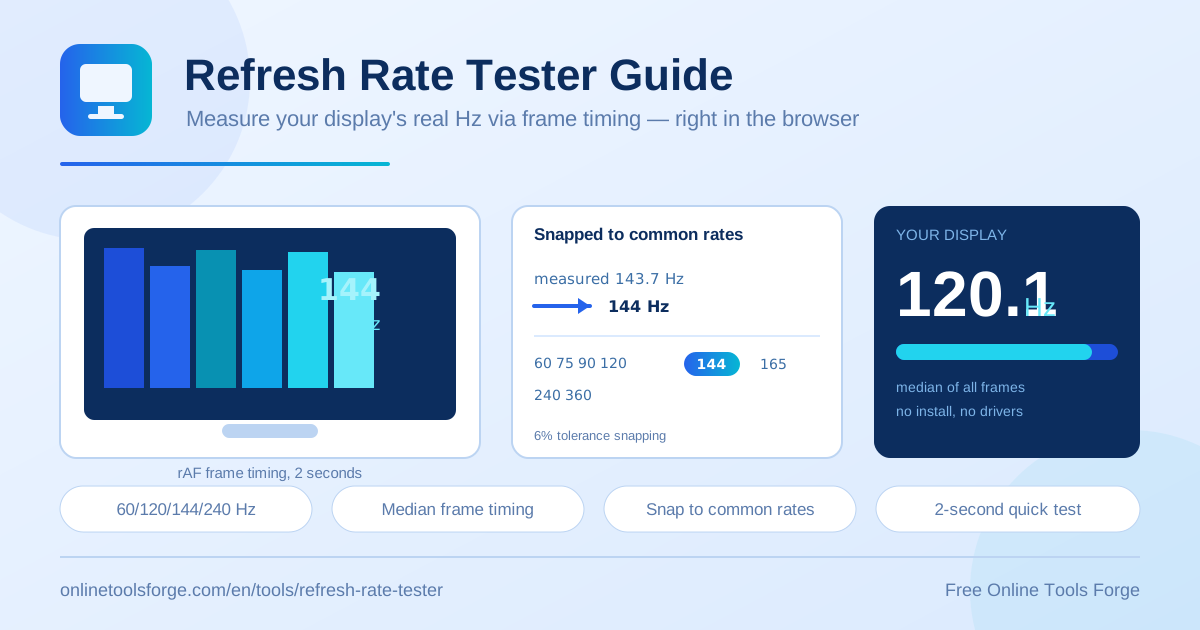
Table of Contents
Every monitor advertises a refresh rate — 60 Hz, 120 Hz, 144 Hz, even 240 Hz — yet few people ever confirm the panel actually delivers it. A wrong cable, an overlooked operating-system setting, or a driver quirk can silently lock an expensive display to 60 Hz, and most users never notice. The free refresh rate tester solves this in about two seconds: open the page, run the test, and read your real monitor refresh rate.
The tool samples requestAnimationFrame frame timing over a two-second window, computes the median inter-frame interval, and converts it to hertz. It then snaps the raw measurement to the nearest common rate — 60, 120, 144, or 240 Hz and beyond — so you get both a precise reading and an easy-to-interpret verdict, entirely in your browser with no software to install.
Why Use the Refresh Rate Tester?
- Verify what you paid for. Displays are expensive; a two-second 144hz test confirms the advertised rate before the return window closes.
- Catch silent misconfiguration. Operating systems often fall back to the safest rate after an update or hardware change, leaving high-Hz panels running at 60 indefinitely.
- Isolate cable and adapter limits. Older HDMI versions and cheap adapters cap bandwidth; the tester shows the real-world consequence of those limits.
- Confirm driver and firmware changes. Re-run the test after GPU driver updates or monitor firmware upgrades to verify nothing regressed.
- Understand your smoothness ceiling. Motion clarity depends on both panel Hz and GPU fps; knowing the true rate tells you what your GPU must deliver.
- Zero friction, full privacy. Everything runs client-side — nothing installs, uploads, or tracks.
Key Features
| Feature | What it does |
|---|---|
| Real frame timing | Samples actual requestAnimationFrame callbacks over a 2-second window instead of trusting reported settings. |
| Median-based Hz | Converts the median inter-frame interval to hertz, so dropped frames cannot skew the result. |
| Smart rate snapping | Snaps to common rates (24, 30, 48, 50, 60, 72, 75, 85, 90, 100, 120, 144, 165, 240, 360 Hz) with a 6% tolerance. |
| Dual readout | Shows the raw measured Hz and the snapped rate side by side. |
| 100% client-side | All measurement happens locally in your browser. |
A few details worth knowing:
- The 6% tolerance is wide enough to absorb normal timing jitter yet narrow enough that a 60 Hz panel is never mistaken for a 75 Hz one.
- Two seconds collects roughly 120 samples at 60 Hz — and nearly 500 at 240 Hz — which makes the median statistically stable.
- Because the raw value is always shown, unusual readings remain visible instead of being hidden by rounding.
How to Test Your Display Refresh Rate
- Open the refresh rate tester in a modern browser on the computer connected to the display you want to check.
- Move the browser window onto the target screen. On multi-monitor setups the tool measures whichever display it is visible on, so drag it there first.
- Start the test and keep the tab focused. The tool samples for two seconds; a background or minimized tab can throttle timers and distort results.
- Read both numbers: the raw measured Hz (for example, 143.7) and the snapped common rate (144 Hz).
- Compare the snapped rate with your monitor's advertised specification. If they match, the panel is configured correctly; if not, re-test after checking your OS display settings.
How Frame Timing Measures Hz
The technique rests on one browser primitive: requestAnimationFrame. The browser fires this callback once per display refresh, synchronized to the panel's redraw cycle. If a screen refreshes 144 times per second, the callback runs about 144 times per second, and every invocation carries a high-resolution timestamp.
Recording those timestamps and measuring the gap between consecutive frames yields the interval in milliseconds per frame. Converting it to hertz is one division: 1000 divided by the interval. A median interval of 6.94 ms works out to 144.1 Hz.
const stamps = [];
function loop(t) {
  stamps.push(t);
  requestAnimationFrame(loop);
}
const hz = 1000 / median(diff(stamps));
The raw value is then snapped to the nearest common rate within a 6% tolerance. Real panels rarely measure at exactly 60.000 or 144.000; compositor scheduling, jitter, and power management all add noise. Snapping turns a noisy 143.7 into a meaningful 144 Hz while leaving genuinely unusual rates — an overclocked 155 Hz panel, say — untouched and honest.
The median beats the average here. Occasional dropped frames create intervals of 20, 50, or even 200 ms, and a single outlier drags a mean downward, understating the true rate. The median — the middle value across all inter-frame intervals — ignores those spikes entirely, which is why repeated two-second runs produce a stable, repeatable number.
Practical Use Cases
Verifying a New Gaming Monitor
You unbox a 240 Hz display, plug it in, and everything looks crisp — but is it actually running at 240? Before the return window closes, run the tester on the new screen. A result that snaps to 240 Hz means you are set; a reading of 60 means something is bottlenecking the panel, and you still have time to fix it or exchange the unit. The same ritual applies to any 144hz test or 165 Hz panel, and it is an equally smart check for secondhand monitors that arrive without manuals or original packaging.
Troubleshooting a 144 Hz Panel Stuck at 60 Hz
The classic complaint: a 144 Hz monitor reads 60 no matter what. Work outward from the obvious. On Windows, open Display Settings, select the monitor, then Advanced display settings, and set the refresh rate to 144. On macOS, check Displays for a refresh rate option. Confirm the cable as well: HDMI 1.4 often caps 1440p at 75 Hz, while DisplayPort or HDMI 2.1 is needed for 144 Hz at higher resolutions. Re-run the tester after each change to see which fix landed.
Checking After Cable or Driver Changes
Swapped a cable, moved to a different GPU, or installed new drivers? Those are the moments when refresh rates silently regress. A quick test after any hardware or software change confirms the panel still hits its advertised rate, catching problems such as a dock negotiating 4K at 30 Hz or a driver default that reset a custom profile.
Laptop vs External Display
Laptops often pair a 60 Hz built-in panel with a faster external monitor, or ship a 144 Hz internal screen alongside a slower office display. Run the tester once on each screen: seeing two different numbers is normal, because every panel has its own rate. It also quickly reveals whether a docking station is throttling the external monitor.
Best Practices
- Test the right screen. Always run the browser window on the display you want to measure.
- Keep the tab visible and focused. Background tabs get throttled, which corrupts frame timing.
- Close heavy workloads first. Video calls, games, or GPU-heavy overlays can cause dropped frames during the measurement window.
- Run the test two or three times. Consistent results confirm a stable rate; variance points to throttling or interference.
- Set expectations for fps. A panel running 144 Hz will still stutter if your GPU delivers 40 fps; smoothness needs both sides of the equation.
- Check power mode on laptops. Battery savers frequently drop the display to 60 Hz, so test while plugged in for a true reading.
Test Your Display in Two Seconds
Curious whether your monitor really runs at its advertised rate? Open the free refresh rate tester, watch the two-second measurement, and get a definitive answer — no installs, no sign-ups, just honest frame timing from your own browser.
Related Tools You Might Like:
- Screen Resolution Checker — verify the resolution your display is actually outputting.
- PPI Calculator — calculate pixel density from screen size and resolution.
- Vision Screen Test — run a quick eyesight check to keep your setup easy on your eyes.
Happy testing!
Frequently Asked Questions
Q: How accurate is an online refresh rate test?
A: Very accurate for panel rate. The median of hundreds of frame timings lands within a fraction of a hertz of the true value, and the 6% snapping tolerance only absorbs harmless timing jitter.
Q: Why does my 144 Hz monitor measure 60 Hz?
A: The most common culprits are the OS refresh rate setting left at 60, a cable or adapter without enough bandwidth, or the browser window sitting on a different screen than the one under test.
Q: Does refresh rate affect battery life?
A: Yes. On laptops, higher rates draw more power, and many systems drop to 60 Hz on battery — so expect a lower reading when unplugged.
Q: What is the difference between fps and Hz?
A: Hz is how many times per second your panel can redraw; fps is how many frames your GPU produces. Smoothness needs both — a 144 Hz panel still looks choppy at 40 fps.
Q: Does the tester work on phones and tablets?
A: Yes. Modern phones and tablets with 90 or 120 Hz panels will show their rates, though aggressive battery savers may throttle the display during the test.