SERP Snippet Preview: See Your Google Listing Before You Publish
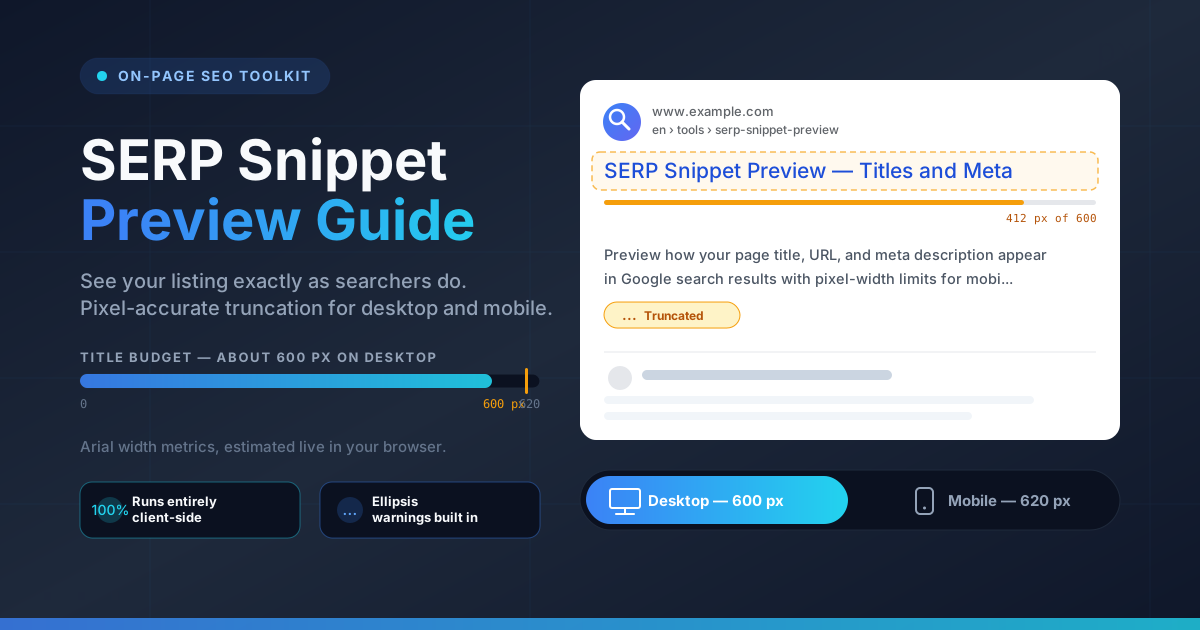
Preview how your page title, URL, and meta description appear in Google search results. SERP Snippet Preview estimates pixel-width truncation for desktop and mobile so your snippets never get cut off.
Free Interactive Tool
SERP Snippet Preview
Preview how your title, URL, and meta description appear in Google search results with pixel-width truncation estimates for desktop and mobile.
Table of Contents
When someone searches on Google, your page gets one chance at a first impression: the search snippet. The blue title link, URL breadcrumb, and two grey description lines are your page's only advertising — and Google chops all three mid-word if they run even slightly too wide. Your best call to action can vanish behind an ellipsis before a visitor ever reaches your site.
The SERP Snippet Preview removes that blind spot. Type your title, URL, and meta description, and it renders a live, Google-style search result while estimating the pixel width of every element using Arial font metrics. It then tells you plainly whether Google would truncate your title or description on desktop, on mobile, or on both.
Why Use SERP Snippet Preview?
- Character counts lie. Keeping titles under 60 characters ignores letter widths: identical character counts can render at very different widths, so only a pixel-based estimate tells the truth.
- Desktop and mobile budgets differ. Desktop gives the title roughly 600 px; mobile allows about 620 px. A title that fits on one device can be cut on the other.
- Truncated snippets lose clicks. An ellipsis where your value proposition should be hides your selling points and costs clicks.
- Feedback is instant and visual. No publishing, waiting for indexing, and checking live results — the preview updates on every keystroke.
- Everything runs client-side. Drafts are measured locally: nothing uploaded, no account, no limits.
Key Features
The tool packs a complete snippet-testing workflow into one screen:
| Feature | What It Does |
|---|---|
| Live Google-style preview | Renders your title, breadcrumb, and description like a real search result as you type. |
| Pixel-width estimation | Measures every character with Arial width metrics instead of counting characters. |
| Desktop truncation check | Flags titles beyond the roughly 600 px budget and descriptions past two lines of about 480-500 px. |
| Mobile truncation check | Re-tests against the mobile title budget of about 620 px and its own line widths. |
| Ellipsis warnings | States clearly whether the title or description gets cut off on either device. |
- Device toggle. One click switches between desktop and mobile so you can satisfy both.
- Zero setup. No configuration or accounts — open the page and start typing.
How to Use the SERP Snippet Preview
- Open the SERP Snippet Preview in your browser.
- Type your title tag into the title field. A pixel-width meter shows how much of each device budget you are using.
- Enter the page URL so the breadcrumb line displays the way Google would shorten it.
- Add your meta description. The preview wraps it across two lines and warns you the moment it overflows either one.
- Toggle between desktop and mobile, rewrite until neither device shows a truncation warning, then copy the final text into your CMS.
The whole loop takes under a minute.
Character Counts Are Dead — Think in Pixels
Google does not count characters when it truncates a snippet. It lays your title out in a font inside a fixed-width container, and when the text reaches the edge, it stops and appends an ellipsis. The measurement that matters is pixels, and every character consumes a different number of them: wide letters such as W, M, and m can occupy two or three times the width of narrow letters like i, l, and t — so wide text overflows long before narrow text of the same count.
This is why the rule of "keep titles under 60 characters" fails so often: sixty characters is only an average of what fits. The preview replaces that average with a measurement of your exact text against the observed budgets.
Those budgets differ by device and element. On desktop the title gets roughly 600 px before truncation; on mobile about 620 px, because font sizing and container widths differ. Descriptions have no single-line limit: Google shows about two lines of roughly 480-500 px each, around 150-160 characters of average text. Anything past the second line disappears, which is exactly where most calls to action live.
Two writing strategies follow from the pixel model. First, the brand suffix: many sites write titles as "Primary Keyword - What the Page Offers | Brand Name". Because truncation cuts from the end, the brand is the sacrificial element: it vanishes harmlessly on wide titles and shows fully on narrow ones. Never place critical information after it. Second, front-load everything: the opening pixels are the only ones guaranteed to survive on every device, so keep the primary keyword and core promise within the first 50-55 characters' worth of width.
Practical Use Cases
Rewriting Title Tags at Scale
Teams with hundreds of pages cannot rewrite every title at once, so triage matters. Run existing titles through the preview, note which truncate, and rank pages by traffic potential. Rewrite the worst offenders with the keyword front-loaded, verify each passes on both devices, and work down the list.
Testing Meta Description Calls to Action
Meta descriptions are sales copy, and the CTA is usually what gets cut. Draft variants — question opener, benefit statement, closing "Shop now" — and preview each. If it falls onto a phantom third line, tighten the sentence above and land the CTA at the end of line two.
Surviving a Site Migration or Redesign
Migrations quietly break snippets: new themes append title suffixes, refreshed templates lengthen URLs, and rewritten metadata inherits truncation nobody noticed. Batch-check your highest-traffic pages before and after launch: titles without an ellipsis, descriptions within two lines, breadcrumbs matching the new URLs.
Running Client SEO Audits
For agencies, the preview is presentation-ready evidence. Instead of telling a client their metadata "needs improvement," show the exact snippet that gets truncated, explain the pixel overage, and display the corrected version side by side. It converts an abstract recommendation into a concrete before-and-after deliverable.
Best Practices for SERP Snippets
- Front-load the keyword and the promise. The opening pixels survive on every device, so lead with the phrase searchers typed.
- Write for the query, not the page. A snippet that mirrors searcher intent earns the click even against higher-ranked competitors.
- Keep every snippet unique. Duplicated titles and descriptions dilute relevance and confuse users and search engines alike.
- End descriptions with a call to action — inside the visible area. A CTA behind an ellipsis is a CTA that does not exist.
- Treat the brand suffix as expendable. Place it last, and never let it push the primary keyword toward the truncation point.
- Re-check after every theme, plugin, or CMS change. Upstream rendering changes silently alter what Google displays.
Preview Your Snippet Before Google Does
Open the SERP Snippet Preview, paste your draft, and in ten seconds you will know whether Google would display it in full or slice it. It is free, needs no sign-up, and never sends your text anywhere.
Make it part of your publishing checklist: preview, clear both device checks, ship. Seconds of verification per page compound into higher click-through rates across your site.
Related Tools You Might Like
- FAQ Schema Generator — build FAQPage structured data to win extra results-page space.
- Robots.txt Generator — control which parts of your site search engines may crawl and index.
- Open Graph Generator — craft share tags so your links look polished on Facebook, LinkedIn, and X.
Happy previewing!
Frequently Asked Questions
Q: Will Google show my snippet exactly as previewed? A: Not always. It is a close estimate based on Arial width metrics and the pixel budgets Google's results are observed to use, and Google sometimes rewrites titles entirely. Optimize for the typical case the preview shows.
Q: Why did my 58-character title get truncated when the limit is supposed to be 60 characters? A: Because the real limit is width, not count: a title of wide letters can exceed the roughly 600 px budget even at 58 characters. The estimator accounts for letter widths; a character counter cannot.
Q: Does the tool upload my text to a server? A: No. The tool runs entirely client-side: your titles, URLs, and descriptions are measured locally in your browser and never transmitted anywhere.
Q: Why is the mobile title budget larger than the desktop one? A: Mobile reserves roughly 620 px for the title versus about 600 px on desktop, because layout and font sizing differ. A title can pass on one device and fail on the other, so the tool checks both.