Slack Block Kit Builder: Compose Rich Messages Without Coding
Build Slack Block Kit JSON payloads with sections, headers, dividers, buttons, and inputs. Live preview, drag-to-reorder, and copy-paste output — free in your browser.
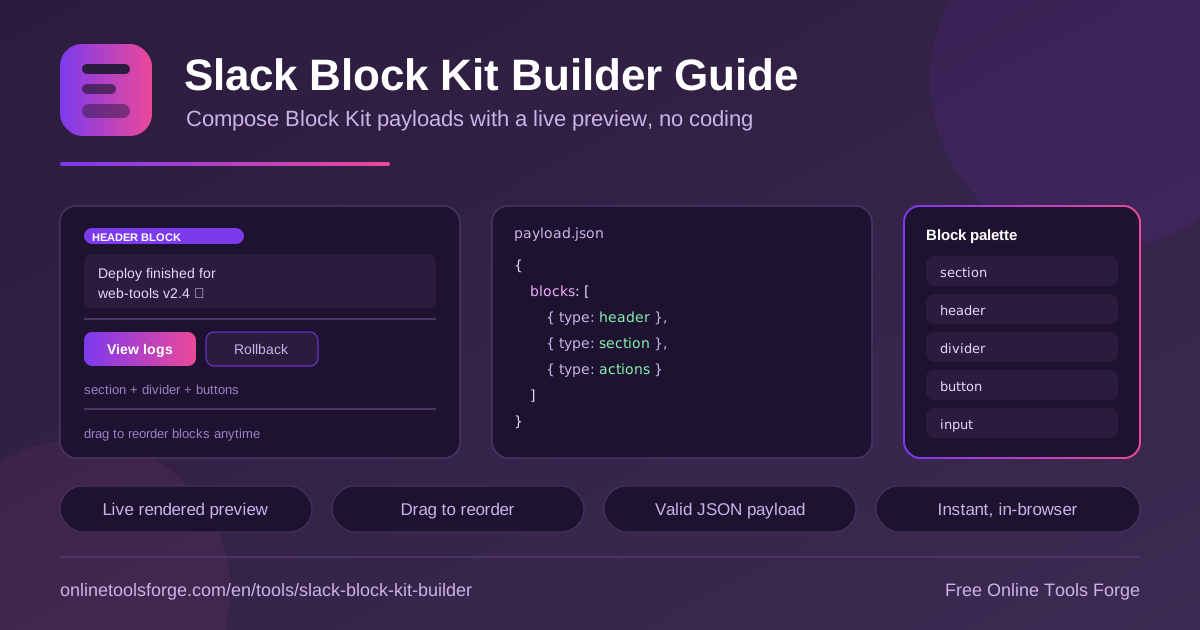
Table of Contents
Slack messages do not have to be flat walls of text. Block Kit is the framework Slack uses to render rich messages and modals, built from discrete blocks such as sections, headers, dividers, buttons, and input fields. The trade-off is that every block must be expressed as nested JSON. Hand-writing that payload is slow and error-prone: one unbalanced brace or misspelled key, and your bot silently fails to post.
The Slack Block Kit Builder removes that friction. It is a free, 100% in-browser tool with no signup and nothing to install. Pick blocks from a palette, edit their text and labels inline, watch a live Slack-style preview render beside your blocks, drag them into the right order, then copy a valid Block Kit JSON payload ready for chat.postMessage, an incoming webhook, or a modal.
This guide explains what the builder does, how each block type works, and where the generated JSON fits into real integrations.
Why Use the Slack Block Kit Builder?
- No hand-written JSON. Typing nested block structures by hand invites typos and bracket mismatches. The builder generates syntactically correct Block Kit JSON every time.
- Instant visual feedback. The live preview updates as you type, so you see exactly how a header, section text, or button row will look inside Slack before anything is sent.
- Zero setup. No account, no SDK, no build step. Open the tool in a browser tab and start composing immediately.
- Drag-to-reorder control. Block order defines the reading flow. Grab any block and drop it into place instead of shuffling array elements in a code editor.
- Editable action IDs. Buttons need stable action_id values your backend can listen for. Set them inline so the payload is integration-ready from the start.
- Copy-paste output. The generated payload drops straight into a curl command, a bot script, or a webhook body with no cleanup required.
Key Features
| Feature | What it does |
|---|---|
| Block palette | Add section, header, divider, button, and input blocks with a single click |
| Inline editing | Change block text, button labels, and action IDs directly in the editor |
| Live preview | Render a Slack-style preview next to the block list, updated in real time |
| Drag to reorder | Rearrange blocks by dragging until the message flow feels right |
| Payload generator | Produces a valid Block Kit JSON payload for chat.postMessage or webhooks |
| Copy-paste output | Copy the finished JSON and paste it wherever your integration needs it |
- Everything runs client-side. Your drafts never leave the browser, which matters when payloads reference internal systems or incident details.
- The output mirrors the structure Slack documents for its messaging API, so what you preview is what production receives.
How to Build a Slack Message
- Open the builder at Slack Block Kit Builder. The palette, block list, and live preview sit on one screen.
- Add blocks from the palette. Start with a header for the title, a section for the main text, and a divider to separate the body from any actions.
- Edit the content. Type text into each block, set button labels, and assign action IDs that match what your server will handle.
- Reorder by dragging. Move blocks up or down until the layout reads well. The preview re-renders as you go.
- Copy the JSON payload. Paste the generated Block Kit JSON into your chat.postMessage call, webhook body, or modal definition.
Understanding Block Kit Blocks
Every Block Kit payload is a JSON object with a blocks array, and array order is the order Slack renders, top to bottom. A minimal payload looks like this:
{
  "blocks": [
    { "type": "header", "text": { "type": "plain_text", "text": "Deploy complete" } },
    { "type": "divider" }
  ]
}
- section is the workhorse. Its text field uses mrkdwn, the Slack markup dialect that supports bold, italics, links, code spans, lists, and user mentions. Use sections for body copy, summaries, and formatted detail lines.
- header renders one line of larger, bolder text and accepts plain_text only. Keep headers short and declarative, since markup will not render there.
- divider draws a horizontal rule, takes no content, and exists purely to separate logical groups of blocks.
- actions holds interactive elements, most commonly buttons. Each button carries a label plus an action_id that your backend receives when a user clicks, and it can be styled primary or danger to signal the main path versus a destructive one.
- input blocks collect text from users. Slack permits them only inside modals, where each pairs a label with a text field so a dialog can capture a reason, ticket number, or short note.
As for where the JSON goes: drop the blocks array into the blocks parameter of chat.postMessage when using the Web API, into the request body of an incoming webhook, or into the views object that defines a modal. The same payload shape works across all three surfaces, which is why composing it once in the builder pays off.
Practical Use Cases
Deploy Notification Bots
A CI pipeline can post a header reading Deploy complete, a section with the release tag, environment, and commit hash in mrkdwn, then a divider and a section linking to the changelog. Compose the layout once, copy the Block Kit JSON, and paste it into the script that calls your webhook on every release.
Approval Buttons in Workflows
Turn a request into a decision point. Pair a section describing the change with an actions block holding Approve and Reject buttons that carry action_id values such as approve_request and reject_request. The live preview confirms the buttons sit where readers expect, and your backend simply reacts to the incoming interaction payload.
Scheduled Report Posts
Daily or weekly digests become scannable with structure: a header naming the report, a section of mrkdwn bullets for key metrics, and dividers between topic areas. Because the builder reorders blocks by dragging, adjusting the layout for a new reporting cycle takes seconds rather than surgery on nested JSON.
On-Call Alert Formatting
Alert fatigue is real. A disciplined alert message uses a header with severity, a section carrying the incident summary plus a runbook link, and a divider before the acknowledge button row. Consistent formatting lets responders gauge urgency at a glance, and the preview shows exactly how the alert renders in a busy channel.
Best Practices
- Lead with the takeaway. Put the most important line in the header or the first section so readers get the point without scrolling.
- Keep headers plain. Header blocks accept only plain_text, so save markup for sections.
- Limit buttons per row. Two or three actions per actions block keeps choices clear and prevents tap mistakes on mobile.
- Use stable action IDs. Treat action_id values like API routes: descriptive, versioned, and never renamed casually.
- Separate topics with dividers. A divider between the message body and interactive elements makes the actions unmistakable.
- Test in a throwaway channel first. Post the payload through a development webhook before wiring it into production workflows.
Start Composing Slack Messages Visually
Stop debugging stray commas in nested JSON. Open the Slack Block Kit Builder, assemble your next bot message or modal with the palette and live preview, and copy a production-ready payload in minutes. It is free, it runs entirely in your browser, and it turns payload authoring into a five-minute task.
Related Tools You Might Like:
- Markdown to Slack Converter — convert Markdown into Slack-friendly mrkdwn text
- Discord Embed Builder — compose rich embed payloads for Discord webhooks
- Webhook Signature Verifier — verify HMAC signatures on incoming webhook requests
Happy building!
Frequently Asked Questions
Q: Is the Slack Block Kit Builder free to use?
A: Yes. The tool is completely free, requires no signup, and runs entirely in your browser. Payloads you compose are never uploaded to a server.
Q: Can I use the generated JSON with an incoming webhook?
A: Yes. The blocks array is valid for both chat.postMessage and incoming webhook requests. Wrap it in a JSON body alongside a plain-text fallback and post it with curl or any HTTP client.
Q: Which block types does the builder support?
A: The palette covers section, header, divider, actions with buttons, and input blocks. Together these handle the large majority of notification, report, and modal layouts.
Q: Do input blocks work in regular channel messages?
A: No. Slack allows input blocks only inside modals opened with views.open. Keep channel messages to sections, headers, dividers, and actions, and reserve inputs for modal dialogs.
Q: Does the tool validate the payload against the Slack API?
A: The builder generates structurally valid Block Kit JSON and renders a Slack-style preview, but it does not call the Slack API. Always send a test message to a development channel before going live.