SQLite Viewer Guide: Open and Browse .db Files In-Browser
Learn how to open .db and .sqlite files in your browser with SQLite Viewer. Browse tables and schemas, run SELECT queries, and export CSV — no upload, no install, works offline.
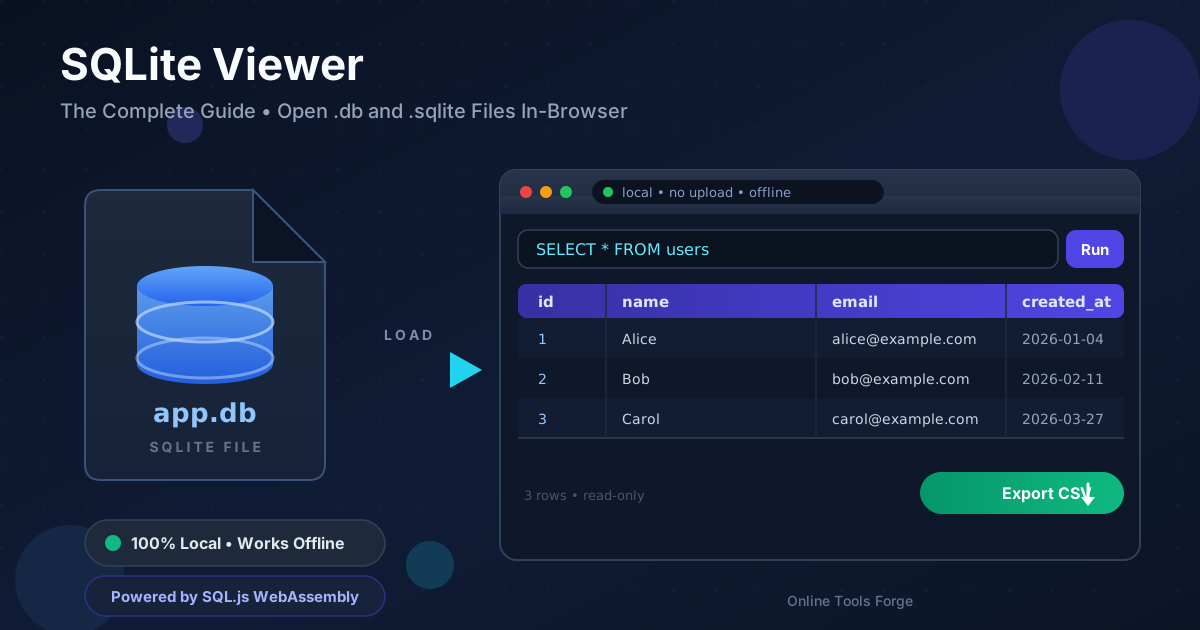
Free Interactive Tool
SQLite Database Viewer
Open SQLite files in your browser, browse tables, and run SQL queries — nothing is uploaded
Table of Contents
SQLite files are everywhere once you start looking: mobile apps store messages, caches, and settings in them, desktop and Electron applications keep user data in them, and even your web browser relies on SQLite internally for history and similar records. If you have ever copied a mysterious .db or .sqlite file off a device, you were holding one of the world's most widely deployed database formats.
Opening one was always the hard part: until recently, that meant installing a desktop application or wrestling with a command-line shell — overkill when you just want to peek at a few rows. The SQLite Viewer removes that friction: drop a file into your browser and start browsing tables, running queries, and exporting data in seconds.
It is powered by SQL.js, a build of SQLite compiled to WebAssembly, so the database engine runs entirely in your tab — nothing is uploaded, no account is required, and it keeps working offline.
Why Use SQLite Viewer?
- Privacy by design: the file is parsed by SQL.js running as WebAssembly inside your browser. No upload step, no server — sensitive databases never leave your machine.
- No installation: no desktop app, no sqlite3 command-line tool. A browser tab is the whole setup.
- Read-only by design: only SELECT statements are accepted, so you cannot accidentally corrupt the file or the original on disk.
- Schema at a glance: tables and columns are listed for you — explore an unknown database without memorizing PRAGMA commands.
- Real SQL power: a genuine SQLite engine runs in the page, giving you WHERE, JOIN, GROUP BY, ORDER BY, and subqueries.
- Instant CSV export: any query result downloads as a CSV file in one click, ready for Excel or Google Sheets.
Key Features
| Feature | Description |
|---|---|
| File support | Opens .db, .sqlite, and .sqlite3 files via SQL.js (WebAssembly) |
| Table browsing | Click any table to page through its rows without writing SQL |
| Schema inspection | Table names, column names, and types shown at a glance |
| Query runner | Execute arbitrary SELECT statements |
| CSV export | Download the result set as a spreadsheet-friendly CSV file |
| Fully local | All parsing and querying happens in-browser; nothing is uploaded |
| Works offline | Keeps functioning without a network connection once loaded |
Because SQL.js compiles the real engine, results match the sqlite3 shell — and a bad query costs an error message, never a damaged database.
How to Use
Step 1: Open the tool and load a file
Open the SQLite Viewer and drag your .db or .sqlite file onto the drop zone or click to browse — the file is read straight into browser memory.
Step 2: Browse the tables
The tool lists every table. Click a name to page through its rows in a grid and get oriented fast.
Step 3: Inspect the schema
Check the column names and types before writing queries — knowing whether a timestamp is stored as text or a number saves you from empty results.
Step 4: Run a SELECT query
Type any SELECT query into the editor and run it. A good first attempt is SELECT * FROM users ORDER BY id DESC LIMIT 20.
Step 5: Export the results as CSV
Happy with a result set? Export it as a CSV file that opens directly in Excel, Google Sheets, or any BI tool.
SQLite Files in the Wild
Where .db files come from
SQLite is the default storage for whole categories of software, so .db files show up in predictable places. Mobile apps are the biggest source: Android ships with SQLite built in, and iOS uses it under Core Data. Electron and desktop apps — chat clients, note-taking tools, editors — embed it for local data. Browsers keep history and cookies in SQLite profile folders, and IoT devices often log to it too.
Why SELECT-only is a feature
The viewer accepts SELECT statements and nothing else — by design. Live databases often have journal files (-wal, -shm) beside the main file, and writing outside the owning application can corrupt them. Read-only access eliminates that risk: write and schema commands are rejected before they can do harm.
Reading the schema first
When you open an unfamiliar database, resist querying blind. Browse the table list and column types first — names like created_at or user_id reveal how the application thinks about its data.
Useful SELECT patterns
Three queries cover most exploratory work. List every table in the file:
SELECT name FROM sqlite_master
WHERE type = 'table'
ORDER BY name;
Count the rows in a table to gauge its size:
SELECT COUNT(*) AS total_rows FROM messages;
Search for text across a column when hunting a specific record:
SELECT id, sender, body, created_at
FROM messages
WHERE body LIKE '%error%'
ORDER BY created_at DESC
LIMIT 50;
Run any of these, inspect the grid, then export to CSV for filtering, pivot tables, or charts.
Practical Use Cases
1. Inspecting app databases
Curious what an application stores about you? Open its database and look at settings keys, cached content, and usage records directly — more informative than documentation and far more private than uploading the file.
2. Debugging embedded storage
If you develop mobile or Electron apps, the viewer quickly verifies what your code actually wrote. Load a test fixture or a database copy and confirm rows, timestamps, and encodings landed as expected.
3. Data recovery checks
After recovering files from a failing disk or backup, load the database: if the table list appears and row counts look sensible, the file survived. Export key tables to CSV as a second copy.
4. Teaching and learning SQL
A real database with real rows is the best way to learn SELECT. Because the tool is read-only, students cannot break anything, and because it runs locally, a classroom with flaky internet can still use it.
Best Practices
- Work on a copy. The tool never writes to your file, but a copy is zero-cost insurance.
- Keep a read-only mindset. Treat databases you did not create as live evidence — query them, but never modify data the owning app may reopen.
- Mind the file size. The whole database loads into WebAssembly memory; a few dozen megabytes are comfortable, much larger may exhaust browser memory.
- Export before experimenting. When a query returns what you need, download the CSV immediately so the snapshot survives closing the tab.
- Check for sidecar files. If a -wal file sits beside your .db, newest transactions may not be in the main file yet — run a checkpoint with the sqlite3 CLI first.
- Close the tab when done. Browser memory is finite; do not leave a large database loaded indefinitely.
Start Exploring Your Databases Today
That .db file on your desktop does not need a desktop app. Open the SQLite Viewer, drop in the file, and browse tables in seconds — privately, offline, with zero risk to the original.
Related Tools You Might Like:
- JSON Formatter — Pretty-print, validate, and minify JSON.
- CSV to JSON Converter — Convert exported data between CSV and JSON.
- File Type Detector — Identify an unknown file's true type from its bytes.
Happy querying!
Frequently Asked Questions
Q: Is it safe to open a database file from an app I do not fully trust?
A: Parsing happens entirely inside your browser via WebAssembly, and the file is never uploaded. Queries are read-only, so the file cannot be modified. Still, open a copy rather than the original.
Q: Can I run INSERT, UPDATE, or DELETE statements?
A: No. The tool accepts SELECT only, protecting both the file on disk and any journal files belonging to the app that created it.
Q: How large a .db file can it handle?
A: It loads into browser memory, so limits depend on your machine. Tens of megabytes are comfortable; very large files may exhaust the tab, so use the sqlite3 CLI instead.
Q: Can I get query results into Excel or Google Sheets?
A: Yes. Export any result set as CSV in one click, then open it directly in Excel, Google Sheets, Numbers, or any analysis tool.