Tally Counter Online: Count Multiple Things at Once With Undo and Keyboard Shortcuts
A free online tally counter that lets you track multiple counters at the same time, with custom step sizes, undo history, keyboard shortcuts, and automatic local saving — no installation or sign-up required.
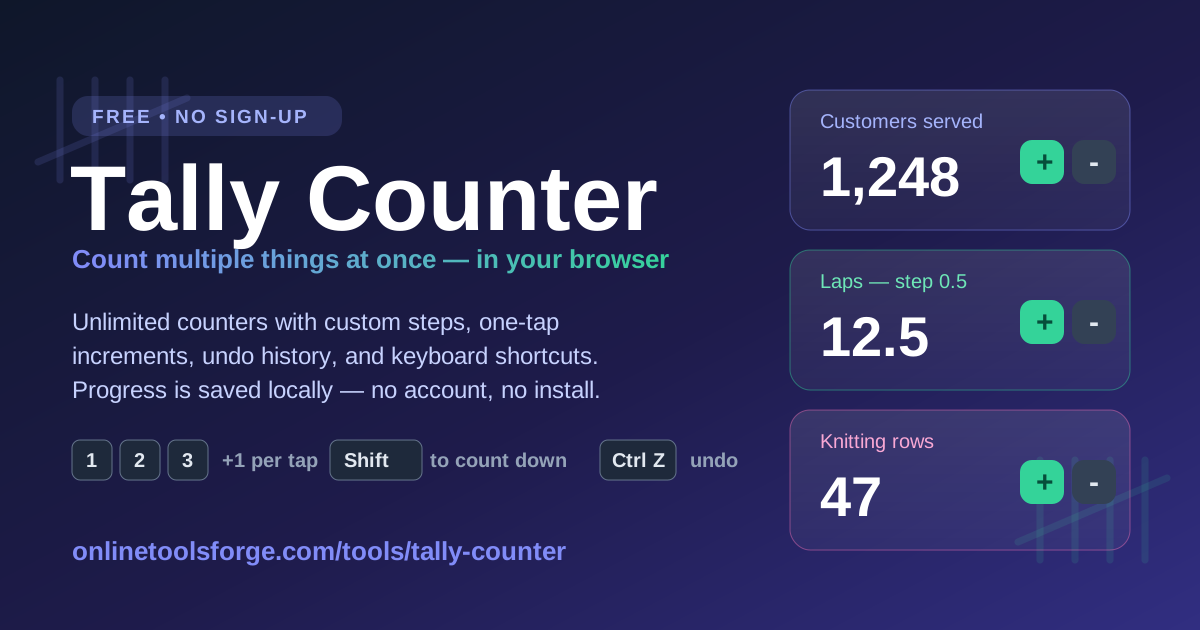
Free Interactive Tool
Tally Counter
Count anything with multiple customizable counters
Table of Contents
Counting things is one of those deceptively simple tasks that falls apart the moment you have more than one thing to count. Maybe you are tallying attendance while also counting late arrivals. Maybe you are tracking knitting rows, workout reps, and customer walk-ins at the same time. A pocket click counter only tracks one number, a spreadsheet is clumsy for rapid tapping, and paper tally marks are easy to smudge or miscount.
That is exactly the problem the Tally Counter solves. It is a free, browser-based counting tool that gives you multiple named counters on a single screen. Each counter has its own value and its own custom step size, every change is undoable, and your progress is saved automatically in your browser — close the tab, come back tomorrow, and your numbers are still there.
In this guide, we will walk through what the tool does, how to use it effectively, and the everyday situations where it quietly saves you from losing count.
Why Use Tally Counter?
- Multiple counters, one screen — Instead of juggling three click counters or flipping between apps, you can create as many named counters as you need and see all their values side by side. Add counters for each item you are tracking and remove them again when you are done.
- Custom step sizes per counter — Not everything increments by one. Set a counter to step by 0.5 for half-lap intervals, by 5 for headcounts in groups, or by any positive number you like. The plus and minus buttons always move by that counter's own step.
- Real undo with history — Every increment, decrement, and reset is recorded, so a stray tap never ruins your count. Press Ctrl+Z (or Cmd+Z on Mac) to roll back the last change, up to the last 30 actions.
- Keyboard-first counting — Press the number keys 1 through 9 to increment the counter in that position, and hold Shift with the same key to count down. Your eyes stay on the event you are counting, not on the screen.
- Automatic local saving — Your counters and history are stored in your browser's localStorage. There is no account to create and nothing to install, yet your data survives page reloads and browser restarts.
- Free, fast, and private — The tool runs entirely in your browser. No sign-up, no ads inside the tool, and your counting data never leaves your device.
Key Features
| Feature | What It Does |
|---|---|
| Multiple named counters | Add, rename, and remove counters; track several items simultaneously on one screen |
| Custom step size | Each counter has its own increment value — 1, 0.5, 5, or any positive number |
| Plus / minus buttons | One-tap increment and decrement, always moving by the counter's step |
| Undo (Ctrl/Cmd+Z) | Rolls back the most recent change using a per-counter history of the last 30 values |
| Reset and Reset All | Zero a single counter or every counter at once — both are undoable |
| Keyboard shortcuts | Keys 1–9 increment counters by position; Shift+key decrements |
| Local persistence | Counters and history are saved to localStorage and restored on your next visit |
A few of these deserve a closer look. The per-counter step is what separates this tool from a basic click counter: a swim coach can count laps by 0.5 (each end-of-pool touch is half a lap in a 25 m pool), while a warehouse worker counts full boxes by 1 and pallets by 10 — all on the same screen.
The undo history is capped at 30 entries, which sounds small until you realize it works like a stack: the most recent change is always undone first, and resetting a counter (or all counters) also pushes entries onto that stack. Reset everything by accident? Ctrl+Z brings the values right back.
Finally, persistence is validated on load. If saved data is ever corrupted or a counter has an invalid step, the tool filters out the broken entries rather than crashing, and clears damaged storage automatically. Your counting session survives even messy browser states.
How to Use
- Open the tool — Go to Tally Counter. You start with one counter at zero, stepping by 1.
- Name your counters — Type a name (for example, "Customers served") into the add-counter field and click Add counter. Repeat for every item you are tracking. You can also rename or remove existing counters.
- Set the step size — For each counter, set its step to the amount each tap should count: 1 for singles, 0.5 for half units, 10 for batches.
- Count — Tap + to add a step and − to subtract one. Prefer the keyboard? Press the counter's position number (1, 2, 3…) to increment, or Shift plus that number to decrement.
- Correct mistakes and reset — Made a misclick? Press Ctrl+Z (Cmd+Z on Mac) to undo. When a session ends, use a counter's reset button to zero it — or Reset All to zero everything. Your counters are saved automatically, so just close the tab when you are done.
Understanding Digital Tally Counting
A traditional tally uses groups of four strokes with a fifth line crossing them — a system designed around the limits of paper. Digital tally counting replaces those physical constraints with a different set of design decisions, and it is worth understanding them because they change how you can work.
State lives in your browser, not on a server. The tool stores its counters and history in localStorage under the hood. This has two practical consequences: counting works offline once the page is loaded, and the data is private to your device — there is no server-side account holding your numbers. The trade-off is that clearing your browser data will clear your counters, so finish a session or note the totals before doing a big cleanup.
Every action is an undoable event. Each time a counter changes, the tool saves the counter's previous value into a history stack (up to 30 entries). Undo pops the last entry and restores that value. This event-sourced approach is more robust than storing a single "last value," because consecutive mistakes unwind in the right order: undo twice and you step back two changes, exactly as you would expect.
Keyboard shortcuts map positions to numbers. Rather than assigning fixed hotkeys per counter (which would break as you add counters), the tool assigns keys by position: the first counter responds to 1, the second to 2, and so on up to 9. Shift inverts the direction. If you are typing in a text field, the shortcuts stay dormant so they never hijack your typing.
Steps make the tool domain-agnostic. Because the increment is configurable per counter, the same interface serves a barista counting single cups, a referee counting goals by 1, and a pharmacist counting pills by 5. A tally tool with fixed steps forces you to adapt; one with custom steps adapts to you.
Practical Use Cases
Retail and hospitality foot counts
Shop staff track walk-in customers, inquiries, and completed sales as three separate counters. With step set to 1 and number-key shortcuts, tallying a customer is a single keypress without looking away from the door. At closing time, the totals are on screen and the session resets in two taps with Reset All.
Fitness and sports training
Count laps, sets, reps, or rounds without losing your place mid-workout. A swimmer counts 25 m lengths with a step of 0.5 so that each pool end adds half a lap; a trainer counts rounds by 1 and reps by 5 side by side. Undo covers the moment you lose track and tap one time too many.
Inventory and quality checks
Warehouse and production teams count scanned boxes in batches — a step of 10 turns every tap into ten units. Separate counters handle good units, damaged units, and re-checks. Because values persist locally, a shift handover can pick up exactly where the previous count stopped.
Hobbies, habits, and everyday tracking
Knitters count pattern rows (each row one tap, pattern repeats tracked in a second counter), birdwatchers tally species sightings, and language learners count flashcards reviewed. Anyone tracking a daily habit — glasses of water, pages read — gets a tap-to-count log that survives restarts without any app install.
Best Practices
- Name counters clearly before you start counting. "Counter 1" means nothing at the end of a shift; "Late arrivals" does. Renaming takes seconds and prevents misread totals.
- Set the step to match your unit, not the other way around. If you keep tapping twice for every real unit, change the step to 2 instead of adapting your rhythm to the tool.
- Learn the number-key shortcuts for anything above a casual count. Keyboard counting is roughly twice as fast as tapping buttons and lets you keep your eyes on what you are actually counting.
- Undo immediately, not later. The history holds 30 events; undoing a mistake right away is one keystroke, while undoing it after thirty more taps is not possible — reset and recount from your last known value instead.
- Reset at the start of each session, and rely on history if you reset too early. Because resets are undoable, an accidental Reset All is recoverable, but a deliberate reset gives you a clean baseline for the next round.
- Avoid clearing browser data mid-project. Counters live in localStorage, so a "clear site data" wipe deletes them. Note your totals somewhere durable if you need them long-term.
Ready to Start Counting?
Whether you are tallying customers, laps, rows, or boxes, the Tally Counter gives you one clean screen for all of it — with custom steps, undo for every tap, keyboard shortcuts for speed, and automatic saving so a closed tab never costs you your count. It is free, requires no sign-up, and works on any device with a browser. Open it, name your first counter, and put the tally marks away for good.
Related Tools You Might Like:
- JSON to YAML Converter — reformat configuration files between JSON and YAML in one paste.
- Word Counter — analyze word, character, and sentence counts for any text.
- Text Repeater — repeat any text or symbol a chosen number of times.
Happy counting!
Frequently Asked Questions
Q: Is the Tally Counter free to use?
A: Yes. The tool is completely free, works in any modern browser, and requires no registration, installation, or payment.
Q: Will my counts survive if I close the browser or reload the page?
A: Yes. Counters and undo history are saved automatically to your browser's localStorage and are restored the next time you open the tool on the same device and browser.
Q: How does undo work, and how far back can it go?
A: Every change is stored as an event in a history of up to 30 entries. Press Ctrl+Z (or Cmd+Z on Mac) to undo the most recent change; pressing it repeatedly steps back through earlier changes, including resets.
Q: Can I count by numbers other than 1, like 5 or 0.5?
A: Yes. Each counter has its own configurable step size, and the plus and minus buttons (and keyboard shortcuts) always move by that step. Decimals such as 0.5 are supported.
Q: What do the keyboard shortcuts do exactly?
A: Pressing a number key from 1 to 9 increments the counter in that on-screen position by its step; holding Shift while pressing the same key decrements it. The shortcuts are ignored while you are typing in a text input.