Terraform HCL Formatter: Format Terraform Code Online Like terraform fmt
Format and align Terraform HCL files in your browser with block indentation and equals-sign alignment, just like terraform fmt. No installation required.
Free Interactive Tool
Terraform HCL Formatter
Format, align, and indent Terraform HCL files in your browser like terraform fmt - no upload, no server.
Table of Contents
Anyone who has worked with Terraform knows the ritual: before you commit, you run terraform fmt. It is the official formatter for HashiCorp Configuration Language (HCL), and code that has been through it looks instantly familiar — consistent two-space indentation, equals signs in a tidy column, no stray whitespace.
The catch is that it is a command, and commands need a machine with Terraform installed. You cannot run it while reviewing a pull request from a tablet, when a colleague pastes an HCL snippet into a chat, or on a locked-down workstation where installing the Terraform binary is not an option.
That is exactly the gap the Terraform HCL Formatter fills. Paste your HCL into the browser and it formats the block: block indentation, equals-sign alignment, normalized spacing, and a bracket-balance check that flags unclosed braces by line number. Everything runs 100% client-side, so your code never leaves your machine.
Why Use Terraform HCL Formatter?
- No installation required. No binary, no provider downloads, no terminal. Open the page, paste, and get formatted HCL in seconds.
- Instant equals-sign alignment. Hand-aligning values is tedious. The formatter pads each = so values start in one clean column.
- Consistent block indentation. Nested blocks like resource, provider, and inline tags get a uniform indent depth, so your configuration reads at a glance.
- Bracket validation built in. A missing closing brace is the most common HCL typo. The tool reports the line where an unclosed { or [ begins.
- Private by design. Formatting happens entirely in your browser; nothing is uploaded, which matters when snippets reference real infrastructure.
- Works on any device. Tidy a snippet from a tablet, a borrowed laptop, or a phone during an incident call.
Key Features
| Feature | What It Does |
|---|---|
| Block indentation | Re-indents nested blocks with a configurable 2 or 4 spaces per level |
| Equals-sign alignment | Lines up the = signs of consecutive attributes into a single column |
| Indent size option | Switch between 2 and 4 spaces to match your team's .editorconfig |
| Bracket validation | Detects unclosed braces and brackets and reports the starting line |
| Comment and heredoc awareness | Leaves comment text and heredoc bodies untouched |
| Copy and download | Sends the result to your clipboard or saves it as a file |
Two details are worth noting: the formatter normalizes spacing around operators, commas, and braces, so mixed key=val and key = val styles converge on one look; and equals-sign alignment is a toggle for teams that prefer no padding.
How to Use
- Open the Terraform HCL Formatter in your browser.
- Paste your HCL — a full .tf file, a single block, or a .tfvars snippet — into the input panel.
- Choose the indent size (2 or 4 spaces) and decide whether equals signs should be aligned.
- Review the output. If validation reports an unclosed brace, jump to that line in your source and fix it.
- Copy the result to your clipboard or download it, then paste it back into your editor or the pull request.
What terraform fmt Actually Aligns
The canonical terraform fmt behavior comes down to a few rules, and the in-browser formatter follows the same conventions.
Two-space block indentation. Every block body is indented two spaces deeper than its parent: a provider "aws" block at column zero, its arguments at two, and an inline block like default_tags { opening at two with its body at four. Deeper nesting simply stacks, keeping sprawling IAM or security rule blocks readable.
Equals-sign alignment within blocks. Inside any run of consecutive single-line attributes, names are padded so every = lands in the same column. The alignment is local to each block, not file-wide — a tags block aligns among itself.
Argument ordering conventions. Notably, terraform fmt does not reorder arguments — deliberately, since reordering creates diff noise without changing meaning. Ordering is a convention humans and linters enforce: meta-arguments like count and for_each near the top, tags and lifecycle blocks at the end. A formatter that preserves order while fixing alignment keeps those conventions visible.
Why aligned equals signs look right in reviews. Aligned columns let a reviewer scan values vertically. When formatting is enforced, diffs contain only semantic changes — nobody burns review comments on "please align these." Formatted HCL signals the author cared about the reader.
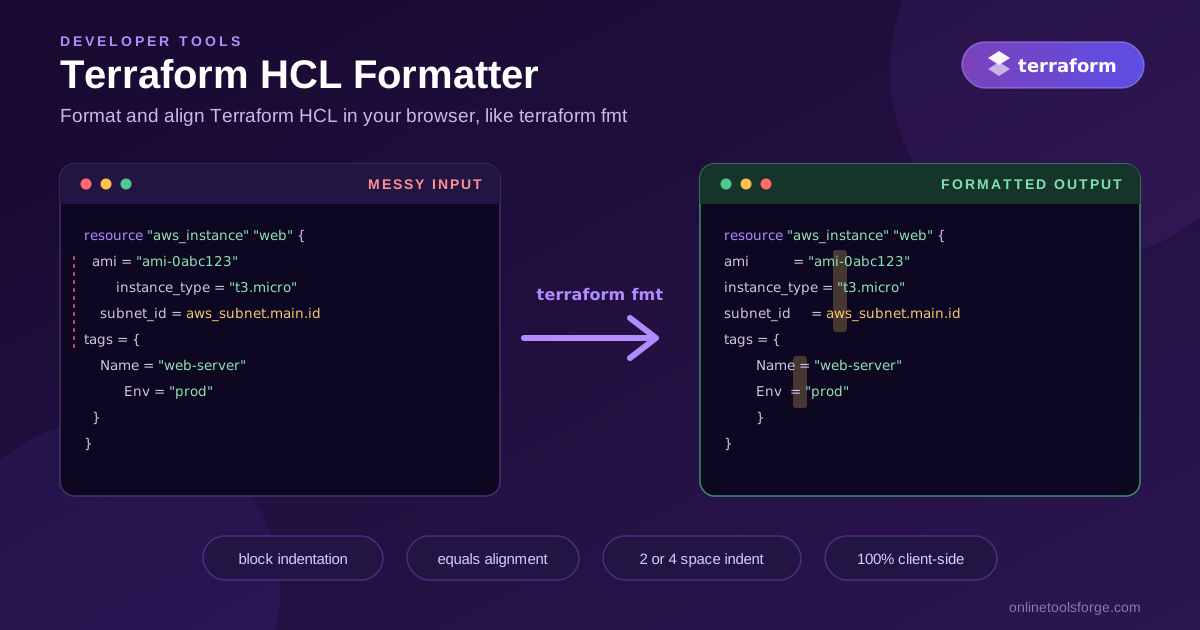
A typical messy block, as it might arrive from a chat message:
resource "aws_instance" "web" {
ami = "ami-0abc123"
   instance_type = "t3.micro"
  subnet_id = aws_subnet.main.id
tags = {
Name = "web-server"
  Env = "prod"
}
}
And the same block after formatting:
resource "aws_instance" "web" {
  ami           = "ami-0abc123"
  instance_type = "t3.micro"
  subnet_id     = aws_subnet.main.id
  tags = {
    Name = "web-server"
    Env  = "prod"
  }
}
Same code, but the second version is dramatically easier to review.
What the browser tool covers versus the real binary. The real terraform fmt parses HCL2 with the official parser and integrates with the toolchain — terraform validate checks configuration against provider schemas, and fmt -recursive formats an entire directory. The in-browser formatter is structural: indentation, alignment, spacing, and bracket balance. It does not load providers or validate semantics. For reading and quick fixes that is the right scope; for shipping to production, CI should still run the real binary.
Practical Use Cases
PR Review Snippets
A pull request diff shows one suspiciously misindented hunk. Instead of checking out the branch, paste the hunk into the formatter to confirm how it should look, then leave a precise review comment. It is also handy for cleaning a snippet before quoting it in a reply.
Learning HCL Syntax
If you are new to Terraform, the formatter doubles as a teacher. Paste a block copied from a blog post, and the output shows the canonical shape: where braces go, how deep blocks nest, how aligned attributes read. Correct formatting quickly becomes muscle memory.
Quick Fixes on Restricted Machines
Consultants and security-conscious teams often work on machines where they cannot install arbitrary binaries. The browser tool needs nothing but a URL. When you spot a formatting issue in a shared module during a screenshare, produce the corrected block on the spot.
Documentation Examples
Every module deserves a clean usage example in its README. Draft it, run it through the formatter, and drop the result into your docs. Aligned, consistently indented examples copy-paste cleanly into users' projects.
Best Practices
- Always run the real terraform fmt in CI. Add a terraform fmt -check -recursive step so unformatted code fails the pipeline. The browser tool complements it, never replaces it.
- Use the browser tool for reading, not final artifacts — the authoritative pass happens with Terraform installed.
- Keep modules small. Formatting problems multiply with file size. Small, focused modules are easier to format and review.
- Standardize the indent width once. Agree as a team on 2 or 4 spaces, record it in .editorconfig, and set the formatter to match so browser and CI output never disagree.
- Never hand-align in commits. If you are padding spaces manually, paste through the formatter instead — manual alignment is where mistakes creep in.
- Pair fmt with validate. Formatting only fixes looks; run terraform validate or terraform plan to confirm the configuration is actually correct before merging.
Ready to Clean Up Your HCL?
Next time someone drops a tangled HCL block into a chat or a code review, skip the hunt for a machine with Terraform. Open the Terraform HCL Formatter, paste, and get cleanly indented, equals-aligned output in seconds — free, private, and right in your browser.
Related Tools You Might Like:
- YAML Formatter — clean up and indent YAML pipeline and config files with the same in-browser approach.
- GitHub Actions Workflow Generator — scaffold well-formed workflow YAML for your CI pipelines.
- Docker Run to Compose Converter — turn docker run commands into structured Compose files.
Happy formatting!
Frequently Asked Questions
Q: Is the Terraform HCL Formatter identical to terraform fmt? A: It follows the same conventions — configurable block indentation, equals-sign alignment, normalized spacing — but it is a structural formatter in the browser that does not load providers or validate semantics, so terraform fmt remains the source of truth.
Q: Is my Terraform code uploaded to a server? A: No. All formatting runs client-side in your browser's JavaScript. Your configuration never leaves your device, which makes the tool safe for snippets referencing real infrastructure.
Q: Which files can I format with it? A: Any HCL text: .tf files, single resource blocks, .tfvars files, and module examples. Paste the content as plain text.
Q: Does the formatter reorder my arguments? A: No. Like terraform fmt, it preserves the order of attributes and blocks and only fixes indentation, alignment, and spacing.
Q: Can I use 4-space indentation instead of 2? A: Yes. The indent size selector offers 2 or 4 spaces per nesting level, and you can also disable equals-sign alignment.