Dead Pixel Test: Find Dead and Stuck Pixels on Any Display in Your Browser
Run full-screen solid colors, gradients and gray sweeps to spot dead pixels and stuck pixels on any monitor, TV, laptop or phone. Free, instant, and entirely browser-based.
Free Interactive Tool
Dead Pixel Test
Test your screen for dead or stuck pixels with full-screen colors, gradients, and gray sweeps — right in your browser.
Table of Contents
Every display can leave the factory carrying a defect, and panels also develop dead pixels later in life after pressure, impact or simple aging. Either way, the worst time to discover one is after the return window has closed. Our free Dead Pixel Test fills your screen with pure, full-screen colors so even a single misbehaving pixel stands out immediately — no install, no upload, nothing but your browser.
A pixel is made of red, green and blue sub-pixels, so when the screen shows a uniform color, every pixel should look identical. Any cell that stays black on a white fill or glows green on a red fill is a defect you want to catch while your warranty still applies.
This guide covers running a proper five-minute test, telling a dead pixel from a stuck pixel and from dust, and what to do with the results.
Why Use Dead Pixel Test?
- Catch factory defects early. Dead pixels can ship from the factory, and the first days of ownership are when replacements are easiest to get.
- Detect damage-related defects in time. Pixels can also die after pressure, drops or long use; regular checks catch these inside the warranty window.
- Tell dead pixels, stuck pixels and dust apart. Each defect has a distinct signature under solid colors, and the type determines whether a fix is possible.
- Nothing to install or upload. The test runs entirely in your browser with pure CSS colors, so it works on locked-down office machines and new laptops alike.
- Works on every display type. LCD, IPS, VA, OLED, TVs and phones all show the same tell-tale signs under uniform fills.
- Hands-free and repeatable. Auto-advance cycling and keyboard navigation let you run an identical test across several displays.
Key Features
| Feature | What It Does |
|---|---|
| Solid color fills | Full-screen red, green, blue, white, black, cyan, magenta and yellow isolate sub-pixels and defect types. |
| Gray sweeps | 75, 50 and 25 percent gray reveal subtle brightness variations, clouding and banding. |
| Gradients | Black-to-white and rainbow gradients expose faint spots across smooth tonal transitions. |
| Full-screen mode | One click hides the browser UI entirely. |
| Auto-advance cycling | Colors rotate automatically at 1, 2, 3 or 5 second intervals. |
| Keyboard navigation | Step through patterns and exit with Escape. |
| Start from any pattern | Jump straight to a color when re-checking a known spot. |
- Thirteen patterns in total. Both bright-on-dark and dark-on-bright defect signatures are covered in a single session.
- Identical on any screen size. Patterns are generated in the browser, so the test looks the same on a 5-inch phone and a 55-inch TV.
How to Use
- Clean the screen first. Wipe gently with a dry microfiber cloth; dust and smudges cast shadows that look like defects.
- Open the tool and pick a starting color. Launch Dead Pixel Test, select any pattern chip, and click the full-screen button to hide the browser interface.
- Cycle through every color. Click or press the arrow keys to step through all thirteen patterns, or switch on auto-advance. Press Escape to leave full-screen mode.
- Scan the panel slowly, row by row. Move your eyes in horizontal bands from edge to edge, pausing on corners and edges.
- Confirm suspects and note their locations. When you spot an anomaly, cycle through red, green, blue, white and black while watching that spot, and record its behavior and position for a warranty claim.
Dead vs Stuck vs Dust
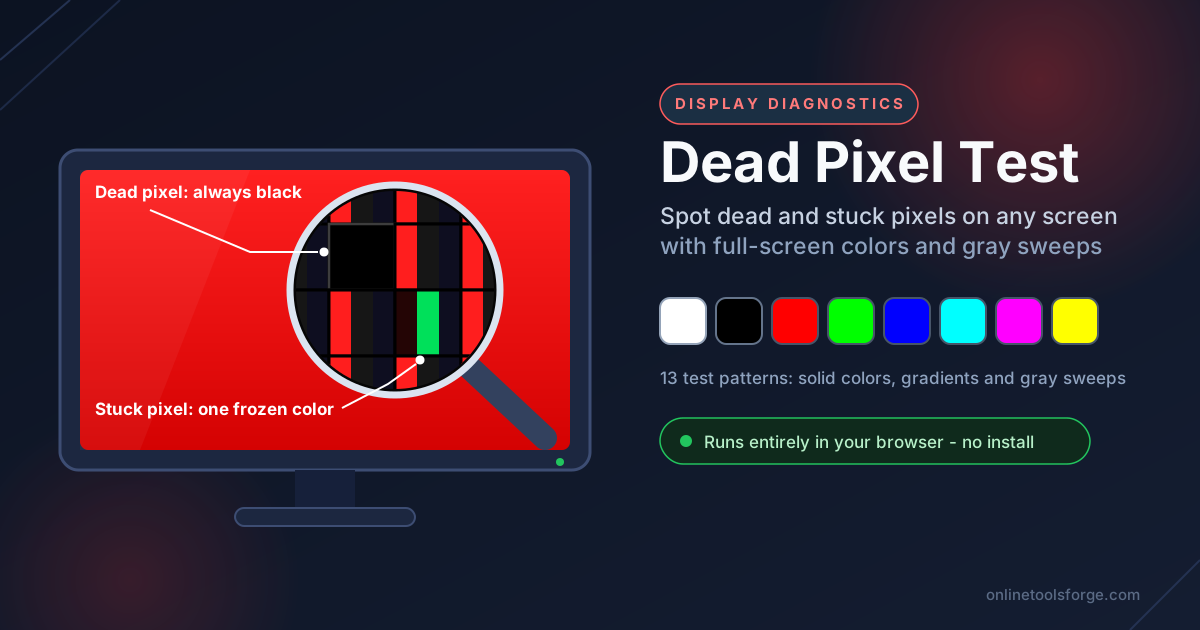
Dead pixels are permanently off. The transistor driving the pixel has failed, so the cell never receives a signal. On a white or red fill a dead pixel reads as a tiny black dot, and it stays black on every color. This hardware failure does not repair itself — the realistic options are a warranty replacement or living with it.
Stuck pixels are frozen on one color. One sub-pixel locks in the on state, so the pixel glows red, green or blue constantly regardless of content. A stuck pixel is most obvious against a complementary fill — a pixel stuck on green leaps out on a red screen. Unlike dead pixels, stuck pixels are sometimes recoverable: rapid pixel-cycling videos can occasionally free a jammed sub-pixel. Success is not guaranteed, but it costs nothing to try.
Dust sits on the surface, not under the glass. A speck on the panel casts a small dark shadow that mimics a dead pixel. Two checks settle it: move your head — dust shifts while a real defect stays put — and wipe the spot gently to see if it moves.
Each color reveals a different defect. Pure red, green and blue fills isolate the individual sub-pixels: a cell that stays dark on the red fill has a failed red sub-pixel. A white fill shows dark defects — dead pixels and dust — at maximum contrast. A black fill does the opposite, exposing bright defects such as stuck pixels and backlight bleed. Gray sweeps reveal clouding and uneven brightness that both extremes can mask.
Practical Use Cases
New Monitor, TV and Phone Acceptance Checks
Run the test the day a new display arrives, before mounting it on the wall. Retailers are most generous in the first days of ownership, so a defect found immediately is a straightforward exchange rather than a negotiation.
Resale Preparation
If you plan to sell a device, testing first tells you what a careful buyer will find. Disclosing a known stuck pixel honestly, ideally with a photo from the test, prevents returns and negative feedback, and a clean result is itself a selling point.
Multi-Monitor and Office Fleet Audits
Teams running several panels can audit an entire desk in one session: enable full-screen auto-advance on each display, then walk the row looking for outliers. Consistent timing makes the comparison fair, and a five-minute check after any driver update confirms nothing drifted.
Warranty and Insurance Claims
Support teams ask for the defect's location, the colors on which it is visible, and sometimes a photo. A systematic test gives you all three, and repeatable evidence shortens the back-and-forth while improving the odds of a replacement.
Best Practices
- Clean the panel before testing. A single crumb can masquerade as a dead pixel and send you chasing a warranty claim for dust.
- View from straight on. Panels shift color at an angle, so confirm defects with your eyes perpendicular to the screen.
- Dim the room. Bright ambient light washes out faint dark dots and glow, so test in low light.
- Use a magnifier for confirmation. A small magnifying glass shows whether the cell is fully dark, stuck on one color, or just a surface speck.
- Run all thirteen patterns, not one. A defect invisible on black may glare on white, and sub-pixel failures show only on their own primary color.
- Re-test after any incident. After a drop or pressure mark, re-run the test — small defects can worsen over weeks.
Try Dead Pixel Test Now
Open Dead Pixel Test, press the full-screen button, and give your display a proper health check in five minutes. Whether unboxing a new monitor or building evidence for a warranty claim, catching a faulty pixel early is worth those minutes. The tool is free, needs no installation, and works in any modern browser.
Related Tools You Might Like:
- Decibel Meter — measure ambient noise levels in your browser while calibrating speakers.
- Interval Timer — run timed intervals for pixel-cycling fix attempts, screen breaks or any structured routine.
- Image Diff — compare two images pixel by pixel to see what changed between screenshots.
Happy testing!
Frequently Asked Questions
Q: How many dead pixels justify a warranty replacement?
A: Policies vary. Some manufacturers follow zero-defect policies and replace a panel for a single dead pixel, while others follow ISO-style tolerances that allow a few defects. Check your vendor's policy and bring your test evidence — location, colors and photos.
Q: Can a dead pixel be fixed at home?
A: A truly dead pixel is a hardware failure that cannot be repaired. Stuck pixels are different: rapid pixel-cycling videos sometimes free a jammed sub-pixel, so they are worth a try.
Q: Is a full-screen color test safe for OLED screens?
A: Yes. A five-minute test with solid colors is well within normal use for OLED panels. Just avoid leaving bright static images at maximum brightness for hours.
Q: Why test multiple colors instead of just white?
A: White exposes dark defects best, black exposes bright ones, and pure red, green and blue each reveal failures in a single sub-pixel. A defect that hides on one fill may be obvious on another.