Speaker Test: Find Silent, Swapped, and Unbalanced Speakers in Your Browser
Speaker Test plays channel-identifying tones and frequency sweeps in your browser so you can find silent, swapped, or unbalanced speakers and headphones in minutes.
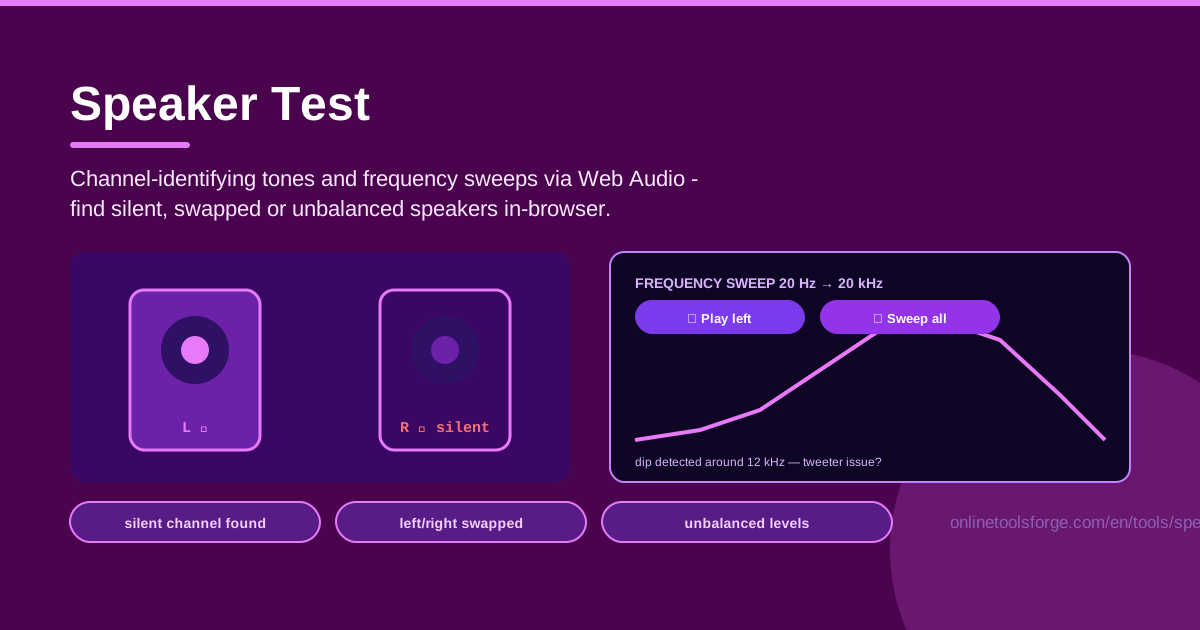
Table of Contents
Audio problems love to hide. A movie sounds oddly flat, game footsteps come from the wrong side, or one ear of your favorite headphones goes quiet - and you are left guessing whether the file, the app, the cable, or the hardware is to blame. The fastest way to settle it is a controlled test, and that is exactly what Speaker Test delivers: channel-identifying tones and frequency sweeps played straight through your browser with Web Audio, so you can hear precisely which channel is silent, which are swapped, and where levels stop matching.
Because everything runs in the browser, there is nothing to download or install. No accounts, no drivers, no compatibility worries - the tool works with any output your system can play through, from laptop speakers and soundbars to USB DACs, Bluetooth earbuds, and AV receivers. Open the page, press play, and listen. This guide shows you how to run a complete test in a couple of minutes and how to interpret what you hear.
Why Use Speaker Test?
- Catch silent channels instantly. A dead driver, a broken cable, or a muted channel all produce the same symptom: one side that simply does not play. A short left-then-right tone makes the fault obvious in seconds.
- Spot swapped left and right channels. If the "left" tone sounds on your right ear, your wiring, adapter, or receiver settings are crossed. Films, games, and music are mixed with a deliberate stereo image, so a swap genuinely degrades the experience.
- Find unbalanced levels early. One speaker playing slightly quieter is easy to miss with music but obvious with alternating tones - and usually points to a balance slider, dirty connector, or weakening driver.
- Test any output device. Headphones, earbuds, laptop speakers, studio monitors, soundbars, receivers: if it plays audio, the tool can interrogate it.
- Diagnose frequency-specific faults. The sweep reveals what steady tones hide, like a tweeter that drops out above a certain pitch or a woofer that buzzes on bass notes.
- Nothing to install, nothing to pay. The whole test is a web page powered by Web Audio, so it works the same on Windows, macOS, Linux, Android, and iOS.
Key Features
| Feature | What it does |
|---|---|
| Channel-identifying tones | Plays a distinct tone on the left channel, then the right, so you can confirm each speaker responds and sits on the correct side. |
| Frequency sweep | Glides through the audible range to expose tweeter dropouts, weak bass, rattles, and faults that only appear at certain pitches. |
| Stereo balance check | Alternates channels so you can judge by ear whether left and right play at matched loudness. |
| In-browser Web Audio engine | Generates every tone locally, independent of media players, plugins, or downloads. |
| Works with speakers and headphones | Built for everything from single earbuds to full stereo rigs. |
Two details are worth highlighting:
- The tones are deliberately unambiguous: when the left tone plays, it should sound only on the left. Silence, or leakage to the other side, tells you something concrete.
- Because Web Audio generates the signal directly, the test is unaffected by player EQ presets, normalization, or "enhancements" that reshape ordinary playback.
How to Use Speaker Test
- Pick your output device. Connect the speakers or headphones you want to check and make sure the operating system is actually sending audio to them. This is the most common source of false alarms - a test tone is useless if it plays through the wrong device.
- Set a moderate volume first. Start around your normal listening level. Pure tones sound more piercing than music, so leave headroom before anything plays.
- Play the left tone, then the right tone. Confirm three things for each: sound comes out, it comes from the correct side, and it is about as loud as the other side. Repeat if anything seems ambiguous.
- Run the frequency sweep. Let it glide from low to high and listen for dropouts, buzzing, or sudden harshness at particular pitches. Note roughly where any anomaly occurs.
- Diagnose what you heard. Silence on one side means a dead driver, broken cable, or muted channel. Left sounding on the right means a swapped connection. Uneven loudness points to a balance setting or a weak driver. Dropouts at high frequencies suggest a tweeter problem; buzz at low frequencies suggests a woofer or cabinet issue.
The routine takes about two minutes, and you can re-run any part of it while swapping cables, adapters, or settings to confirm the fix.
What the Tones Reveal
The channel-identifying tones are the backbone of the test. Each tone goes to exactly one output channel. When the left tone plays and you hear nothing, you have a silent channel; when the left tone arrives at your right ear, you have a swapped pair. Swaps are surprisingly common: 3.5mm extension cables, cheap adapter dongles, and miswired receiver terminals can all cross the channels with no visible clue. Because each tone declares its intended channel, a swap becomes instantly audible rather than a suspicion.
The frequency sweep adds a second dimension. Speakers rarely fail completely - more often a driver loses part of its range. A torn or blocked tweeter reproduces bass fine but vanishes as the sweep climbs into the treble. A cracked woofer buzzes on the low end. A partially broken conductor crackles only at certain frequencies and volumes. Sweeping slowly and listening carefully turns a vague complaint like "the sound seems harsh" into a specific, actionable frequency range.
Balance is the third thing the tones expose. Human hearing compares two sounds presented one after the other extremely well, which is exactly what alternating left/right tones give you. If one side is clearly quieter, check the OS balance slider first - it is astonishing how often it has been nudged off-center - before suspecting the hardware.
Finally, remember the tool's Web Audio output is independent of system-level enhancements and media-player processing. That is a feature: you hear the raw channel output, with no software layer between the tone and the driver to color the result.
Practical Use Cases
Checking New Headphones Before the Return Window Closes
Unbox a new pair, run both channel tones, and sweep once. Faulty units - a dead side, a loose connector, a buzzing driver - exist even from premium brands, and finding one on day two means a free replacement instead of an argument in week six.
Mapping a Home Theater or Desktop Speaker Setup
After rearranging a room or rewiring a receiver, confirm that the speaker you labeled "left" actually receives the left channel. The tones remove the guesswork from terminal assignments, and the sweep reassures you no satellite lost its connection during the move.
Verifying a Streaming or Podcast Setup
Before going live, streamers and podcasters can confirm their monitoring chain - interface, headphones, desktop monitors - delivers audio to both ears. A viewer telling you your game audio was mono for two hours is a far worse way to find out.
Teaching Stereo Concepts
Instructors can use the tones to demonstrate what a stereo image is: play left, play right, then discuss why panning and channel separation matter in music production. Since the tool is free and browser-based, every student can follow along on their own device.
Best Practices
- Set a moderate volume before any tone plays. Pure sine tones sound louder and harsher than music at the same setting; raise the volume only if you cannot hear the tone.
- Test with headphones first, then speakers. Headphones isolate the channels completely, making silent or swapped faults unmistakable before room acoustics muddy the judgment.
- Listen from more than one position. With speakers, sit at your usual spot, then check from the side to rule out echoes masking a weak driver.
- Sweep slowly through suspicious ranges. If something sounds odd at a certain pitch, re-run the sweep and linger there - subtle faults hide in fast sweeps.
- Re-test after driver or OS updates. Audio driver updates can reset output devices, sample rates, or balance; a two-minute re-test catches it immediately.
- Swap components to isolate the fault. Try a different cable, port, or device. If the silence follows the cable, the cable is the problem; if it stays with the speaker, the driver is.
Ready to hear exactly what your setup is doing? Open Speaker Test, press play on the left tone, and two minutes from now you will know whether your audio chain is healthy, swapped, or hiding a dead channel.
Related Tools You Might Like:
- Microphone Tester - check that your microphone records clearly and complete the audio loop.
- Camera Tester - verify your webcam feeds video before meetings and streams.
- Motion Sensor Tester - exercise device motion sensors straight from the browser.
Happy listening - and may both channels always sound equally loud!
Frequently Asked Questions
Q: Is Speaker Test safe for my speakers and headphones? A: Yes, as long as you start at a moderate volume. The tones are ordinary sine waves within the audible range. Avoid maximum volume, especially with in-ear earbuds, and stop if you hear distortion.
Q: The left tone plays from both speakers. Is that normal? A: Some leakage is normal with speakers placed close together, but clearly equal levels suggest mono playback or a cabling fault. Test with headphones, which fully separate the channels, and confirm your OS output is set to stereo rather than mono.
Q: My right earbud is silent, but music sometimes plays from it. What should I check first? A: Intermittent channels usually mean a failing cable or connector. Wiggle the cable near the plug during the tone; if the sound cuts in and out, the cable or jack is the culprit. Also confirm the balance slider in your OS sound settings is centered.
Q: Does the frequency sweep work over Bluetooth headphones? A: It plays through them, but Bluetooth codecs compress audio and can alter the extreme ends of the sweep. For a trustworthy frequency test use a wired connection, and reserve Bluetooth tests for channel identification and balance.