Excel Formula Beautifier: Turn Monster Formulas Into Readable Trees
Expand and indent complex Excel formulas into a readable multi-line tree. The Excel Formula Beautifier untangles nested IFs, pairs every parenthesis, and runs entirely client-side.
Free Interactive Tool
Excel Formula Beautifier
Expand and indent complex Excel formulas across multiple lines so nested IF, VLOOKUP and LET logic is easy to read and debug.
Table of Contents
Open any spreadsheet that has passed between teams and sooner or later you meet the monster: a five-level nested IF arrives in one line — nobody can audit it. The formula bar shows a wall of parentheses, the Gold-tier condition hides in the middle, and one misplaced comma silently reprices every customer. Spreadsheets rarely fail loudly; they fail quietly, at a value nobody checked.
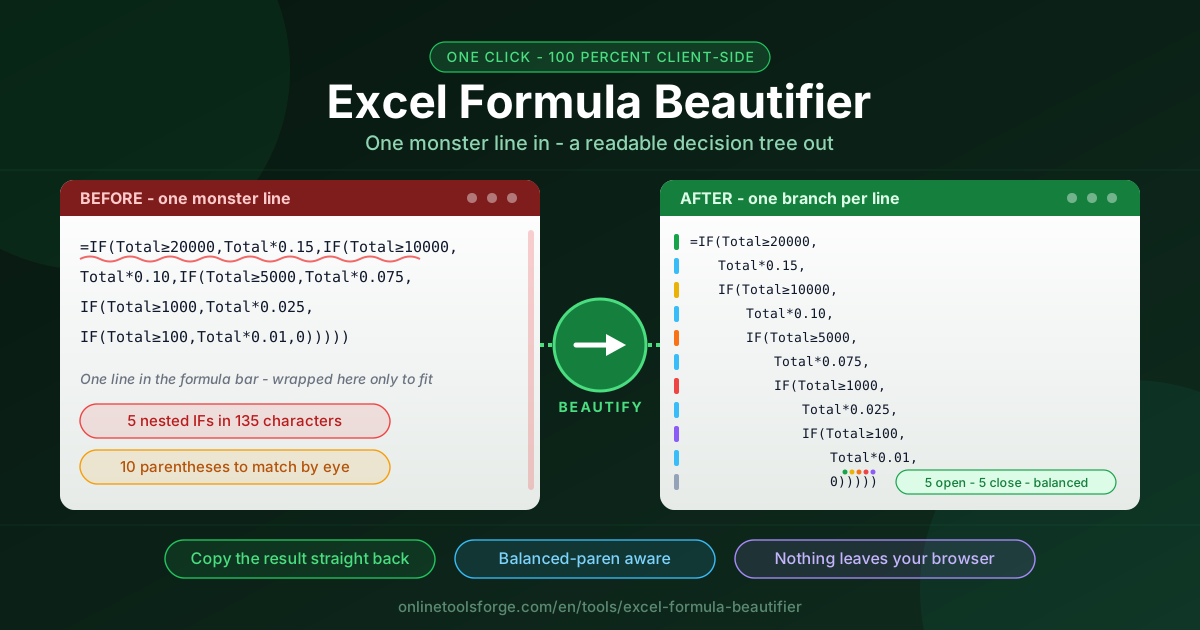
The Excel Formula Beautifier takes the wall apart. Paste a formula and the tool expands and indents it across multiple lines — one branch per line, every nested function at its own depth. An unreadable line becomes a decision tree you read top to bottom.
Formatting is all it does, and that is the point. The tool never rewrites your logic; it only adds structure. Parsing runs entirely client-side, so sensitive workbooks never leave your browser.
Why Use Excel Formula Beautifier?
- Read every branch at a glance. A nested IF is a decision tree flattened into a line. Beautifying re-inflates it: each condition and each result on its own line, indented by depth.
- Find the broken branch fast. When a formula returns the wrong tier or price, the faulty condition is one identifiable line — not a character you hunt for between parentheses.
- Stop losing parentheses. Balanced-paren awareness pairs every open with its matching close, so chains like IF(IF(IF(...))) stop being an editing hazard.
- Fix without retyping. Copy the formatted result straight back. Excel accepts line breaks inside formulas, so the multi-line version evaluates exactly like the one-liner.
- Private and installation-free. Nothing to download, nothing to sign into, and no formula — however sensitive — that ever touches a server.
Key Features
| Feature | What It Does |
|---|---|
| One-click beautify | Expands a single-line formula into an indented, multi-line layout with one branch per line. |
| Balanced-paren awareness | Pairs every open and close parenthesis so nested structures stay aligned. |
| Nested IF highlighting | Steps each nested function to its own indentation level, turning chains into a visible tree. |
| Copy result back | One click copies the formatted formula, ready to paste into the formula bar. |
| Fully client-side | All parsing and formatting happen locally in your browser; no uploads and no accounts. |
- Depth-based indentation lets the eye trace one level of the rule without tracing characters.
- Deterministic output — because only whitespace is added, the beautified formula is logically identical to the original; paste back with zero behavioral risk.
How to Use
- Open the tool. Go to the Excel Formula Beautifier in your browser.
- Paste the monster. Copy the full formula from the formula bar, starting with =, into the input box.
- Read the tree. Review the expanded output; each condition and result sits on its own line at its own depth.
- Fix the broken branch. Adjust the threshold, result, or reference that misbehaves while every other branch stays legible.
- Copy it back. Click copy, return to Excel, and paste. The multi-line formula evaluates identically to the original.
Why Nesting Happens and How to Unwind It
Business rules arrive as cascades, and Excel's IF has no "else if" keyword. Tiered pricing, grading bands, commission steps, shipping rules — each is a chain of questions asked in order, and each chain becomes one IF nested inside the argument of another. Three levels deep, still readable. Five deep, the flat line stops telling the truth about its structure.
Reading direction is the core problem. On one line, your eye walks through IF(A, X, IF(B, Y, IF(C, Z))) left to right, jumping backward to work out which result belongs to which condition and where the third IF actually ends. In the indented view, the formula reads top to bottom like an outline: level one asks the first question, its result sits on the next line, then the next question steps right. Matching a condition to its result is one line of vertical distance, not a hundred characters of horizontal scanning.
Paren matching is the second superpower. A five-level IF carries ten parentheses, and people are reliably bad at pairing the tenth close with the first open. The beautifier indents every nesting level, so each closing parenthesis lines up under the branch it closes — delete one, and the misalignment is obvious before Excel ever sees it.
The working rhythm is simple: beautify, find the broken branch, fix it, paste the result back. Excel accepts line breaks inside formulas — press Alt+Enter in the formula bar — so the pasted tree computes exactly like the original. A realistic four-level tier label, before:
=IF(C2>=50000,"Platinum",IF(C2>=20000,"Gold",IF(C2>=5000,"Silver",IF(C2>=1000,"Bronze","Standard"))))
And after:
=IF(
    C2>=50000,
    "Platinum",
    IF(
        C2>=20000,
        "Gold",
        IF(
            C2>=5000,
            "Silver",
            IF(
                C2>=1000,
                "Bronze",
                "Standard"
            )
        )
    )
)
Same inputs, same outputs, same cell. The first version takes a minute to decode; the second takes three seconds, and a wrong threshold such as 2000 instead of 20000 jumps off the page. Modern Excel also offers structural escapes: LET names intermediate values so they stop repeating inside a chain, and LAMBDA defines a reusable function that replaces the whole ladder with one readable call. Migrate long chains when you touch them; until then, beautify is how you audit what already exists.
Practical Use Cases
Auditing Inherited Spreadsheets
Every inherited workbook holds decisions made under deadline pressure. Beautify the heavyweight formulas before trusting the numbers: within minutes you can confirm which branch handles negative values, which threshold applies to volume discounts, and where the fallback hides.
Teaching Formula Structure
Nothing explains a nested IF faster than the tree view. Show the one-liner, beautify it live, and the room sees that each IF asks one question with two answers — no setup, no screenshots.
Debugging #VALUE Errors
#VALUE! means the formula received a type it did not expect. On one line, the suspect list is the whole formula; in the tree, you isolate the exact argument referencing the problem cell and fix that branch alone.
Documenting Business Rules
When finance or operations must explain why a spreadsheet returns a result, the beautified tree practically is the documentation: each line reads as "if this condition, then this result." Reviewers approve the logic line by line.
Best Practices
- Beautify before you edit anything. Misread nesting drives the most expensive formula mistakes; read the structure first.
- Replace magic numbers with named ranges. With the layout in front of you, bare thresholds like 50000 stand out — promote them to names such as TIER_1_THRESHOLD.
- Keep the original formula in a cell comment. If a restructure changes results unexpectedly, you can diff against the untouched original in seconds.
- Change one branch at a time. The tree invites a full rewrite; resist it. Adjust one branch, repaste, verify, then move on.
- Re-test boundary values. After a threshold edit, check the exact edge — 20,000 versus 20,001 should land on the tiers you intend.
- Graduate chains to LET or LAMBDA. Beautify is the audit tool; LET and LAMBDA are the long-term fix, and the tree shows you exactly what to migrate.
Try It Now
The next time a formula makes you squint, do not squint back. Paste it into the Excel Formula Beautifier, read the tree, fix the wrong branch, and paste it back — free, in-browser, and faster than counting your fifth closing parenthesis.
Related Tools You Might Like:
- Excel Formula Translator — convert formulas between Excel and Google Sheets, with incompatibilities flagged.
- Unit Price Calculator — compare pack sizes and find the true cost per unit before you buy.
- Percentage Calculator — handle the percentage math that formulas often hide.
Happy beautifying!
Frequently Asked Questions
Q: Does the beautifier change what my formula computes?
A: No. The tool only expands and indents what you paste. Functions, references, values, and order of operations are untouched, so the formatted version evaluates exactly like the original.
Q: Can Excel really keep line breaks inside a formula?
A: Yes. Line breaks are valid formatting; press Alt+Enter in the formula bar and Excel treats the multi-line formula as one continuous expression, so the beautified result pastes straight back.
Q: Is my formula uploaded anywhere?
A: No. Parsing and formatting run entirely in your browser; proprietary pricing logic, payroll calculations, and client data never leave your machine.