Mouse Tester: Check Buttons, Double-Click, and Scroll Online
Free online mouse tester. Check left, middle, and right buttons, measure double-click speed, verify scroll direction and steps, and view a click heatmap — no install needed.
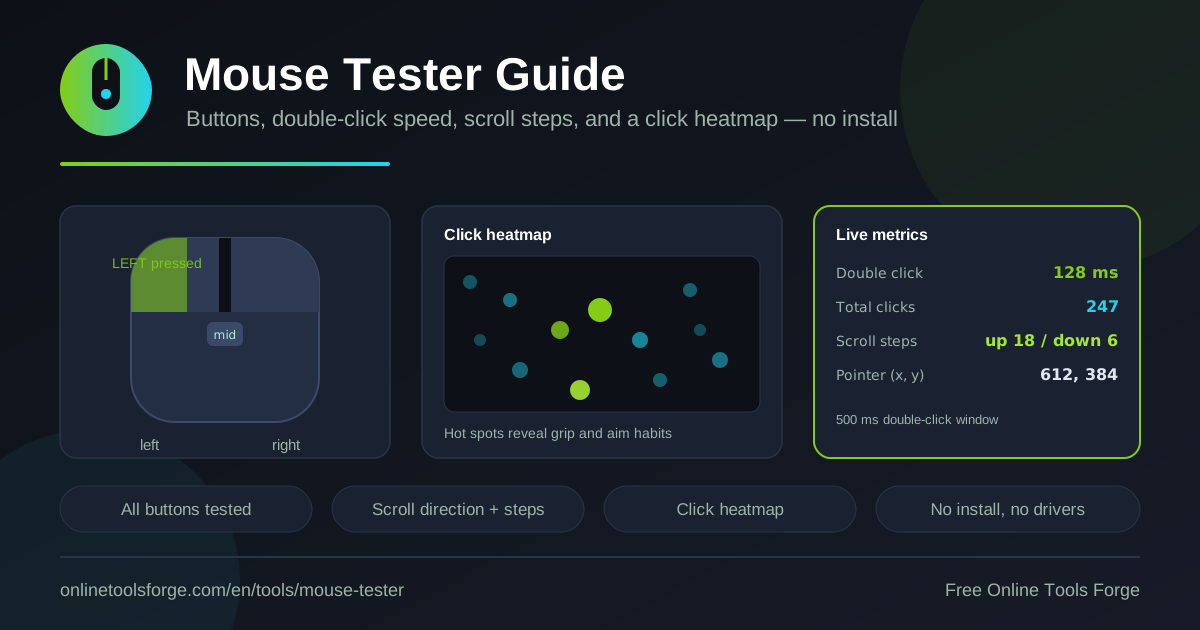
Table of Contents
A mouse rarely fails all at once. First a left click occasionally registers twice, then the scroll wheel skips a step, and soon files are landing in the wrong folders. The hard part is knowing whether the fault is the hardware, a cable, or an OS setting. That is what the mouse tester is for: a free tool that runs 100% in your browser and shows exactly what your mouse is reporting, click by click and step by step.
Because everything happens client-side, there is nothing to install, no drivers to update, and no software to trust. Open the page, press your buttons, and watch the counters, timings, and coordinates respond in real time. In under a minute you can tell whether that annoying double-click is a worn switch or just an over-sensitive system setting.
This guide walks through every feature, explains how to interpret the results, and covers the situations where it saves the most time — from diagnosing worn switches to sanity-checking a new gaming mouse.
Why Use the Mouse Tester?
- Instant hardware verification. Instead of guessing why clicks feel wrong, you get direct evidence: every button press, scroll step, and pointer movement is captured and counted as it happens.
- Catch double-click faults early. A switch that fires twice from one press is the most common mouse failure. A double click test exposes it by measuring the gap between events.
- Diagnose scroll wheel problems. Worn or dirty scroll encoders skip steps or report the wrong direction. The tester counts every step, so drift and jitter become obvious.
- No installation or drivers required. Everything runs in the browser, making it safe on work machines or borrowed laptops.
- Verify repairs and new purchases. After swapping a switch or unboxing a new mouse, confirm every button registers before the warranty window closes.
- Free and privacy-friendly. Your input never leaves the browser — the tool simply reads the events your OS already delivers.
Key Features
| Feature | What it does |
|---|---|
| Button testing | Registers left, middle, and right presses with individual press counters |
| Double-click speed | Measures the gap between two clicks against a 500 ms detection window |
| Scroll wheel test | Detects scroll direction (up/down) and counts each wheel step |
| Live pointer coordinates | Displays the current (x, y) cursor position in real time |
| Click-area heatmap | A 12x6 grid showing where on the test area you click most |
A few details worth expanding on:
- The press counters are cumulative. Ten presses should read ten — if the counter says nine, a switch dropped an event.
- The 500 ms window matches typical OS defaults. Two clicks inside the window count as a double click, and the measured gap is shown so you can compare against your system's threshold.
- The heatmap accumulates as you click. It doubles as a tracking check: clicks should land wherever your cursor was.
How to Test Your Mouse
- Open the tool. Go to the mouse tester in any modern browser. Nothing needs to be configured first.
- Exercise each button. Press left, middle, and right several times. Every physical press should increment its counter by exactly one.
- Run the double click test. Click twice at your normal speed. The tester measures the gap and says whether it fell inside the 500 ms window. Repeat five to ten times for a reliable picture.
- Test the scroll wheel. Roll up and down slowly, then quickly. The direction indicator should always match the physical movement, and each detent should add exactly one step.
- Watch the coordinates and heatmap. Move the pointer and confirm the (x, y) readout tracks smoothly without jumping, then click across the area to build the heatmap.
What Each Test Tells You
Button press registration. Each button has its own counter, isolating faults to a specific switch. A healthy button increments by exactly one per press. If a counter jumps by two after one press, the switch is bouncing — worn or dirty contacts are making and breaking repeatedly. If it sometimes fails to increment, the switch may be dying. Both are classic symptoms of heavily used mice.
Double-click threshold. Systems treat two clicks as a double click only within a maximum interval — 500 ms in this tool's window. The measurement matters in both directions. A single deliberate press producing two registered clicks with a tiny gap (often under 80 ms) means a worn, bouncing switch. Genuine double clicks that consistently exceed 500 ms and go unrecognized usually indicate a too-short double-click speed setting in your OS — fixable in the control panel, not broken hardware.
Scroll encoder health. A scroll encoder sends one pulse per detent, and the tester logs direction and step count. Rolling down should read down, one step per detent, without exception. Wrong-direction steps, multiple steps per detent, or a stalled counter indicate a failing encoder. Occasional glitches often mean debris that cleaning can fix; persistent erratic behavior means replacement.
Pointer coordinates. The live (x, y) readout is a simple tracking check. Moving the cursor in slow circles, the numbers should change smoothly. Sudden jumps, frozen values, or drift while the mouse sits still point to a sensor problem, an unstable surface, or wireless interference.
Reading the heatmap. Bright cells show where you click most — most people cluster near the center. It is most useful as a sanity check: if clicks at the area's edges never register even though the cursor visibly reached them, you have a dead zone, suggesting a sensor issue rather than a button fault.
Practical Use Cases
Diagnosing a Worn Switch
A left button that double-clicks when you single-click ruins everyday tasks like selecting files. Single-click deliberately ten times in the tester. If any press produces two increments or a double-click reading under ~100 ms, the switch is worn — objective evidence for a warranty claim or a replacement decision.
Verifying a Repaired or New Mouse
After a DIY switch swap or a new purchase, test before you rely on the device. Cycle every button, run a double click test at moderate and fast speeds, and roll the wheel through dozens of detents both ways. One increment per press, correct direction, one step per detent — a clean bill of health.
Gaming Sanity Checks
Competitive games punish flaky hardware. A bouncing switch can fire weapons twice per click, and a drifting encoder can switch weapons unexpectedly. Before blaming your aim or the game, run a quick mouse test online to rule the hardware out. The click speed tester pairs naturally here if you also want to benchmark your click rate.
Confirming Scroll Wheel Drift
If pages creep upward while you read or a spreadsheet scrolls the wrong way intermittently, log a long, slow scroll session. Any steps in the unexpected direction confirm genuine encoder drift rather than a touchpad gesture or a misbehaving application.
Best Practices
- Test each button separately so a fault is tied to one specific switch instead of "the mouse is broken."
- Repeat the double click test at least five times. Intermittent faults only appear across multiple attempts.
- Roll the scroll wheel slowly — fast spins can mask a single glitching detent.
- Compare against a second mouse on the same page to confirm the problem follows the device, not the browser.
- Check OS settings before replacing hardware. Double clicks missing the 500 ms window are usually adjustable in system preferences.
- Re-test after cleaning an encoder to verify the fix actually worked.
Ready to find out what your mouse is really reporting? Open the mouse tester, run the five steps above, and within a minute you will know whether your hardware is healthy, whether a setting is the culprit, and which component — if any — needs attention. It is free, runs entirely in your browser, and takes the guesswork out of a frustrating problem.
Related Tools You Might Like:
- Click Speed Tester — measure clicks per second and train faster clicking.
- Keyboard Event Tester — verify every key press and release your keyboard sends.
- Gamepad Tester — check controller buttons, sticks, and triggers in the browser.
Happy testing!
Frequently Asked Questions
Q: Is the mouse tester free to use?
A: Yes — completely free, no installation, and it runs 100% in your browser with no account or drivers.
Q: What does the 500 ms window in the double click test mean?
A: It is the maximum gap between two clicks for them to count as a double click, matching typical OS defaults. Clicks closer than 500 ms register as a double click; anything slower counts as two separate clicks.
Q: My single clicks sometimes register as double clicks. Is my mouse broken?
A: Very likely, yes. Two press events with a tiny gap from one physical click means the switch contacts are worn and bouncing. Try cleaning the switch; if it persists, the switch or mouse needs replacing.
Q: Why does my scroll counter sometimes move in the wrong direction?
A: That points to a worn or dirty encoder producing noisy pulses. Test slowly — if wrong-direction steps still appear, clean the encoder or plan a replacement, since the drift usually worsens over time.
Q: Does the tool store my click data anywhere?
A: No. All processing happens locally in your browser and nothing is uploaded. Counters, heatmap, and coordinates reset when you reload the page.