Teleprompter Guide: Deliver Any Script Naturally on Camera
The free online Teleprompter auto-scrolls your script with an optional camera preview, mirror mode and line focus, so you can record confident, natural video straight from your browser.
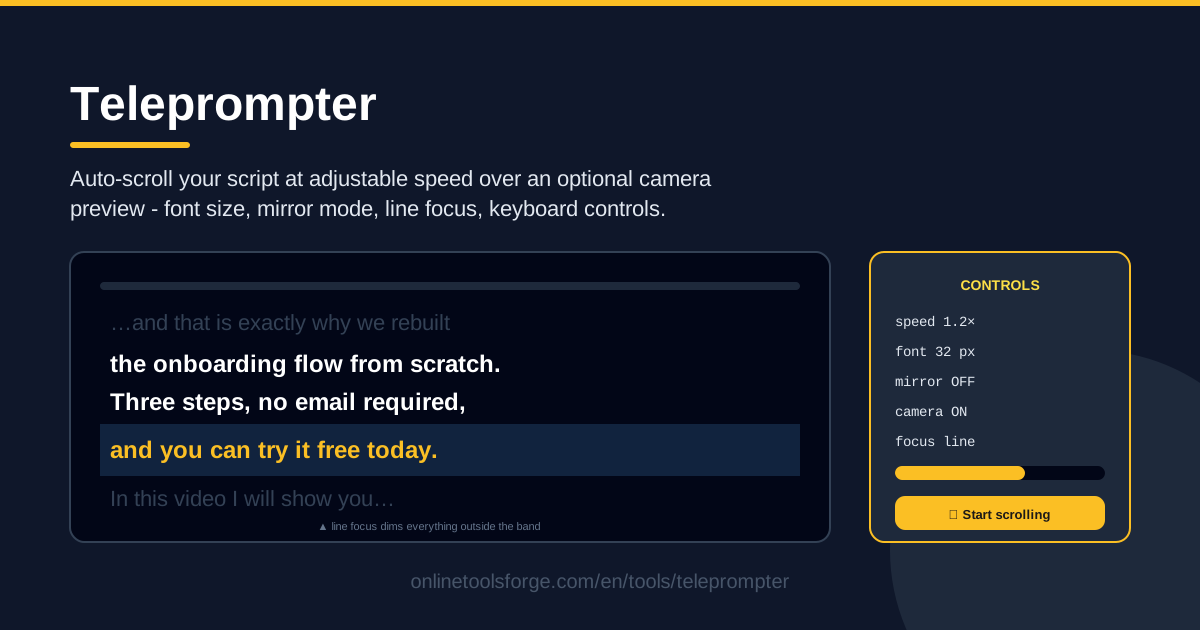
Table of Contents
If you have ever recorded a talking-head video with notes taped beside your webcam, you already know the result: stiff delivery, darting eyes, and more retakes than you would like to admit. A teleprompter fixes this by keeping your script flowing right beside the lens, so you read it while appearing to make direct eye contact with your audience. Our free Teleprompter tool does exactly that in your browser: paste your script, press start, and read along as it auto-scrolls at a speed you control.
Because the tool runs fully client-side, your script never leaves your device. There is nothing to download, no account to create, and no upload bar waiting to crawl to one hundred percent. Open the page, paste your text, and you are recording-ready in under a minute.
The optional camera preview completes the setup: your script scrolls over a live feed of your own webcam, so your eye line stays locked on the lens. In this guide you will learn how each feature works, how to calibrate scroll speed for a natural-sounding read, and where a prompter pays off the most.
Why Use Teleprompter?
- No hardware needed. Traditional prompter rigs cost hundreds of dollars and demand tripods, glass hoods and a dedicated tablet. A single browser tab replaces the entire setup, which makes a professional read possible from your desk, your kitchen table, or a hotel room.
- Direct eye contact on every take. Because the text sits next to the lens, viewers feel you are talking to them rather than reading at them — the single biggest difference between amateur and polished footage.
- Fewer retakes and faster edits. Flubbed lines drop dramatically when the script keeps pace with you, which means far less time scrubbing through takes in your editor.
- Fully private by design. The tool runs client-side, so your script is never uploaded, stored or shared. Unreleased launches, client briefs and internal announcements stay on your machine.
- Works on any device with a browser. Laptop, tablet or desktop — if it can open a web page, it can prompt you.
- Free with no sign-up. No watermarks, no trial clocks, no accounts. Paste and scroll.
Key Features
| Feature | What it does |
|---|---|
| Paste-in script editor | Drop any script into the page — plain text, bullet points, whatever you have. No file uploads required. |
| Adjustable auto-scroll | The script scrolls continuously at a speed you set, holding a steady rhythm from the first word to the last. |
| Camera preview | An optional live webcam view sits behind the scrolling text, so you can frame yourself while you read. |
| Font size control | Enlarge the text until it reads comfortably from your recording distance, whether that is 40 cm or a full arm's length. |
| Mirror mode | Flips the text horizontally for beam-splitter teleprompter rigs that reflect the display into a glass panel in front of the lens. |
| Line focus | Dims everything except the line you are currently reading, pulling your eyes back to the right place. |
| Keyboard speed controls | Nudge the speed up or down mid-read without touching the mouse or breaking eye line. |
A few of these deserve a closer look:
- The camera preview is optional for a reason: if your recorder already handles framing, a text-only view gives you the largest, cleanest type possible.
- Line focus doubles as a visual pacer — the dimmed lines above and below form a narrow channel your eyes naturally follow, which reduces the wandering gaze that makes reads sound flat.
- Keyboard controls matter most mid-take: slow down for a dense definition, speed up for a light intro, and never break eye contact to do it.
How to Use Teleprompter
- Paste your script. Copy your text from any editor or notes app and paste it into the script area. Keep each sentence on its own line if you plan to use line focus — it reads much better that way.
- Set your speed and font size. Start slow, around two-thirds of your natural speaking pace, and enlarge the font until the text is comfortable from where you will sit. You will refine both during a quick rehearsal.
- Enable the camera preview, and mirror mode if needed. Turn the preview on if you want your script layered over the live camera feed. Switch on mirror mode only if you are using a beam-splitter rig that flips the display into glass.
- Turn on line focus. With dimming active, the line you are reading stays bright while the rest fades back, which keeps your eyes anchored and your pace steady.
- Start scrolling and steer with the keyboard. Begin the scroll, read at your own rhythm, and use the keyboard speed controls to speed up, slow down or pause whenever a line needs more time.
Reading Naturally on Camera
Getting a prompter read to sound human is less about reading fast and more about calibrating speed before you record. Most first-timers set the scroll too quick and end up racing, which flattens intonation into a monotone. The fix is a thirty-second calibration: paste your script, start the scroll, and read a paragraph out loud. If you finish ahead of the text, slow the scroll; if it outruns you, drop the speed further. A well-calibrated scroll becomes a metronome — steady, unhurried and invisible to the viewer.
Mirror mode exists for one specific reason: beam-splitter teleprompter rigs. These place a piece of angled glass between you and the lens; the camera shoots through the glass while your screen's text reflects off it, positioning the words directly on top of the lens. Because a reflection is mirrored, the text on your screen must be mirrored too — that is exactly what the tool's mirror mode does. If you are recording with a plain webcam and no glass, leave mirror mode off, or the text will appear backwards.
Line focus solves a subtler problem: eye drift. On a screen full of text, your eyes bounce ahead, lose their place, and snap back — and every one of those micro-glances reads as a stumble. Dimming everything except the current line creates a moving spotlight that pins your gaze to one line at a time, which smooths your delivery and keeps your head still.
The camera preview adds a professional trick: the eye-line effect. When the script overlays your own live video, nudge the text block until it sits just below the lens — close enough that glancing at words looks like looking at your audience. Record a five-second test clip and check whether your eyes look centered; a two-centimeter adjustment often turns a shifty read into a confident one.
Finally, pace your script with punctuation before you ever hit record. Commas and periods are natural breathing points — the scroll does not pause, but your voice can. Break long sentences into shorter ones, add a dash where you want a dramatic beat, and leave a blank line between paragraphs so you can visibly reset. The script is a musical score, and the punctuation tells you when to breathe.
Practical Use Cases
YouTube Videos and Online Courses
Tutorial and explainer channels live or die on clarity. Paste your full script, set a moderate scroll, and record a ten-minute segment in one or two takes instead of stitching together fifteen fragments. Course creators get the same benefit at greater length: a thirty-minute module that once consumed an afternoon becomes a single focused session, and every definition lands exactly as written.
Webinar Openers and Live Presentations
The first two minutes of a webinar decide whether people stay. A prompter keeps your hook, agenda and credentials flowing without note-glancing. Many presenters keep the teleprompter open on a second screen next to their meeting window, scrolling through key sections at a glance, so the opening sounds rehearsed even when it was finalized ten minutes before going live.
Podcast Ad Reads and Sponsor Spots
Sponsors pay for precise messaging — product names, URLs and promo codes that must be word-perfect. Paste the ad copy, slow the scroll below your normal pace, and deliver a read that sounds casual while hitting every required line. Voiceover artists do the same for scripts that must match a fixed runtime, since a steady scroll naturally regulates speaking duration.
Remote Job Interviews and Recorded Pitches
Async video interviews and video resumes are now common in hiring. With the teleprompter beside your meeting window, prepared answers to predictable questions — tell me about yourself, your biggest project, why this role — come out structured and unhurried, which reads as preparation rather than performance. Keep the speed low so answers sound considered, not recited.
Best Practices
- Write for the ear, not the eye. Short sentences, simple words. If you would not say it out loud, rewrite it before it reaches the screen.
- One thought per line. Each line should carry a single idea. Your eyes — and line focus — will thank you.
- Practice once before recording. One full read-through at final speed exposes every tongue-twister and awkward phrase while there is still time to fix them.
- Slow down 10% from instinct. Under pressure, everyone speeds up. Whatever pace feels right, dial the scroll back about ten percent — it will sound right on playback.
- Mark pauses in the text itself. Dashes and blank lines act as visible cues to breathe, since the scroll never stops for you.
- Keep takes short. Ten focused minutes beats a forty-minute session where fatigue creeps into your voice by minute twelve.
Your next take can be your best take. Open the free Teleprompter tool, paste your script, calibrate your speed, and record confident, eye-to-lens delivery from the very first attempt — no hardware, no downloads, no cost.
Related Tools You Might Like:
- Word Counter — check your script length and estimate reading time before you step in front of the camera.
- Pomodoro Timer — run script writing and recording sessions in focused sprints with real breaks.
- Markdown Slides Converter — turn your outline into presentation slides to pair with your recorded narration.
Happy recording!
Frequently Asked Questions
Q: Is the Teleprompter tool really free? A: Yes. It is completely free with no sign-up, no watermarks and no usage limits — just open the page and start scrolling.
Q: Do I need to install anything or create an account? A: No. The tool runs entirely in your browser, so there is no app, extension or registration. It works on any modern laptop, tablet or desktop.
Q: What is mirror mode for, and when should I use it? A: Mirror mode flips the text horizontally. Use it only with beam-splitter teleprompter rigs, where the screen reflects into angled glass in front of the lens and the reflection must be mirrored to read correctly. For a plain webcam setup, leave it off.
Q: Is my script uploaded to a server? A: No. The tool runs fully client-side, meaning your script is processed on your device and never leaves your browser. That makes it safe for confidential launches, client briefs and unreleased announcements.