VS Code Snippet Generator: Turn Pasted Code into Reusable Snippets with Tabstops and Placeholders
Build VS Code snippets from pasted code with tabstops, placeholders, choices, and variables — valid .code-snippets JSON generated entirely in your browser. Free and 100% client-side.
Free Interactive Tool
VS Code Snippet Generator
Turn pasted code into reusable VS Code snippets with tabstops, placeholders, choices, and variables — valid snippet JSON generated entirely in your browser.
Table of Contents
Every developer has a block they type on muscle memory: the fifteen-line test scaffold, complete with setup lines, an assertion, and the cleanup that always gets forgotten. Typing it once a day is friction. Typing it five times a day is a productivity leak — and exactly the repetition snippets were invented to delete. The VS Code Snippet Generator takes code you already paste and returns a ready-to-use snippet with tabstops, placeholders, and choices built in.
VS Code's snippet system is powerful but hostile to authors. The body lives inside a JSON array, so every double quote needs escaping, and the snippet grammar's own dollar-and-brace syntax collides with the code you are wrapping. One missed escape and the snippet silently fails or expands mangled. The generator flips the workflow: paste real code, mark the variable parts, and receive valid .code-snippets JSON you can drop straight into your editor.
Everything runs 100% client-side in your browser — pasted code never touches a server, there is no account, and the page works offline once loaded. This guide covers the snippet grammar, the escaping trap that breaks most hand-written snippets, where the files belong, and a worked example.
Why Use VS Code Snippet Generator?
- Stop retyping boilerplate. Test scaffolds, component shells, log lines, and file headers are pure repetition. A short prefix and a Tab press replace fifteen lines with four characters.
- Hand-written snippet JSON breaks easily. Escaping quotes, braces, and backslashes inside a JSON array is the top cause of broken snippets. The generator emits valid JSON every time.
- Tabstops keep you in flow. $1 and $2 markers walk the cursor through each customization point, so you never hunt for the right spot with the mouse.
- Placeholders are self-documenting. ${1:default} shows a sensible value inline; overwrite it or Tab past it. The snippet still explains itself six months later.
- Choices remove micro-decisions. ${1|info,debug,warn|} offers a picklist at expansion, keeping log levels and similar variant values consistent.
- Private by design. Free, no signup, and entirely client-side — proprietary code you paste never leaves your device.
Key Features
| Feature | What it does |
|---|---|
| Paste-to-snippet conversion | Turn real code into a snippet body instead of hand-building a JSON array. |
| Tabstops | $1, $2 markers place the cursor at each customization point in order. |
| Placeholders | ${1:default} pre-fills a valid value you can overwrite or skip with Tab. |
| Choices | ${1|a,b,c|} presents a picklist at expansion — ideal for levels and flags. |
| Variables | $CLIPBOARD inserts copied text; $TM_FILENAME inserts the current file name. |
| Prefix, body, description | Set the trigger word, the expanded code, and the IntelliSense hint in one place. |
| Valid .code-snippets output | Generated JSON drops straight into VS Code; 100% client-side, works offline. |
- The body preserves your indentation style, so expansions look native to the file they land in.
- The same grammar works across VS Code-family editors, including Cursor and VSCodium.
How to Use
- Open the tool at VS Code Snippet Generator. It loads instantly in your browser — no install, no account.
- Paste your code. Use the real block you type most often, including the log line you always add by hand.
- Mark the variable parts. Add $1, $2 tabstops where content changes, ${1:default} for pre-filled values, ${1|a,b|} for picklists, and $CLIPBOARD or $TM_FILENAME where dynamic content helps.
- Set the prefix, name, and description. Keep the prefix short and memorable; the description is what IntelliSense shows beside it.
- Copy the generated JSON into the right .code-snippets file, save, and test by typing the prefix in a matching file and pressing Tab.
Tabstops, Placeholders, Choices
The snippet grammar is small — four constructs cover nearly everything — but each has rules worth knowing before you rely on it daily.
Tabstops are bare dollar-number markers. $1 is where the cursor lands on expansion, and Tab moves to $2, then $3. Reusing the same number mirrors your edit to every occurrence — perfect for a name that must match in a function signature and its log line.
Placeholders are tabstops with content: ${1:user} lands the cursor there pre-filled with user. Overwrite it, or press Tab to keep the default and move on. Nested placeholders are legal but rarely worth the confusion.
Choices add a picklist to a tabstop: ${1|info,debug,warn|} shows those options at expansion time. Use them wherever a value comes from a fixed set — log levels, HTTP methods, import kinds. The pick cannot be misspelled.
Variables resolve at expansion time. $CLIPBOARD pastes whatever you last copied — remarkably useful for wrapping a value copied from a stack trace — while $TM_FILENAME inserts the current file name, which is why header snippets stay correct in every file they touch.
The grammar's weakness is collision: your pasted code also contains dollar signs and closing braces. A template literal such as `${value}` inside a body is parsed as snippet syntax unless escaped. This is the number one cause of broken snippets. Escape a literal dollar sign as \\$ and a literal closing brace as \\}:
"body": [
  "const msg = \\`total: \\${amount}\\`;"
]
Where the files live depends on scope. User snippets sit in your user snippets directory, reachable through Preferences: Configure User Snippets. Project snippets belong in .vscode/*.code-snippets at the repository root — commit them so the whole team gets them through a normal pull. A scope field such as "scope": "typescript,javascript" keeps a snippet out of unrelated languages.
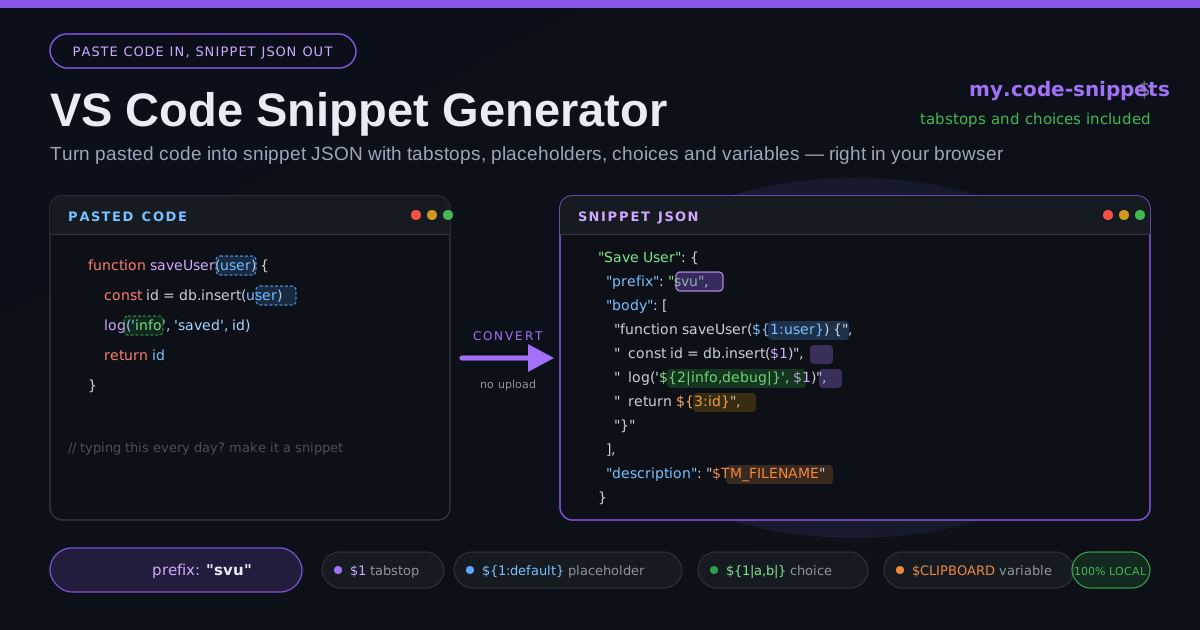
Here is a worked example, starting from a pasted test function:
function saveUser(user) {
  const id = db.insert(user);
  log('info', 'saved', id);
  return id;
}
Marking the parts that change — name, entity, level — the generator produces:
"Save User": {
  "prefix": "svu",
  "scope": "typescript,javascript",
  "body": [
    "function saveUser(${1:user}) {",
    "  const id = db.insert($1)",
    "  log('${2|info,debug|}', $1)",
    "  return ${3:id}",
    "}"
  ]
}
Type svu, press Tab, and the function appears with the cursor on user, a picklist for the log level, and a final stop on the return value. Fifteen seconds of setup replaces a block you were typing daily.
Practical Use Cases
Test Scaffolds
The classic case, and the reason snippets exist. A scaffold with tabstops for the test name, the arrangement lines, and the assertion makes test-first development a reflex. Teams that commit a shared .code-snippets file get a bonus: every test starts with the same structure, so reviews focus on logic instead of formatting.
Component Boilerplate
Component shells repeat the same skeleton every time — imports, props interface, wrapper element, export. A ${1:ComponentName} placeholder mirrored into every spot the name appears keeps naming consistent across a codebase in a way copy-paste never does.
Log Statements
Log lines are where choices shine. A log snippet with ${1|info,debug,warn,error|} enforces a consistent level vocabulary, while $TM_FILENAME stamps the originating file into every line — invaluable when reading logs from a service you have not touched in months.
Documentation Headers
Hand-typed file headers drift out of date. A header snippet built on $TM_FILENAME (plus $CLIPBOARD for pasting a ticket number) produces accurate headers for free, and the description field reminds future-you what the prefix was.
Best Practices
- Pick short prefixes you will remember. Two to four letters tied to the action — svu, tst, cmp — beat descriptive ones you have to look up.
- Make placeholder defaults valid code. ${1:user} expands to something runnable even if skipped; a default like TODO invites syntax errors into half-expanded snippets.
- Keep snippets scoped per language. A typescript,javascript scope keeps a JS snippet out of your Python suggestions and your suggestion list short.
- Escape dollar signs and braces in pasted code. Template literals are the classic silent killer — double-check anything containing ${ after pasting.
- Commit project snippets to version control. A .vscode/project.code-snippets file shares your team's conventions through the same pull request as the code they describe.
- Prefer choices over free text where values are finite — a picklist cannot be misspelled.
Try It Now
Snippets are the highest-leverage five minutes you can spend on your editor configuration. Open the VS Code Snippet Generator, paste the block you have typed for the third time this week, add tabstops and a prefix, and copy the JSON into your .code-snippets file — free, private, and entirely in your browser.
Related Tools You Might Like:
- JSON Formatter — validate and pretty-print the generated .code-snippets JSON before committing it.
- Text Case Converter — convert names into the camelCase, kebab-case, or CONSTANT_CASE your prefixes and variables need.
- Agents MD Generator — document your snippet conventions alongside build and test commands for AI coding agents.
Happy building, and may your prefixes always come to mind.
Frequently Asked Questions
Q: What is the difference between a tabstop and a placeholder?
A: A tabstop ($1) is an empty cursor position the cursor jumps to when you press Tab. A placeholder (${1:user}) is a tabstop with default content — the cursor lands pre-filled, and you either overwrite it or Tab past it to keep the default.
Q: Where should I save the generated .code-snippets JSON?
A: For snippets available in all your projects, use the user snippets directory via Preferences: Configure User Snippets. For team snippets, save a .code-snippets file in the repository's .vscode folder and commit it, adding a scope field so each snippet appears only in relevant languages.
Q: Why does my snippet break when the pasted code contains dollar signs?
A: The dollar sign is snippet syntax, so a literal ${value} from a template literal or shell command is parsed as a placeholder. Literal dollar signs must be escaped as \\$ (and closing braces as \\}) — the generator applies this escaping for you.
Q: Does the tool upload my code anywhere?
A: No. The generator runs 100% client-side in your browser: pasted code is processed locally, nothing is stored or logged, and the page keeps working offline once it has loaded.